Just sharing how I set this up — not financial, tax, or legal advice. Everything below has to be filled in with your own real details; rates, fees, and review rules change over time, so check iFAST’s official app or site for the latest before you rely on any of it.
Of all the cross-border plumbing I’ve set up, a UK account with iFAST Global Bank is one of the easier wins right now. It’s a UK-licensed digital bank (regulated by the PRA and FCA, with eligible deposits covered by the FSCS), and — unusually — a mainland Chinese resident can open it fully online with just an ID card, no passport, no trip abroad, and no fees. One account holds around nine currencies, and it pairs neatly with Wise: think of iFAST as the “bank layer” that holds money and gives you real UK account details, and Wise as the “tool layer” for moving and converting it. With options like N26 having pulled back from some markets, this is about as low as the barrier gets for an overseas bank account.
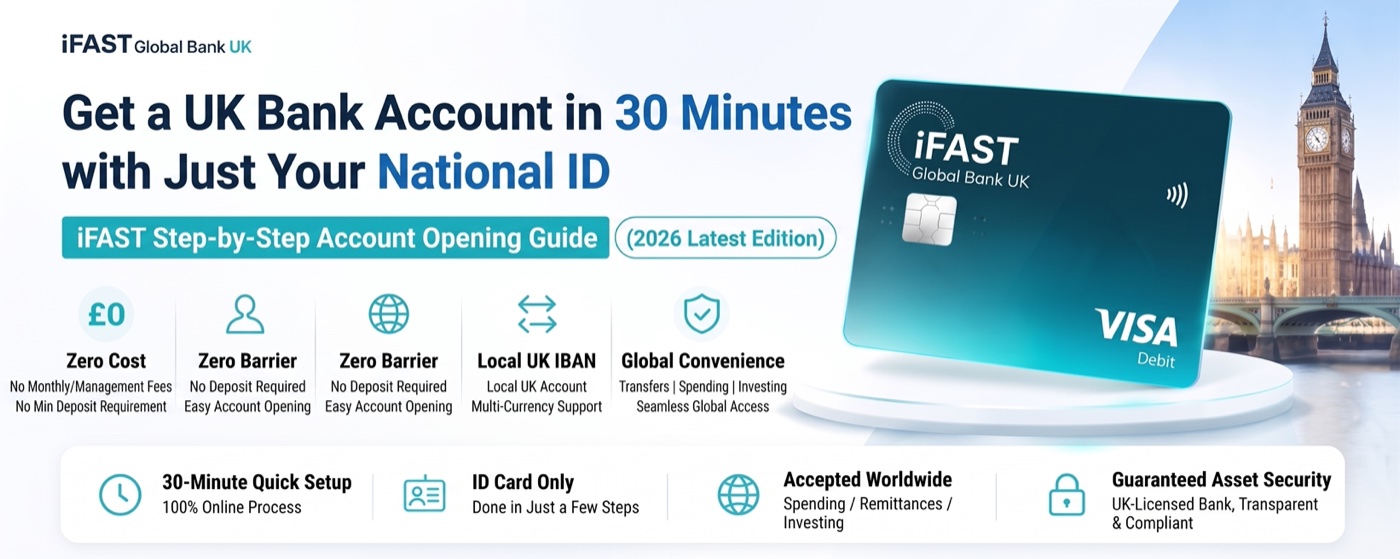
Realistic expectations: the form itself takes 20–30 minutes on your phone. Approval is a separate thing you don’t control — often 1–2 business days, sometimes up to a week, and going by what people report, occasionally hours and occasionally much longer. So “30 minutes” is the typing, not the verdict.
Who it’s for
This is worth doing if you want to fund Wise from a real bank account, don’t have a Hong Kong card, need to move money in and out of a broker, want a GBP-region account to attach to services, or just want somewhere to park idle foreign currency. It’s an account, not a wallet — and note there’s no physical card at the moment.
What to have ready
- Mainland Chinese ID card — no passport needed.
- Mainland phone number + an email you use — one that can receive codes; Gmail or Outlook are good picks.
- Proof of address, dated within 3 months — a bank or credit-card statement, or a utility bill. Use the full original PDF, not a screenshot.
- Tax Identification Number (TIN) — for a Chinese tax resident this is simply your ID card number.
- Your name and address in both Chinese and English — English in uppercase pinyin. The address you type must match your proof-of-address document exactly.
The registration, step by step
One rule that runs through all of it: fill everything in truthfully and keep it consistent. Verification is basically the bank checking that what you typed matches your documents, so consistency matters more than anything else.
Start & email. Open the sign-up page (the link is below), enter your usual email, and continue — you can do the whole thing in the app. The system emails a 6-digit code that’s valid for 10 minutes; check spam if it doesn’t arrive.
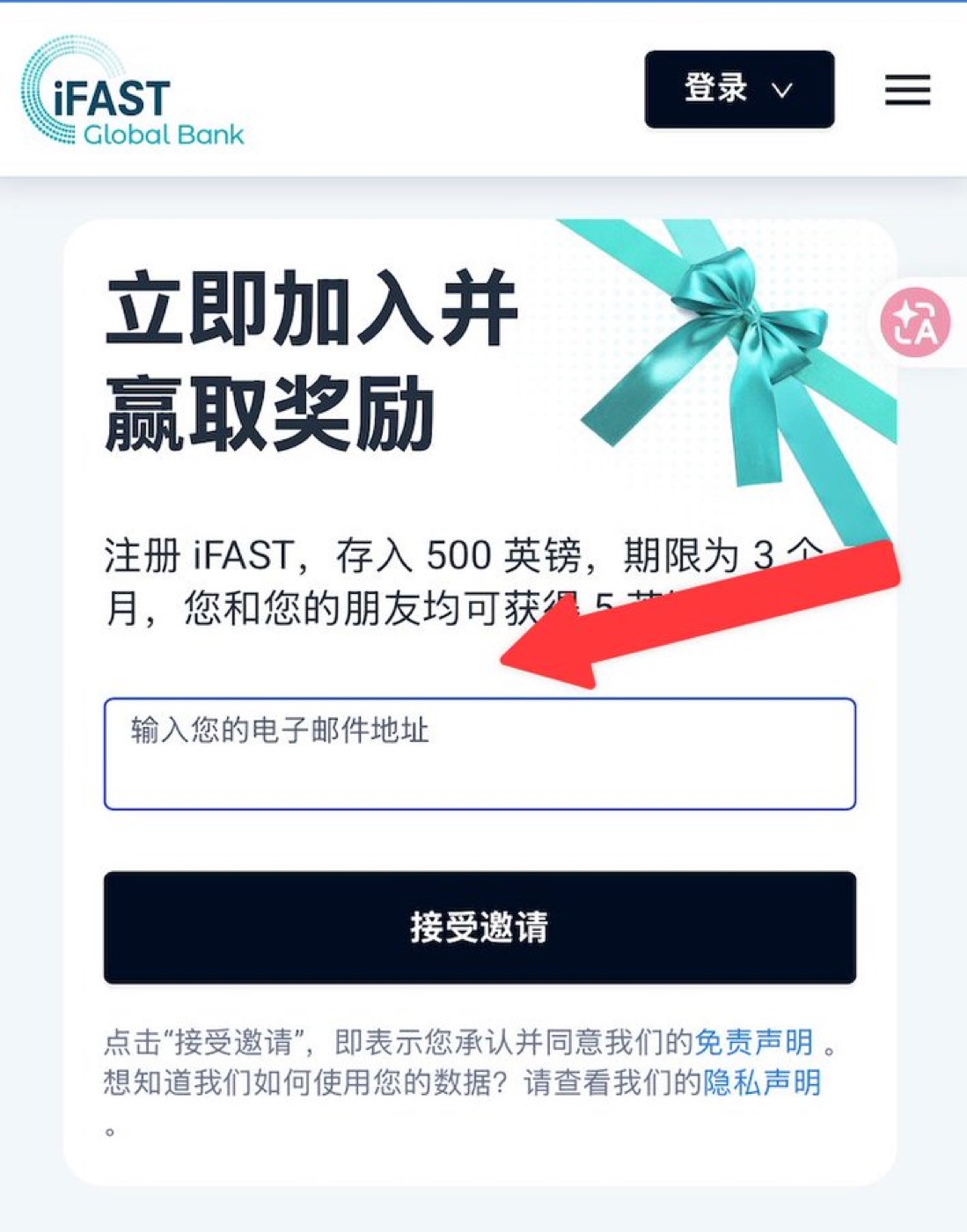
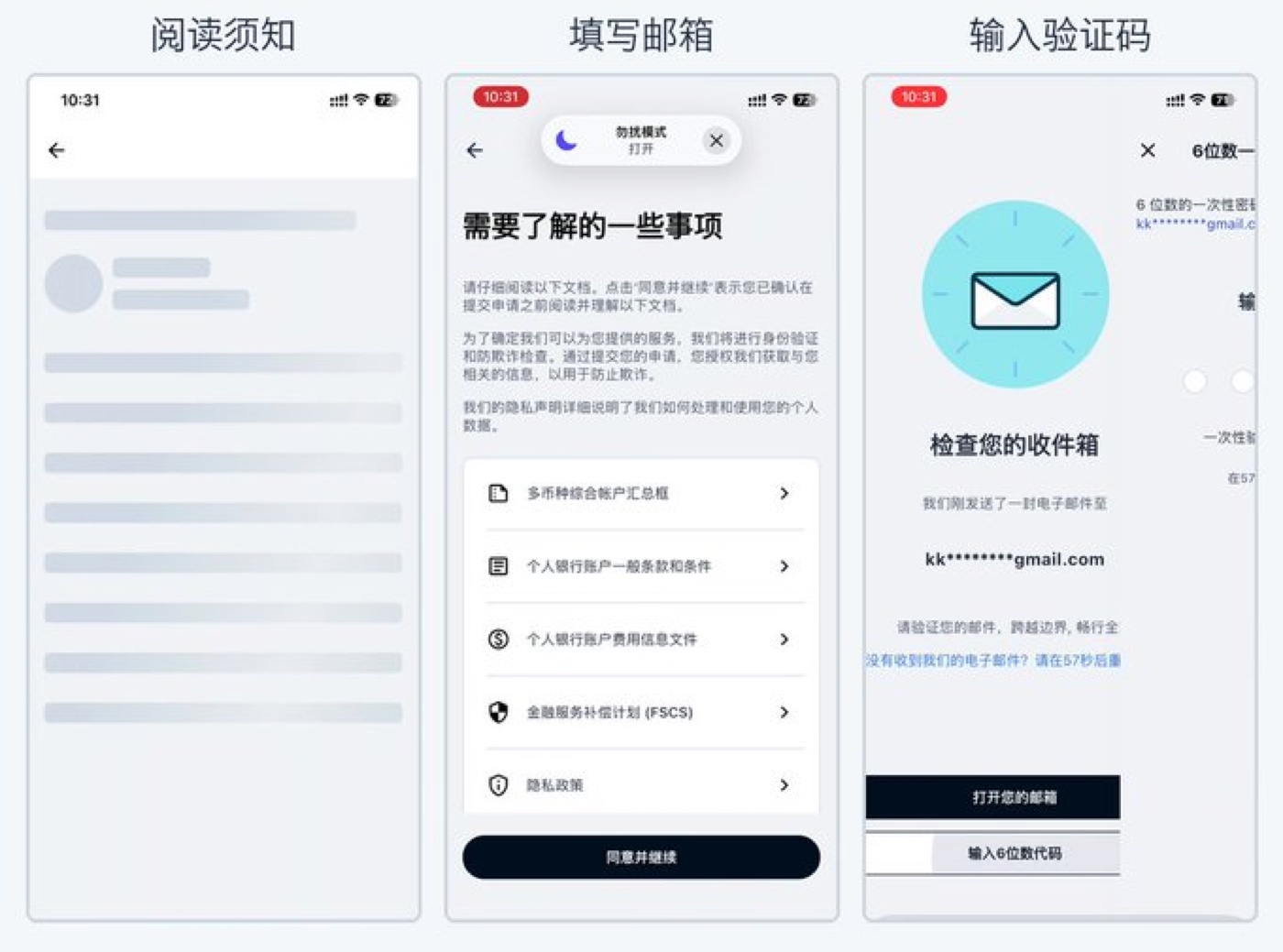
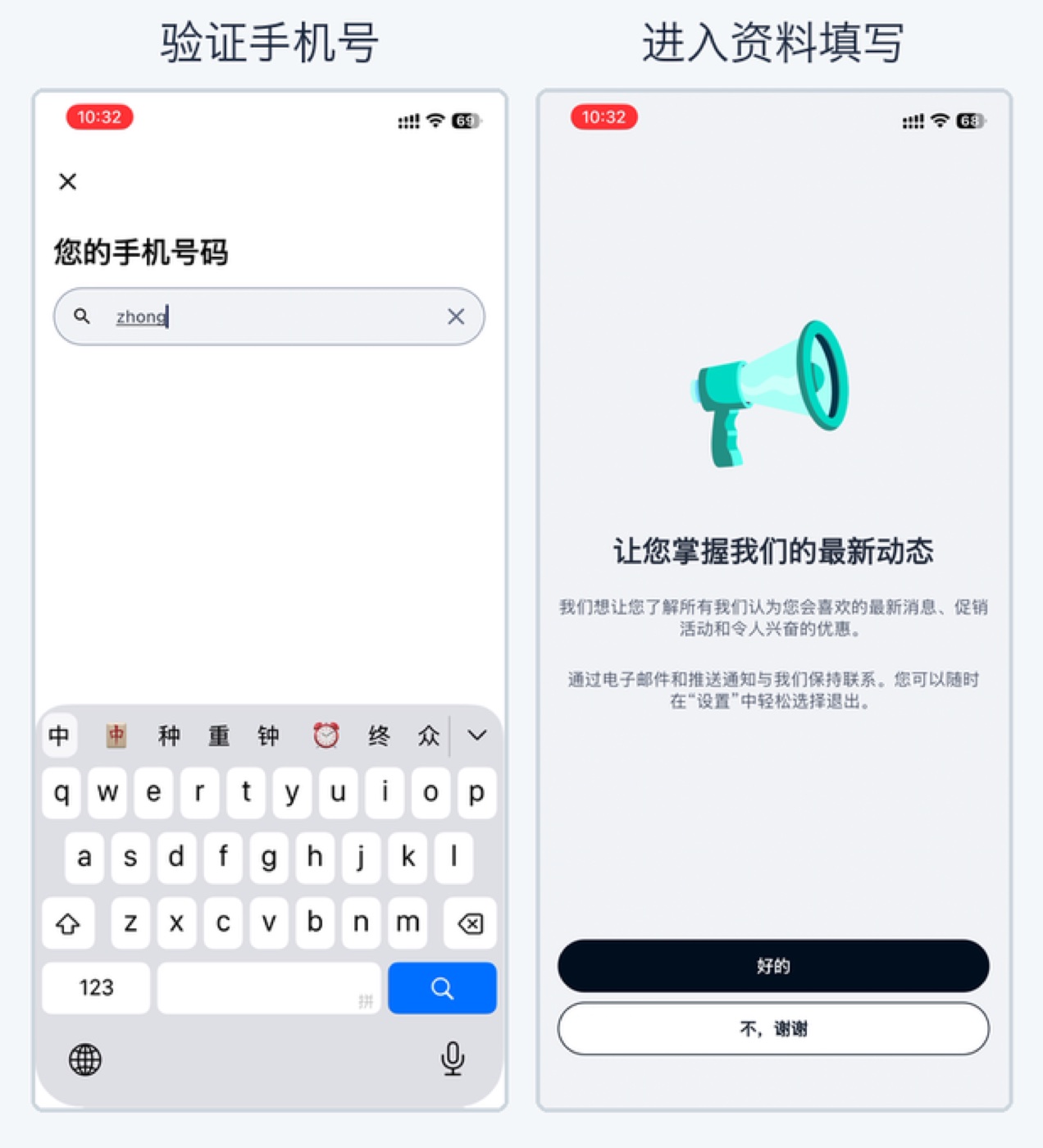
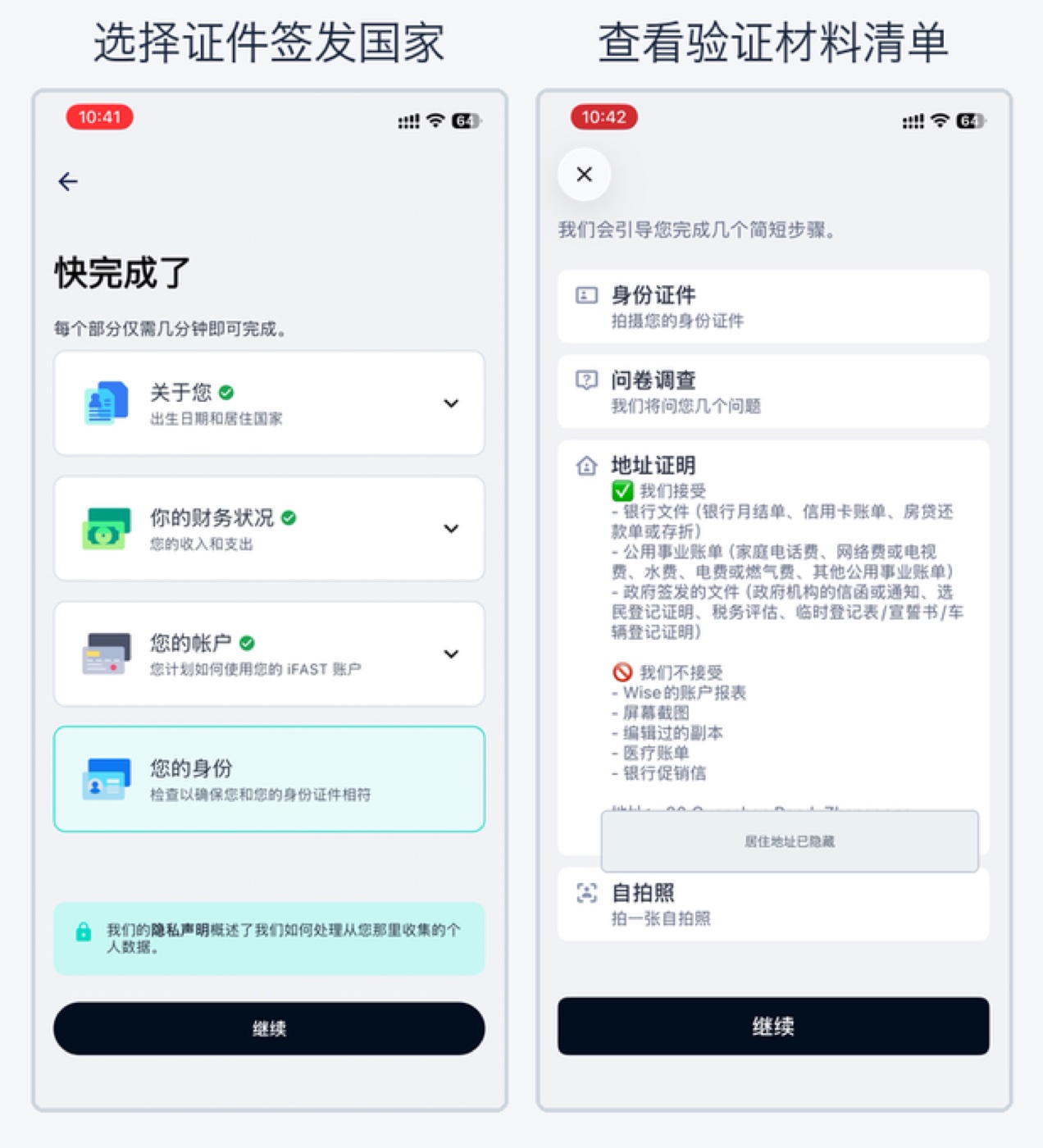
Phone & the four sections. Enter the email code, pick your phone’s country/region (mainland China, +86), and add your number. The app then walks you through four blocks in order: About you, Your financial situation, Your account, and Your identity.
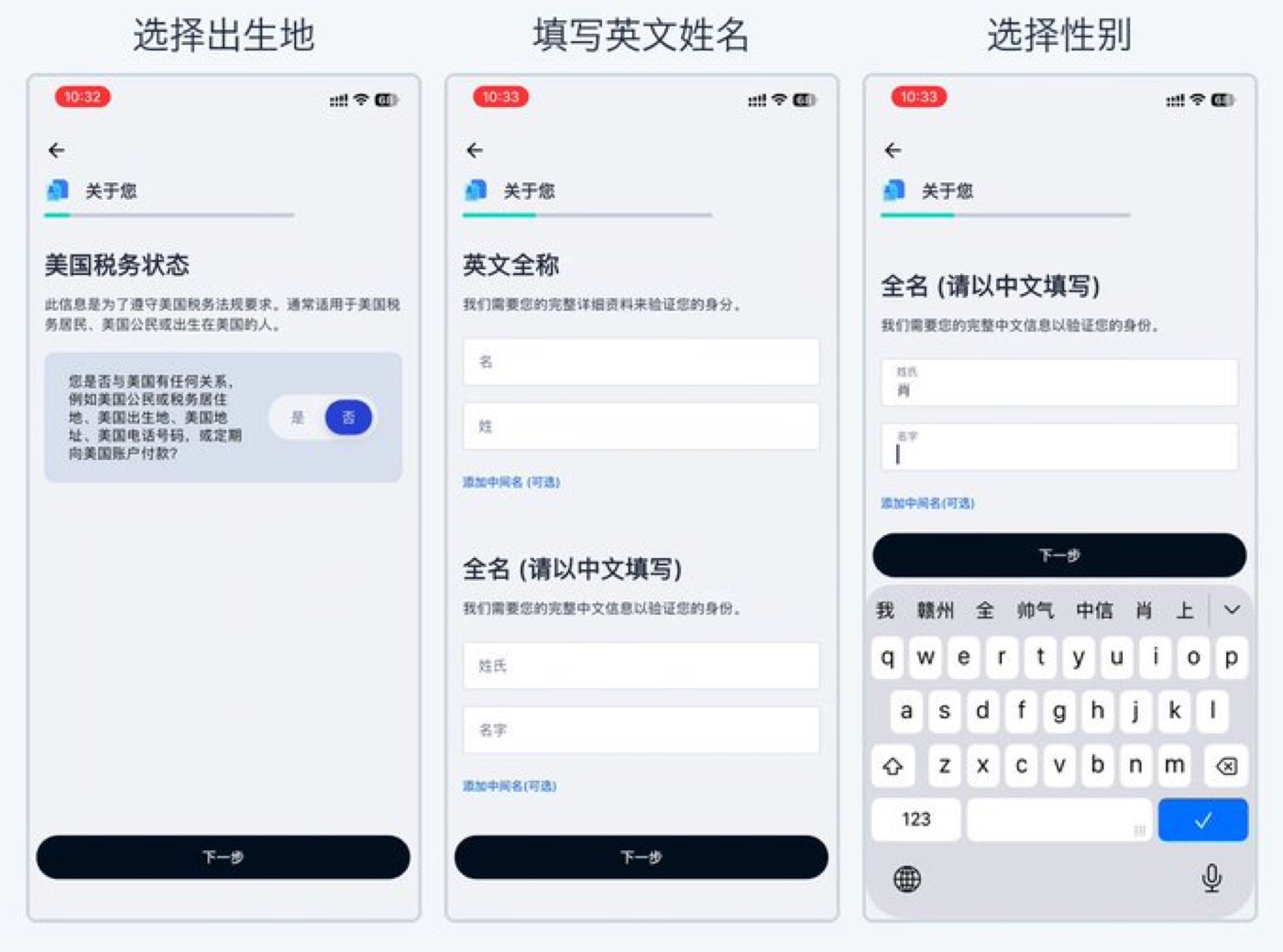
Name, birthplace, gender. Choose your country of birth, then enter your name: English given name and surname in uppercase pinyin exactly as on your ID, a middle name only if you have one, and your full Chinese name. The Chinese and English names must match the document you’ll upload later. There’s also a US tax-status question — for a mainland ID holder the answer is No.
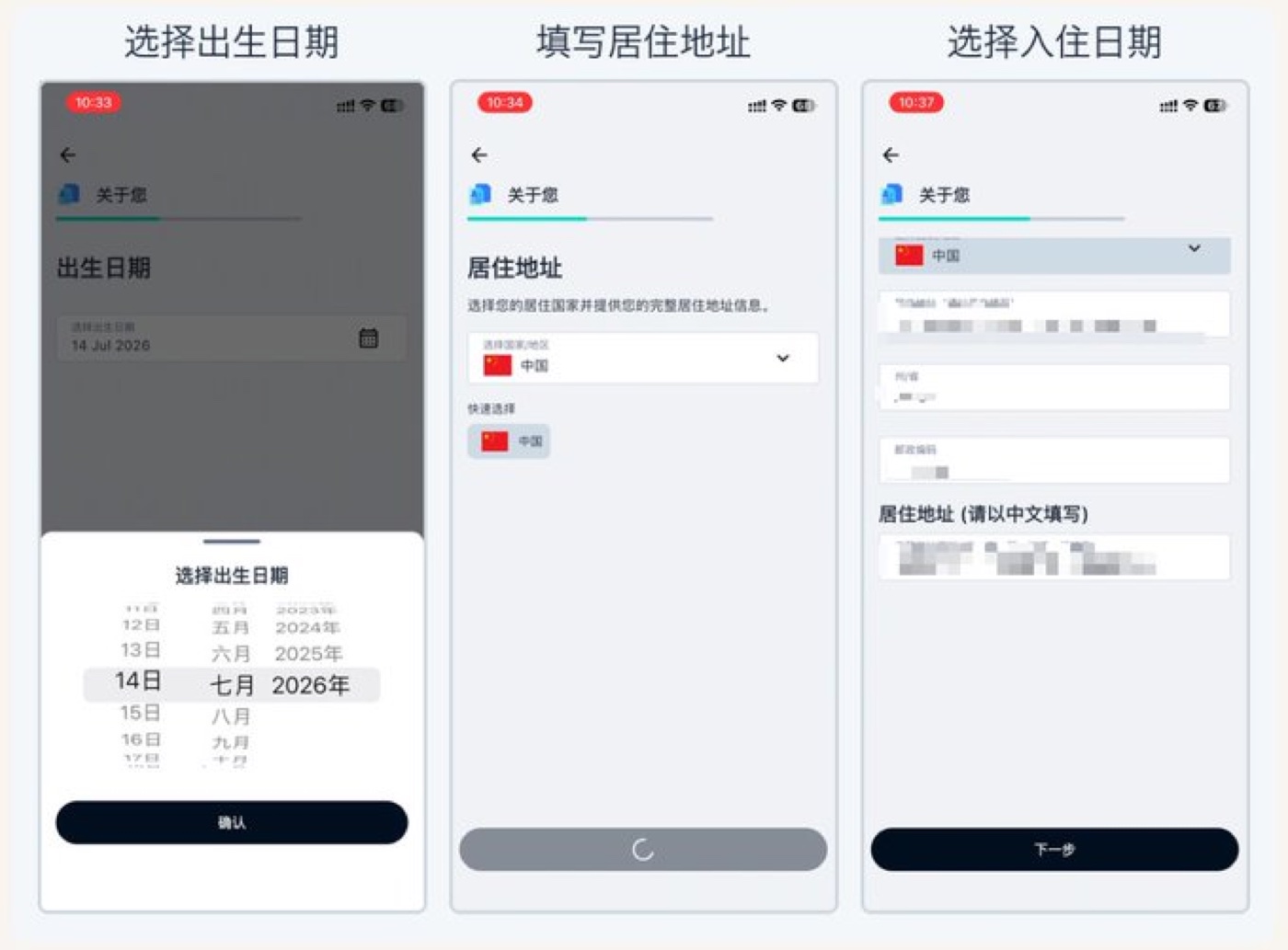
Date of birth & address. Set your birth date, then your current residential address: the English (pinyin) address plus state/province and postcode, and the full Chinese address in the “please enter in Chinese” field, then your move-in date. This address has to match your proof-of-address document word for word.
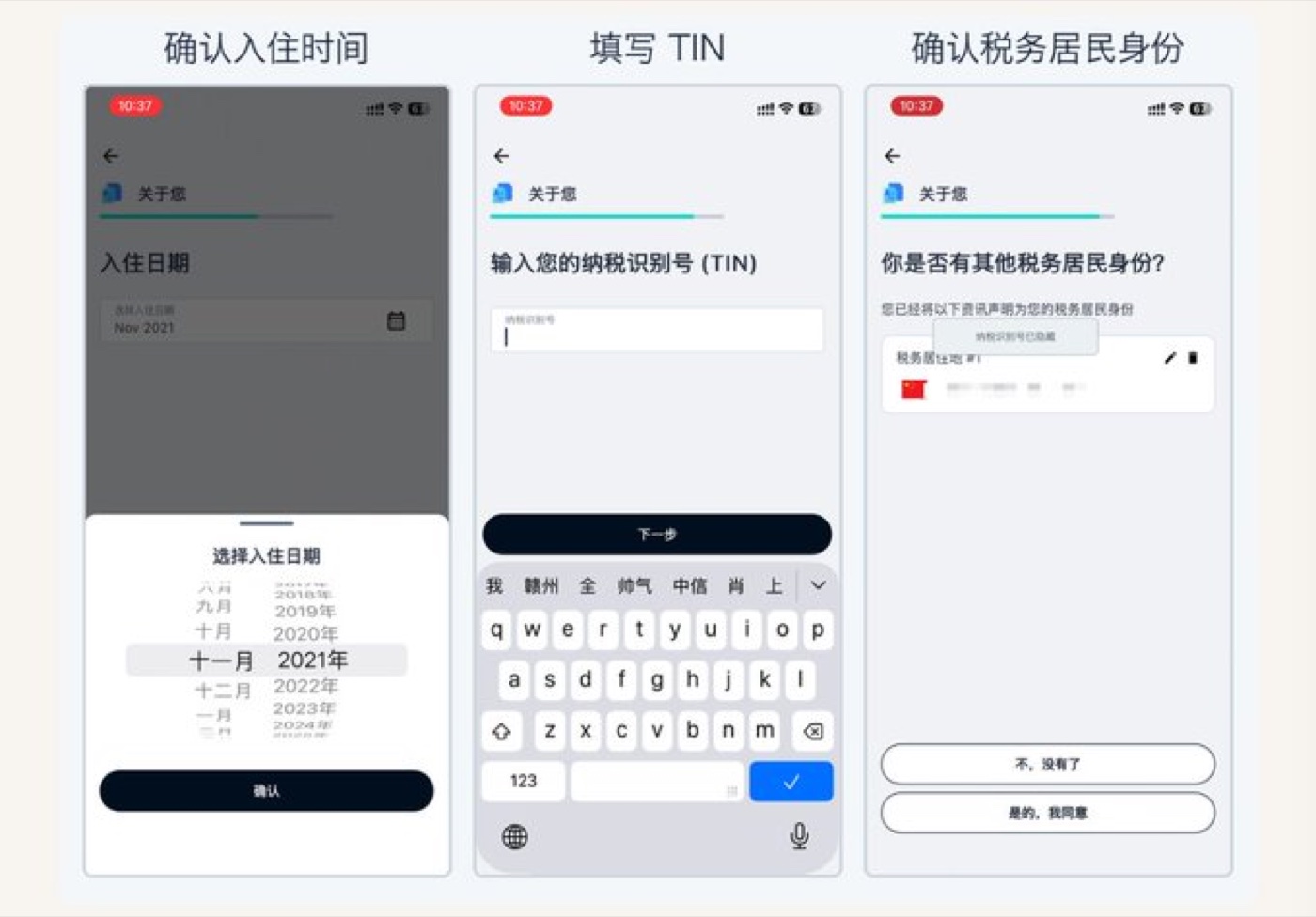
Address history & TIN. Confirm how long you’ve lived there and your address history, then enter your TIN. This is where people get stuck: for a Chinese tax resident, the TIN is just your ID card number. If asked whether you have other tax residencies, pick “No, I don’t” unless you genuinely do.
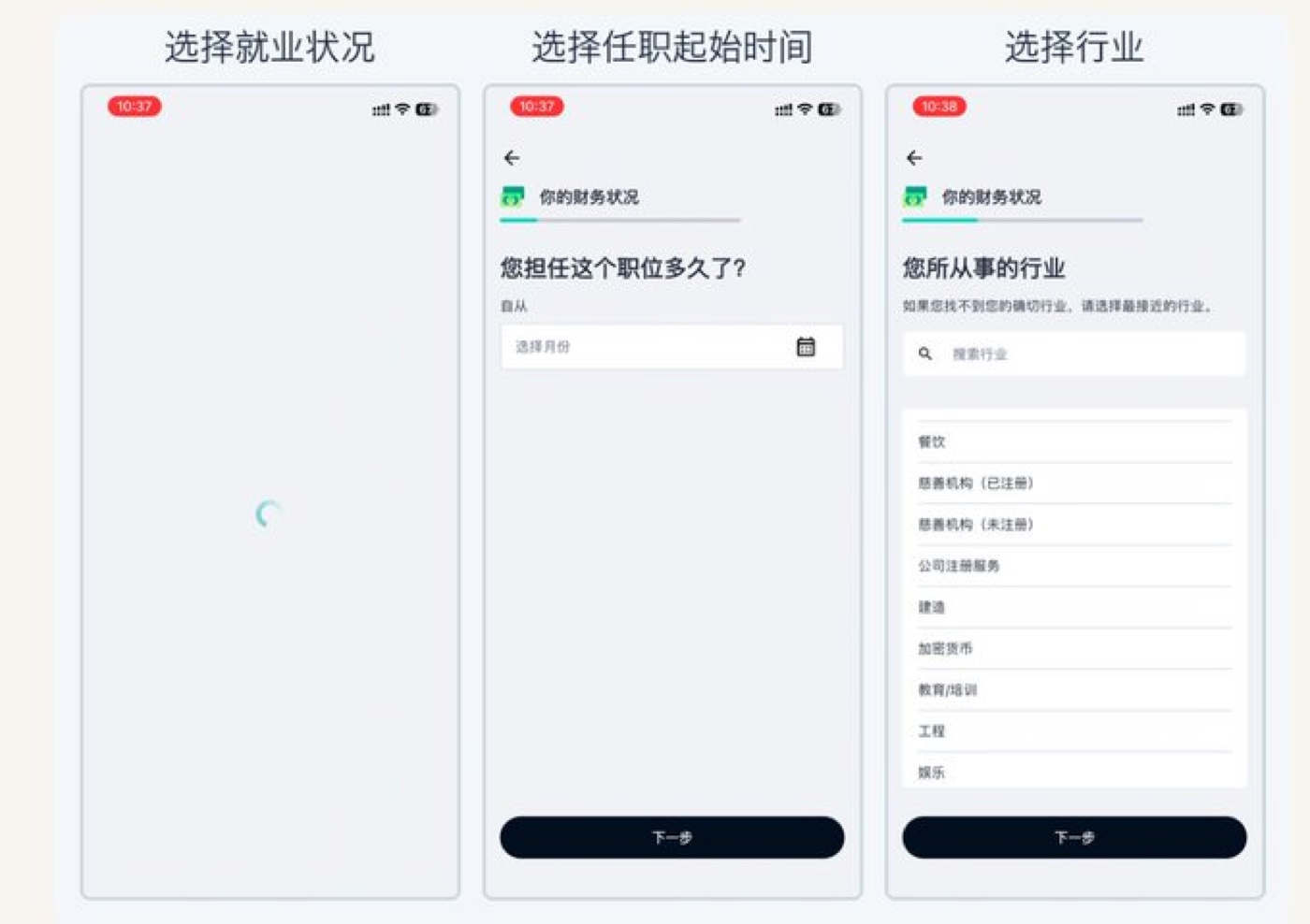
Work details. Pick your employment status — if Employed is an option for you, prefer it, since self-employed profiles are more often asked for extra documents. Then choose your start month/year and the closest industry from the list (you can search). On the next screen, choose the closest occupation and enter your company name; when it asks whether you’re affiliated with the iFAST group, most people answer No.
Income, wealth & crypto. The income-source and wealth-source screens both allow multiple selections — tick everything that applies. You’ll then be asked about crypto holdings; the page states plainly that iFAST doesn’t allow crypto-related funds to be deposited directly, so if you don’t have a real need, answer honestly (usually “No”).
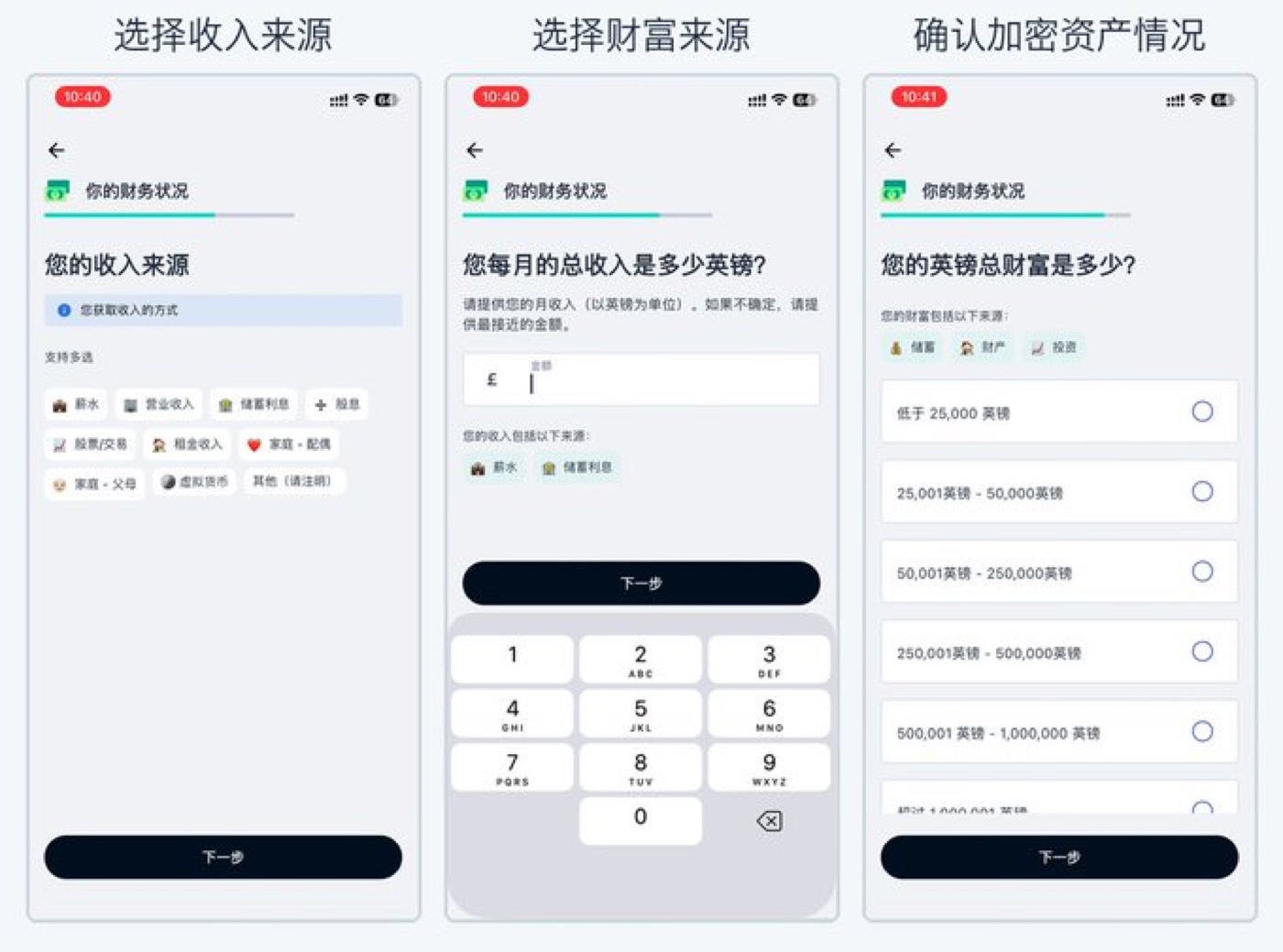
Account purpose & activity. Choose your reason for opening and your planned first-deposit range (under £5,000 / £5,000–25,000 / £25,000–100,000 / over £100,000 — most people pick the first, and it doesn’t affect approval). Then pick the main country your funds come from and your expected monthly transaction count (0–10 / 11–25 / 26–50 / 51+). Keep this realistic — if your later activity is wildly different from what you declared, it can trip risk controls.
Identity verification. Select the issuing country of your ID (China). The app lists what’s left: your ID document, a short questionnaire, proof of address, and a selfie. On proof of address, it’s specific — bank/credit-card statements, mortgage statements, utility bills, and government letters are accepted; Wise account statements, screenshots, edited copies, medical bills, and promotional letters are not.
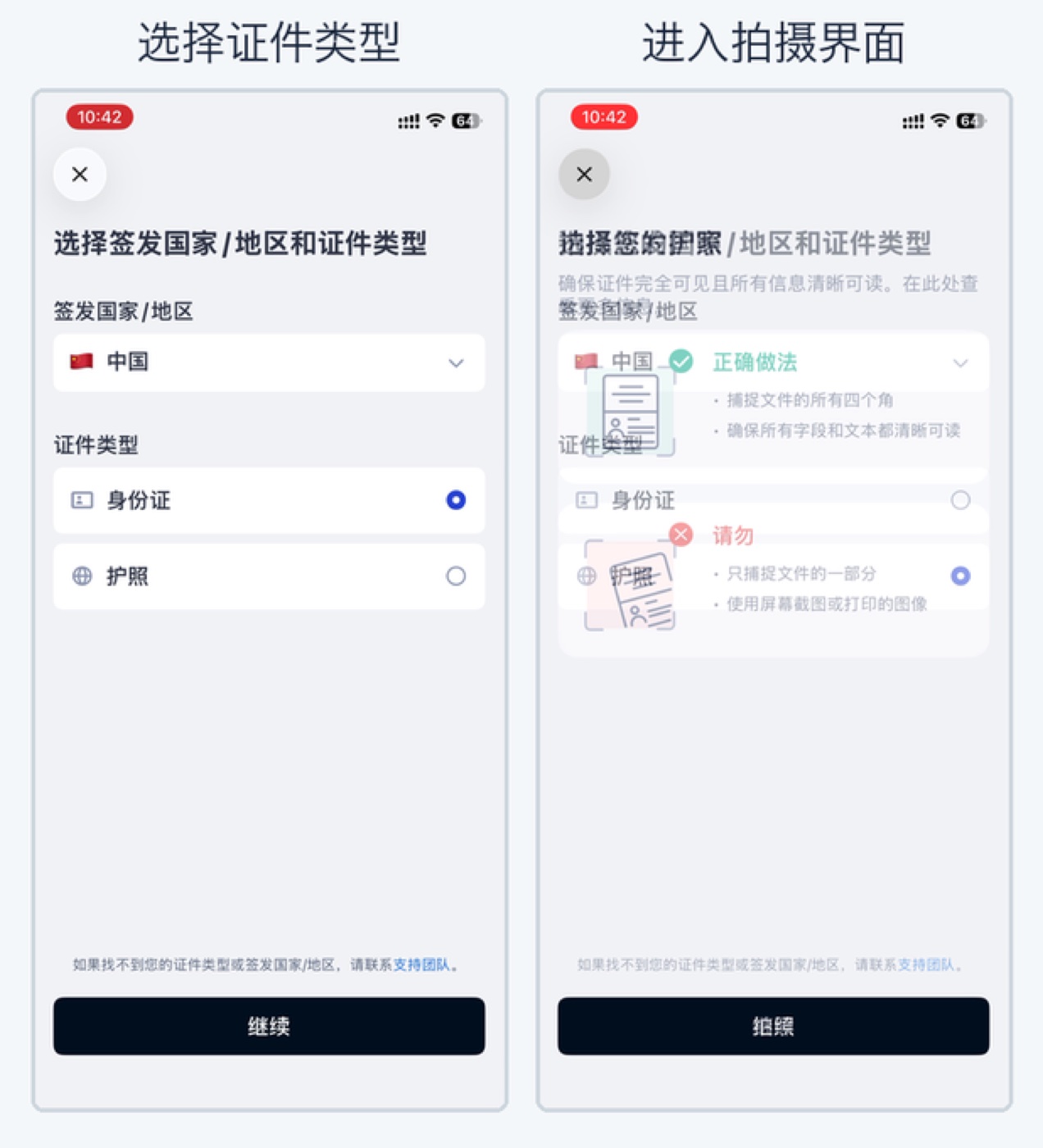
Photograph the ID. Choose ID card (or passport) and take the photo with the camera — use the physical original, good even light, all four corners in frame, text sharp. No screenshots or edited images.
Finish & wait. Complete the short questionnaire (it just re-confirms what you already entered — keep it consistent), upload the proof-of-address PDF, take the selfie, and submit. Results usually come by email in 1–2 business days, up to about 7. If you’re asked for more, check that your name, address, document validity, and photo clarity all line up — and don’t just resubmit a screenshot or an edited file. Once you get the approval email, log in with your registered email and set a password.
Once it’s open — how to actually use it
- Your account details: in the app, the top-left menu → bank details holds two sets — a UK local account (Sort Code, receives GBP, FPS is instant and free) and an international account (SWIFT/IBAN, receives multiple currencies).
- First funding: as little as ~£1 equivalent activates it, but fund it only from an account in your own name — Wise over FPS is the easiest (instant and free). Don’t route it through third-party payers, money changers, or crypto — transfers flagged as crypto-related get rejected.
- The biggest pitfalls: details that aren’t truthful or aren’t consistent, and using a screenshot for proof of address. Those account for most rejections and requests for more documents.
- Stay active: a long stretch of zero balance and zero activity can get an account closed — keep a small balance and log in now and then.
A compliance note, since this is real money crossing borders: declare the purpose of your transfers truthfully and stay within your annual foreign-exchange allowance, and remember that both China and the UK participate in CRS information exchange. For anything large, talk to a professional — this post is just me sharing a setup, not advice.
Quick answers (from people who’ve done it)
- Do I need a passport? No — a mainland ID card is enough.
- My ID address and where I actually live are in different districts. That’s fine, as long as you can provide a proof-of-address document that matches what you enter.
- Can I use a domestic bank statement as proof of address? Yes — a bank/credit-card statement works; just use the full PDF.
- Is there a physical card? Not right now.
- What’s the transfer limit? The daily transfer cap is around £5,000, which is plenty for everyday use.
- How long does review take? It varies a lot — some are approved within hours, others wait 10+ days, and a few sit much longer. Plan for 1–2 business days but don’t count on it.
- Might they ask for more documents? Yes — some people are asked for things like proof of employment. Just provide clear, consistent originals.
Signing up
You can register through this iFAST sign-up link.
A note on that link: it’s a referral link, and I don’t earn anything from it — the referrer credit goes to the original guide this walkthrough is based on. If you use it and meet iFAST’s current bonus conditions, you may still get the new-signup bonus, at no extra cost to you. It’s entirely optional and the sign-up works exactly the same without it; check the exact terms in the app, as they change.
iFAST is a real, regulated bank and its onboarding, rates, fees, and rules change over time; app screens vary by version. Fill in your own true details, follow the in-app instructions, and check iFAST’s official app or website for the current process before relying on any of this.
Leave a Reply