All guides

Every note, newest first.

BankingHow to Get Started with OKX & Web3 Wallet: The Complete Beginner-to-Pro Guide for Digital NomadsFor global digital nomads, international freelancers, and modern investors, cross-border payments and sovereign asset storage are rapidly shifting toward cryptocurrency.…Get a Hong Kong Mobile Number from HK per year with Club Sim eSIMConnectivityHow to Keep an Active Hong Kong Phone Number for HK$15/Year: Club Sim eSIM Complete GuideFor global digital nomads, international investors, and location-independent professionals, having access to a reliable, low-cost international phone number is an…How to Open a UK Monzo Bank Account as a Global Digital Nomad - The Complete Mechanics & GuideBankingHow to Open a UK Monzo Bank Account as a Global Digital Nomad: The Complete Mechanics & GuideFor global digital nomads, remote workers, and cross-border entrepreneurs, having access to Tier-1 banking rails in the United Kingdom is…Get a UK bank account in 30 minutes with just your national ID, iFAST Global Bank UK step-by-step account opening guideBankingOpen a UK Bank Account Online with Just an ID: the iFAST Global Bank WalkthroughA UK-licensed digital bank a mainland resident can open fully online with just an ID card, no passport and no…Philippines DITO eSIM promo: zero monthly fee, low-cost number preservation, perfect for SMS reception, keep your number for about 5 pesos a yearConnectivityGetting a Philippine DITO eSIM (and Keeping the Number Alive for Pennies)A cheap Philippine number that's great for receiving codes and costs about 5 pesos a year to keep alive. Full…Open your Maya account, the complete guide: one DITO mobile number plus one valid Philippine ID, with the Maya app and a virtual MastercardBankingOpening a Maya Account in the Philippines on a Foreign Passport: The Full KYC WalkthroughOne DITO number plus one passport gets you a Philippine wallet, savings account, and card. Here's the full Maya sign-up…Starryblu app promo: secure cross-border payments, regulated by MAS and PCI DSS certified, showing multi-currency balances.BankingStarryblu: A Wise-Style Wallet That Let Me Pay Like a Local in ChinaA Wise-style, MAS-licensed multi-currency wallet from the Panda Remit group — with a Mastercard and, as a U.S. nomad, the…Xesim 实体卡与包装盒,外观和普通 SIM 卡一样ConnectivityXesim: eSIM for Phones That Still Have a Physical SIM SlotXesim is a physical SIM card that gives eSIM powers to phones that still have a SIM slot — store…ResourcesWelcome — just sharing my notesHi, and welcome to NomadStack. This is a personal site where I share notes from living and working across borders…Wise: one of the most important tools for digital nomads — global accounts, the real exchange rate, the Wise card, and earning interest on USD.BankingWise: An Essential Tool for Every Digital NomadHow U.S. digital nomads and cross-border families use Wise to move money at the real mid-market rate — cutting transfer…

Blog

  • How to Get Started with OKX & Web3 Wallet: The Complete Beginner-to-Pro Guide for Digital Nomads

    How to Get Started with OKX & Web3 Wallet: The Complete Beginner-to-Pro Guide for Digital Nomads

    For global digital nomads, international freelancers, and modern investors, cross-border payments and sovereign asset storage are rapidly shifting toward cryptocurrency. Whether you need to receive international client retainers in USDT without intermediary wire deductions, diversify your net worth into Bitcoin, or participate in the burgeoning decentralized Web3 ecosystem, understanding how to navigate the cryptocurrency landscape has become an essential modern literacy.

    While the decentralized blockchain underpins all crypto assets, interacting directly with raw smart contracts poses high technical friction and steep security risks for beginners. This is where Centralized Exchanges (CEX) step in: acting as the modern banks and prime brokerages of the digital economy, they provide compliant fiat onramps, high liquidity, and customer safeguards. Among the world’s premier tier-1 crypto platforms, OKX stands out with over 50 million global users, an industry-leading user interface, and the world’s most powerful integrated Web3 self-custody wallet.

    In this definitive master guide, I will take you from zero to expert: covering how to register with a lifetime 20% trading fee discount, how to safely convert fiat into stablecoins via C2C without triggering banking freezes, how to buy your first fractional Bitcoin with zero fees, and how to configure cold-storage security for your OKX Web3 wallet.
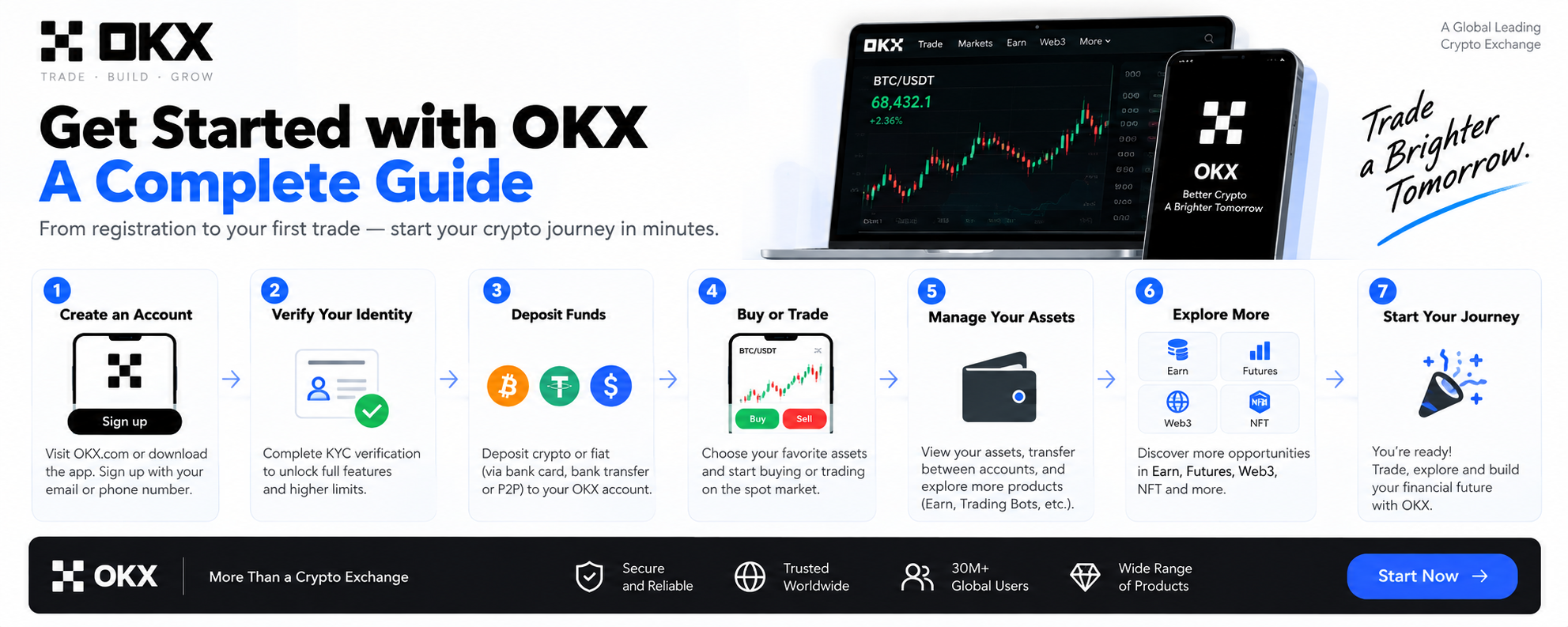
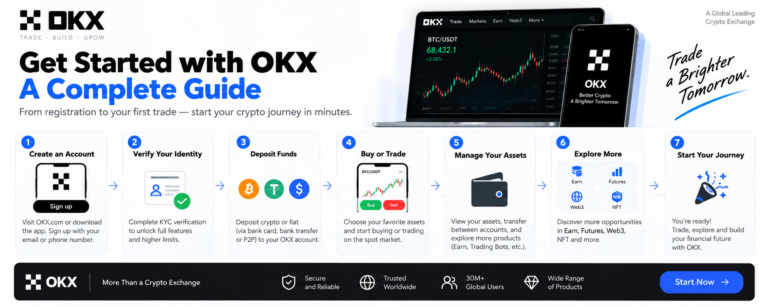
    Get Started with OKX: A Complete Guide from registration to Web3 storage
    The complete OKX onboarding journey: from account registration to your first crypto trade and Web3 cold backup.

    Core Concepts Every Nomad Must Know Before Starting

    1. What is USDT and Why is it the “Universal Chip”?

    Before making any trades, you must understand USDT (Tether). Unlike volatile cryptocurrencies like Bitcoin or Ethereum, USDT is a stablecoin pegged 1:1 to the US Dollar. Tether maintains reserves in US Treasury bills and cash equivalents to guarantee that 1 USDT can always be redeemed for $1.00 USD.

    Think of a centralized exchange like a global financial playground: USDT is the universal chip. Purchasing cryptocurrencies directly with various national fiat currencies often incurs poor conversion rates and wide bid-ask spreads. The standard, cost-efficient path is always: Local Fiat Currency → Convert to USDT → Trade USDT for Bitcoin, Ethereum, or other assets.

    2. The Dual-Engine Architecture: Exchange (CeFi) vs. Web3 Wallet (DeFi)

    Inside the OKX mobile application, you will notice a toggle at the very top:

    • Exchange (Left Tab): The centralized custodial exchange. OKX manages the internal ledger, matches orders with lightning speed, and provides fiat on/off ramps (C2C trading).
    • Web3 Wallet (Right Tab): A decentralized, non-custodial software wallet. You own the private keys and 12-word seed phrase. OKX cannot freeze, view, or control your funds here. It is your passport to decentralized finance (DeFi), NFT marketplaces, cross-chain swaps, and token airdrops.
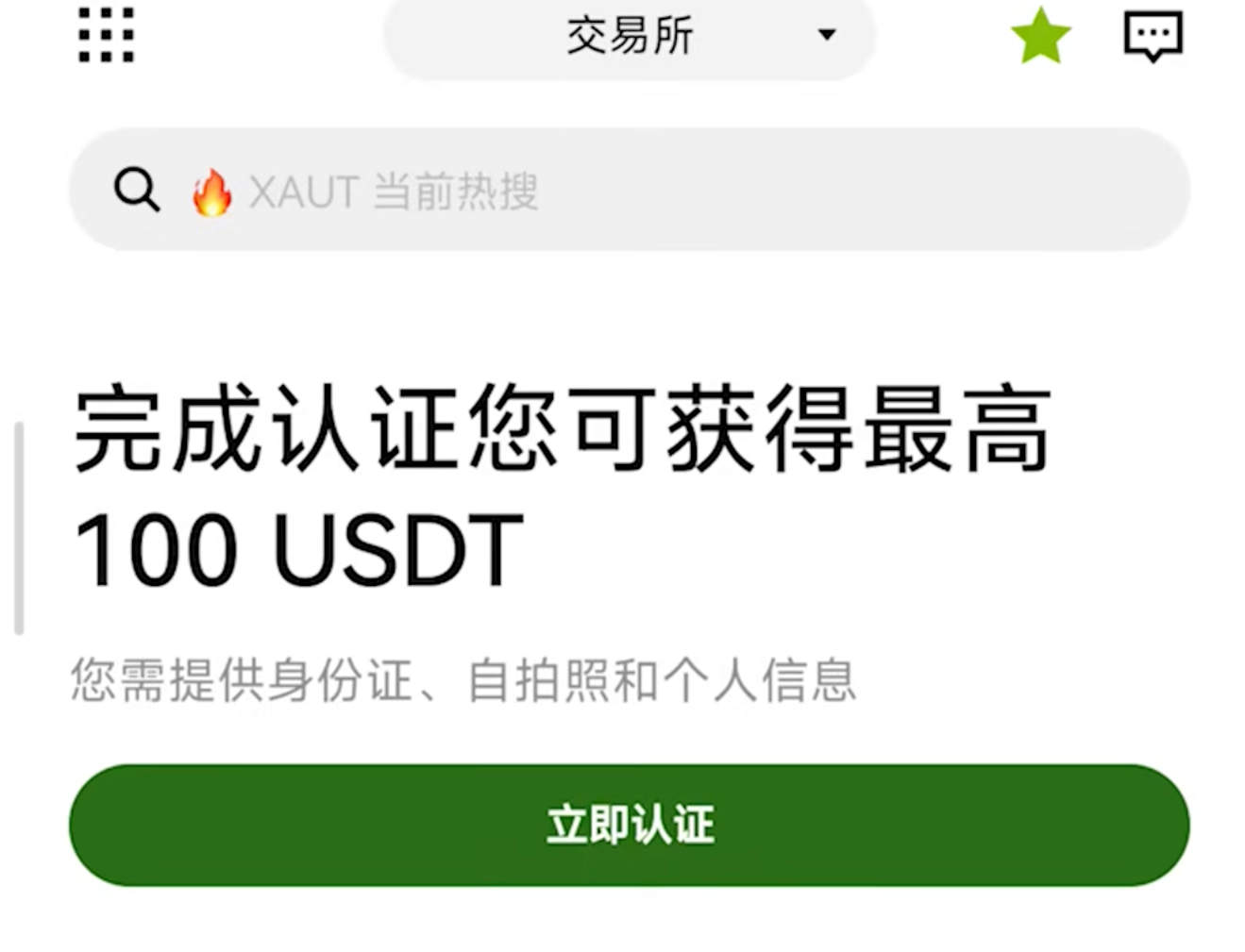
    OKX App interface showing Exchange and Web3 Wallet tabs
    The dual interface: Centralized Exchange on the left, Decentralized Web3 Wallet on the right.

    Part 1: Account Registration & The 20% Lifetime Fee Rebate

    The single most expensive mistake beginners make is clicking directly on the OKX homepage to sign up without an affiliate link. OKX’s system architecture operates on a strict referral commission model: if you sign up cold, you pay 100% standard trading fees. If you register through an authorized partner link, you automatically receive a lifetime 20% rebate on all trading fees.

    Over months and years of dollar-cost averaging and portfolio rebalancing, a 20% fee rebate translates into hundreds or thousands of dollars saved.

    1. Use the Verified Discount Link: Access the official registration portal via OKX 20% Rebate Registration (Referral Code: OY778).
    2. Select Your Country/Region: Select your true country of legal residence. For Chinese mainland residents, choose “China” (OKX fully supports mainland user identity verification).
    3. Email Selection (Pro Tip): Always register using an international email provider — Gmail or Outlook is highly recommended. Domestic email providers often trigger aggressive spam filters or deliver OTP codes with delays.
    4. Enter 6-Digit OTP: Retrieve the one-time verification code sent to your email, establish a high-entropy password, and enable a Passkey (using Touch ID, Face ID, or your device PIN) for phishing-proof security.
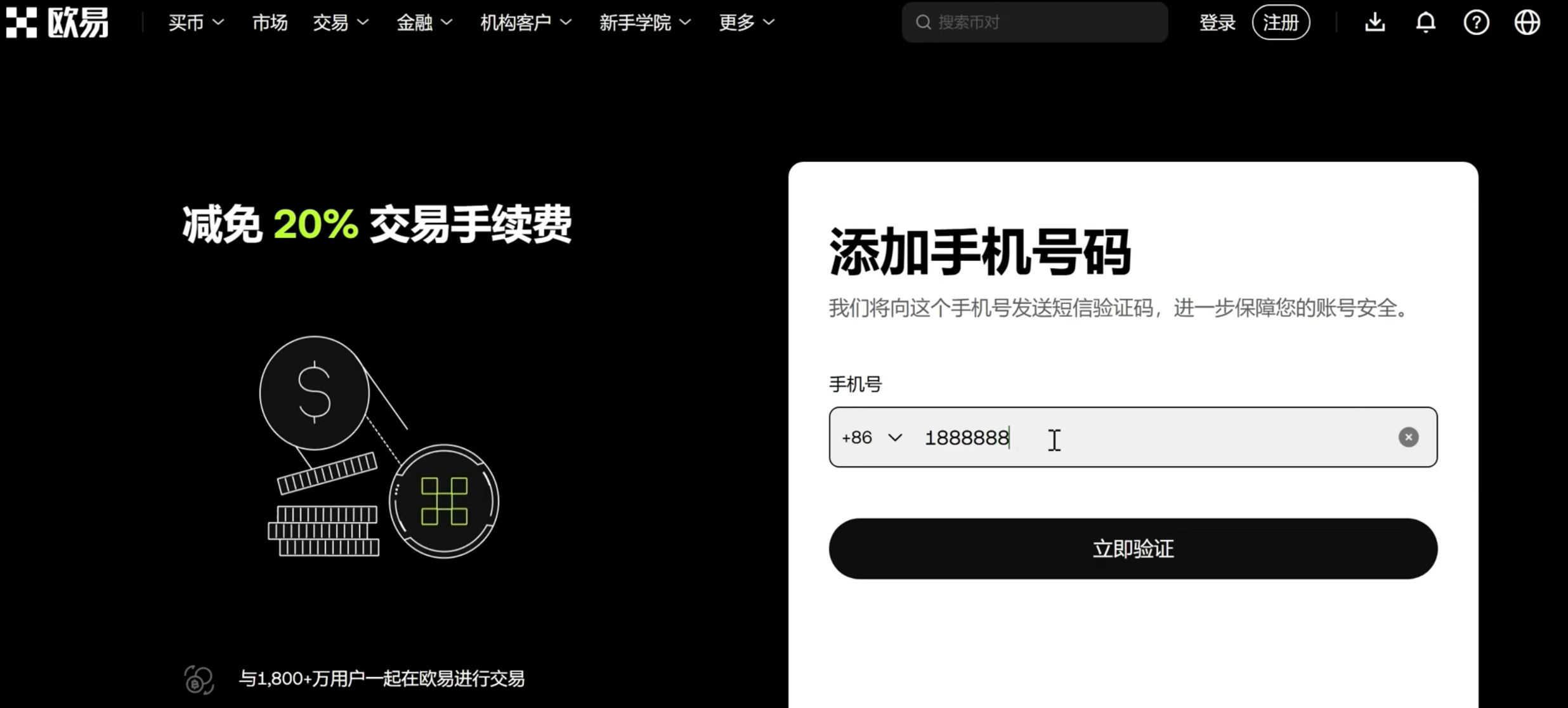
    OKX Official Web Registration Page
    The official OKX registration portal with referral discount parameters enabled.

    Part 2: Downloading the Official App & Regional Store Bypass

    While basic account management is available on desktop, real-time trading, biometric authorization, and Web3 interactions require the mobile application.

    The iOS App Store Solution

    Apple restricts cryptocurrency exchange applications within certain national App Stores (such as Mainland China). If searching for “OKX” yields zero official results, your Apple ID region is restricted.

    The Fix: Switch your App Store to a non-restricted regional Apple ID. Taiwan and South Korea Apple IDs are the most reliable options because they feature zero crypto app restrictions and support both OKX and countless Web3 ecosystem dApps. Once you switch accounts in the App Store, search “OKX” and download the official client immediately.
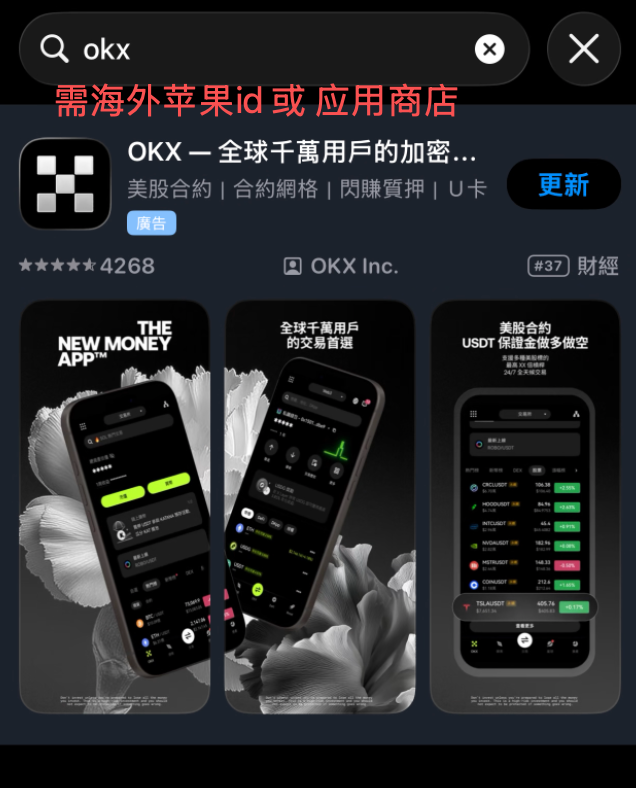
    Search OKX on overseas Apple App Store
    Search and install the official OKX app using an overseas regional Apple ID.

    Android Installation

    Android users can download directly from the Google Play Store or download the official, cryptographic signed APK file directly from the official OKX.com website.

    Part 3: Identity Verification (KYC) & Compliance Tips

    Under international Anti-Money Laundering (AML) standards, identity verification is mandatory before depositing fiat or transacting on C2C desks. Unverified accounts cannot withdraw funds or execute peer-to-peer trades.

    1. Open the OKX app, tap the user icon on the top left, and select “Identity Verification”.
    2. Select your document type: Mainland Chinese residents can select National ID Card; international nomads can select Passport.
    3. Photograph the front and back of your document clearly, ensuring zero glare or obscured corners.
    4. Complete the automated 3D facial recognition scan. Automated clearance typically takes under 60 seconds.
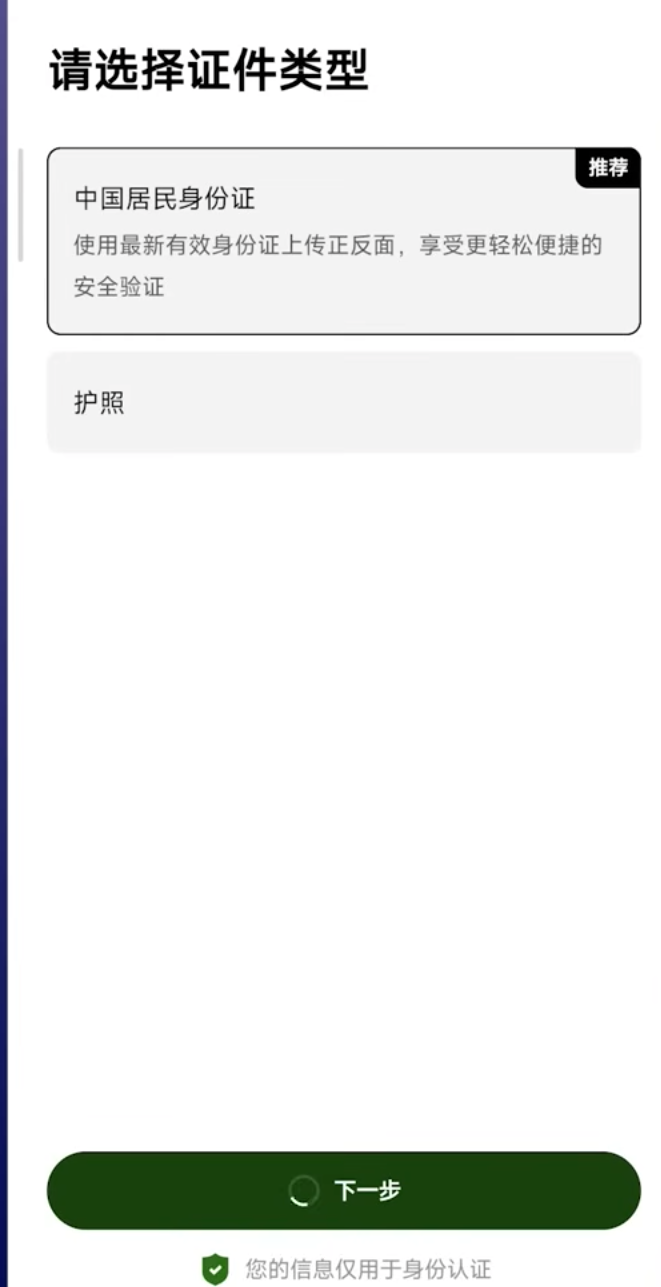
    Select ID document type in OKX App
    Choose your identity document type for instant automated verification.
    Facial liveness verification in OKX App
    Complete the rapid 3D facial liveness scan.

    Pro Tip for Video Verification Upgrades: Standard verification grants a 20,000 RMB C2C limit. If you wish to unlock higher transaction tiers, OKX will ask for a short recorded video selfie. You must turn off your VPN/proxy during this video scan, as active proxy nodes create geographic telemetry conflicts that trigger network error warnings.

    Part 4: C2C Fiat Onramp & The Anti-Freeze Survival Playbook

    To convert your local fiat currency into USDT, navigate to the homepage and tap “Deposit” → “C2C Trading”. In C2C (Customer-to-Customer) trading, OKX acts as an escrow guarantor: the seller’s crypto is locked in smart contract escrow the moment you place an order, guaranteeing that your funds are safe as long as you follow platform rules.
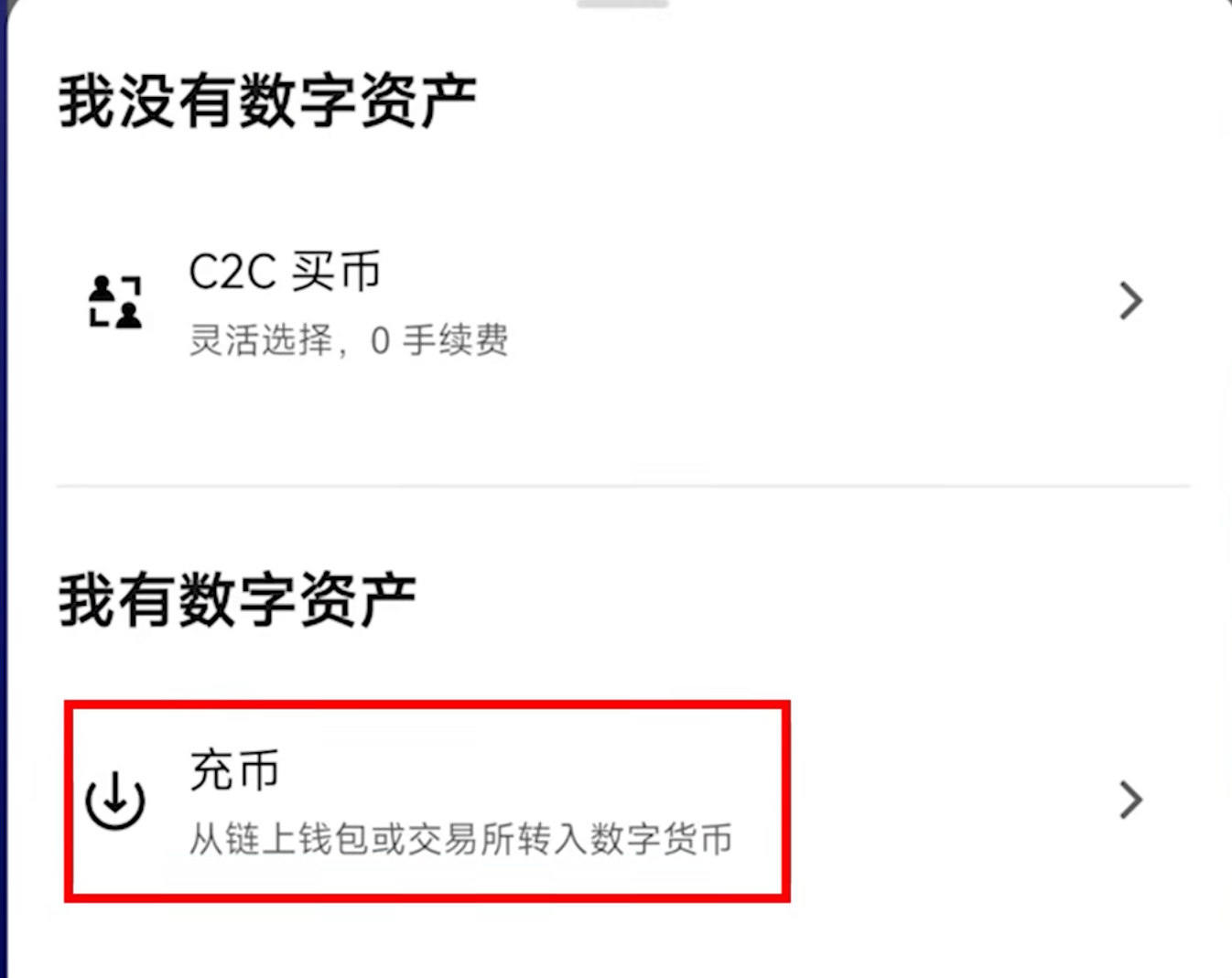
    OKX C2C trading entry screen
    Access C2C trading with zero platform service fees.

    The Three Golden Rules of Merchant Vetting

    1. Always Use the “Custom Selection” (自选区): Never click “Express / Quick Match”. The Express tab pairs you algorithmically, often matching you with newer or lower-reputation merchants. The Custom Selection tab lets you inspect merchant track records with full transparency.
    2. Audit the 3 Quality Indicators: Prioritize merchants with: (a) Thousands of completed orders, (b) A 30-day completion rate of 98% or higher, and (c) Verified V-merchant or “Beginner Friendly” badges.
    3. Payment Channel Isolation: When paying via Alipay, WeChat Pay, or bank transfer, use a secondary payment account rather than your primary daily livelihood account. Segregating trading funds from daily living expenses is standard operational hygiene.
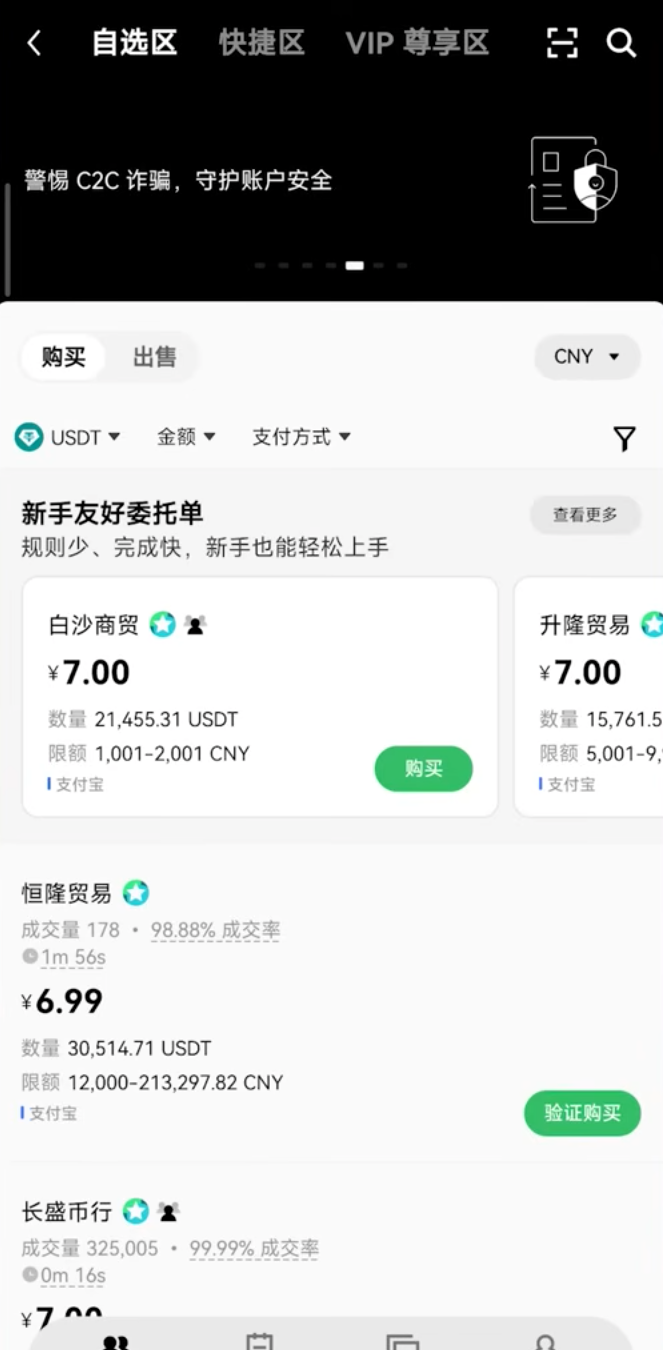
    OKX C2C Custom Selection Merchant List
    Inspect order volumes, completion rates, and merchant certification badges.

    The Fatal Mistake: Transfer Remarks

    NEVER write words like “USDT”, “OKX”, “Bitcoin”, “Crypto”, or order numbers in the payment transfer remarks. Banking and mobile payment algorithms constantly scan transaction remarks for crypto-related keywords. Writing any crypto terminology will immediately trigger anti-fraud freezes on both your account and the merchant’s account. Leave the remark completely blank.

    Once you transfer the exact amount, take a screenshot of your payment receipt, return to the OKX app, and tap “I Have Paid”. The merchant will verify receipt of funds on their end and release the escrowed USDT directly into your Funding Account.

    Part 5: Buying Your First Crypto: Convert (0 Fee) vs. Spot Market

    Once you hold USDT, you have entered the global crypto market. You can purchase Bitcoin, Ethereum, or any supported asset. Remember: Bitcoin is divisible down to 8 decimal places (0.00000001 BTC = 1 Satoshi). You do not need $60,000+ to own Bitcoin; you can purchase $10 or $50 worth of Bitcoin at exact market proportions.

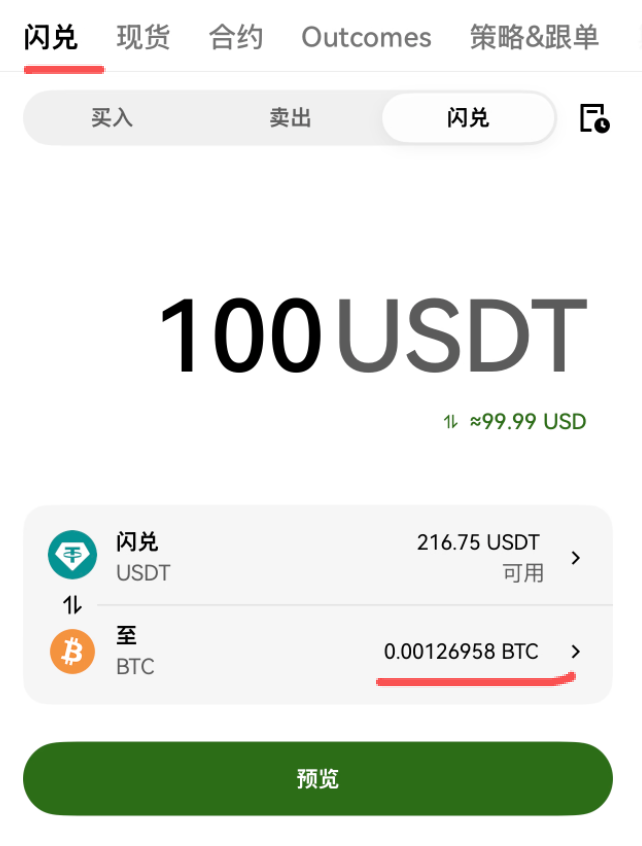
    Option A: Instant Convert / Flash Swap (Beginner Friendly, 0 Fees)

    For absolute beginners, navigating raw order books can be intimidating. OKX provides a built-in Convert (闪兑) feature:

    • Tap “Trade” → “Convert”.
    • Select “From USDT” and “To BTC”.
    • Input your amount (e.g. 100 USDT).
    • Click “Preview Quote” and confirm. There are zero transaction fees, and your BTC arrives in your account instantly.
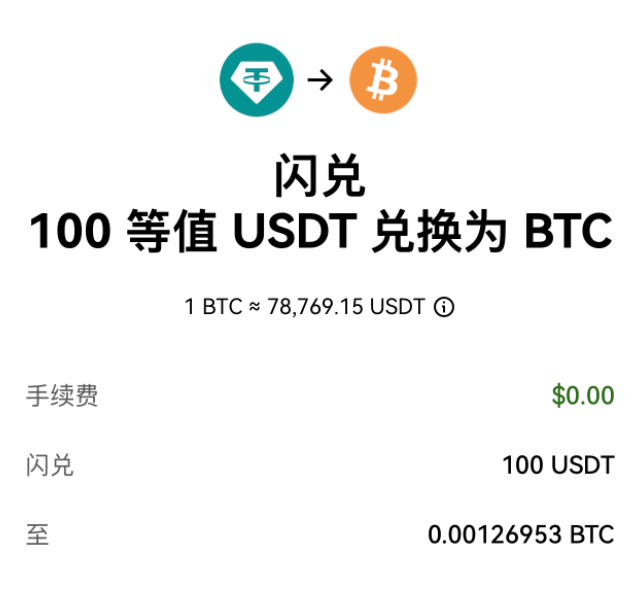
    OKX Convert Flash Swap interface
    The zero-fee Convert interface: instant execution without order book complexity.

    Option B: Spot Trading (Standard Market Orders)

    When you are ready to trade on the open market, navigate to the Spot (现货) tab:

    • Select the BTC/USDT trading pair.
    • Choose your order type: Market Order executes immediately at the current best available price; Limit Order allows you to specify a target price and waits for the market to fill it.
    • Enter your purchase amount and tap “Buy BTC”.
    Select Spot Trading mode in OKX
    Select Spot trading to own the underlying asset outright. Avoid Futures and Leverage as a beginner.

    Golden Rule for Beginners: Stay strictly within the Spot market. Ignore high-leverage products like Futures, Contracts, and Options, which are designed for professional hedgers and carry catastrophic liquidation risks.

    Part 6: On-Chain Transfers & The “Courier” Network Rule

    When transferring crypto to an external wallet or another exchange (such as transferring USDT between OKX and Binance), you will use the Deposit / Withdraw function. Understanding blockchain networks is vital to protecting your capital:

    • The Courier Analogy: Blockchains are like competing postal courier networks (TRC20, ERC20, Arbitrum, Solana). The sender and the receiver must select the exact same network. If you send USDT over TRC20 to an ERC20 address, your funds will vanish into an unrecoverable blockchain void.
    • Network Recommendation: For moving USDT, TRC20 (Tron) remains the global industry favorite due to $1–$2 transfer costs and sub-minute confirmations. For Bitcoin transfers, use the native Bitcoin network.
    • Gas Fees: Every on-chain transfer requires a network fee (Gas) paid to decentralized validators. This fee fluctuates based on real-time network congestion.

    Part 7: Creating & Cold-Storage Securing Your OKX Web3 Wallet

    The famous crypto adage states: “Not your keys, not your coins.” While keeping funds on OKX Exchange is convenient for trading, holding substantial wealth long-term requires self-custody. OKX’s integrated Web3 Wallet is one of the most powerful self-custody multi-chain wallets in the industry.

    Toggle the top switch to “Web3 Wallet” and select “Create Wallet” (do not choose Import).
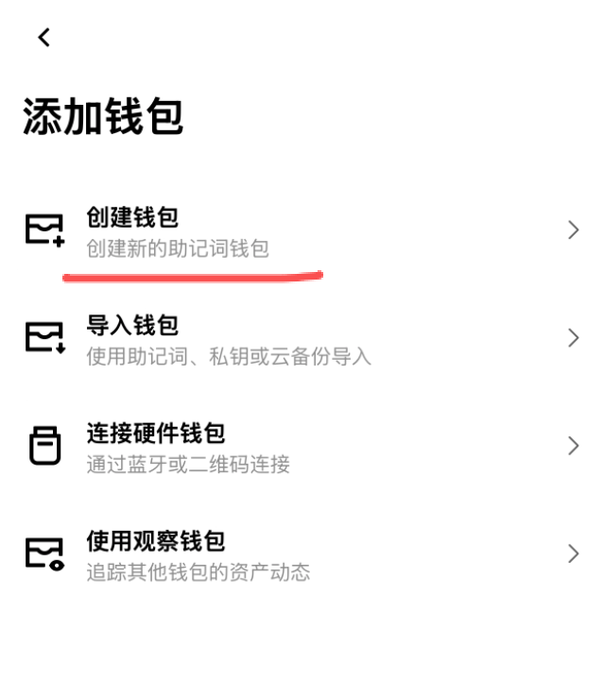
    Create new Web3 Wallet in OKX App
    Select ‘Create Wallet’ to generate your sovereign on-chain identity.

    The Air-Gapped Seed Phrase Protocol (Never Compromise This)

    Your wallet’s 12-word recovery phrase (Seed Phrase) is the master mathematical key to all your on-chain assets. Anyone with these 12 words can drain your wallet in seconds from anywhere in the world. Follow this air-gapped protocol strictly:

    1. Disconnect & Air-Gap: Turn off your Wi-Fi and enable Airplane Mode on your smartphone before revealing the words.
    2. Environment Check: Ensure no one is behind you, and confirm no security cameras or screen-recording software are active.
    3. Pen and Paper Only: Use a physical pen and paper to write down all 12 English words in exact sequential order. Create two physical copies and store them in separate, fireproof locations.
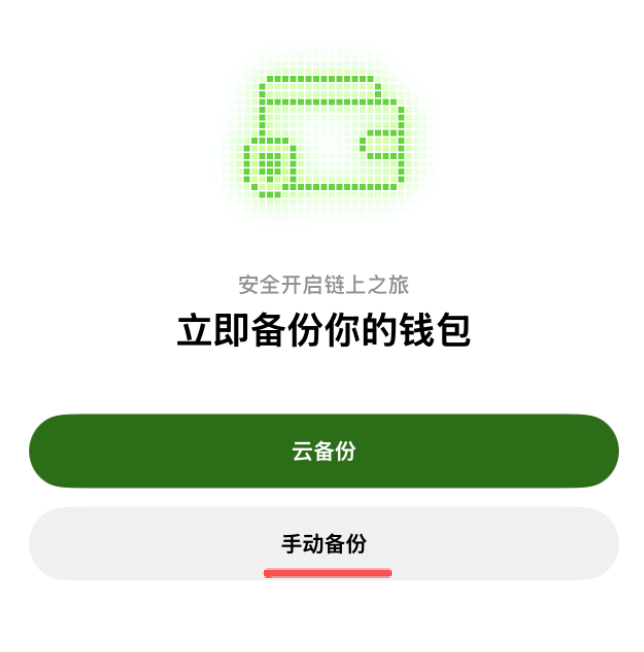
    Select manual backup for Web3 wallet
    Choose ‘Manual Backup’ to physically record your seed phrase offline.
    Safety prompt before viewing seed phrase
    Confirm the environment is free of onlookers, cameras, and screen recording.

    The Fatal Digital Sins to NEVER Commit:

    • ❌ Never take a screenshot (photos automatically sync to iCloud/Google Photos cloud storage).
    • ❌ Never copy-paste into WeChat, WhatsApp, Telegram, or email draft boxes.
    • ❌ Never save in digital notes or cloud password managers. Over 80% of crypto asset thefts originate from digitally leaked seed phrases.

    After recording the words, the app will ask you to verify specific words in order. Once verified, your decentralized Web3 wallet is officially active.

    Unlocking the 20% Web3 DEX Fee Rebate

    OKX Web3 Wallet features an integrated DEX aggregator for swapping tokens across Ethereum, Solana, Arbitrum, and BNB Chain. You can link a separate 20% fee rebate to your Web3 wallet:

    1. Open your mobile browser and access the OKX Web3 20% Discount Portal (Code: DA999).
    2. Tap “Join Now” and confirm the redirect to open the OKX App.
    3. A confirmation modal will appear inside the OKX App. Tap “Join Now” to bind the discount code. All future decentralized swaps and bridge transactions on OKX DEX will automatically enjoy a 20% service fee reduction.
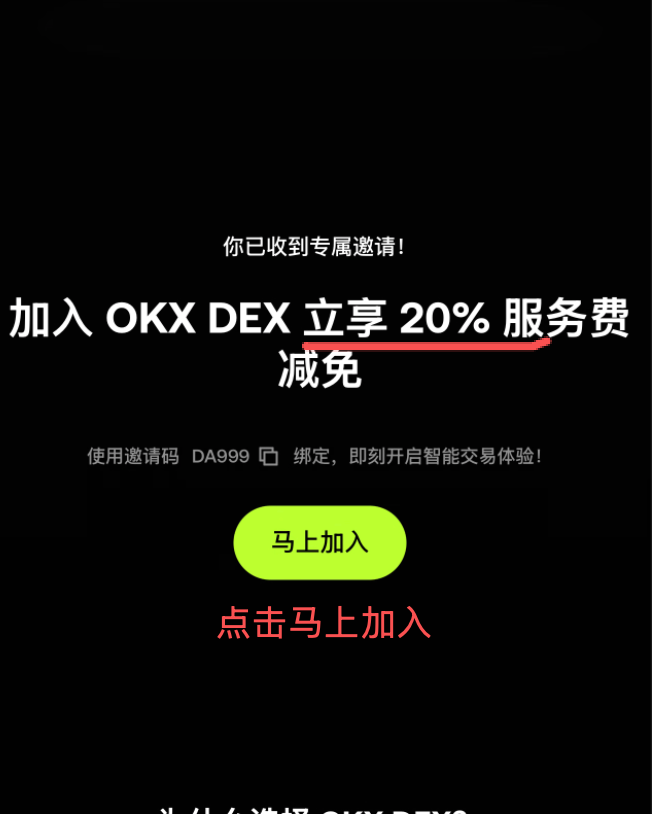
    OKX Web3 DEX 20 percent discount confirmation
    Bind the Web3 discount code to save 20% on all decentralized on-chain swaps.

    Summary Checklist for Digital Nomads

    • ☑ Sign up via Partner Link: Lock in your lifetime 20% exchange fee discount (Code: OY778).
    • ☑ Verify with Real Documents: Complete standard KYC with your national ID/passport.
    • ☑ Safe C2C Onramping: Trade exclusively in the Custom Selection tab, vet 98%+ merchants, and leave transfer remarks 100% blank.
    • ☑ Start with Spot or Convert: Avoid futures/leverage; acquire spot Bitcoin or stablecoins.
    • ☑ Air-Gap Your Web3 Wallet: Disconnect the internet, handwrite your 12 seed words on paper, and bind your Web3 DEX 20% rebate (Code: DA999).

    Disclaimer: Cryptocurrency markets fluctuate rapidly and carry inherent financial risks. This guide is for educational and technical instruction purposes only and does not constitute financial, investment, or legal advice. Always exercise risk management and only trade with capital you can afford to lose.
  • How to Keep an Active Hong Kong Phone Number for HK$15/Year: Club Sim eSIM Complete Guide

    How to Keep an Active Hong Kong Phone Number for HK$15/Year: Club Sim eSIM Complete Guide

    For global digital nomads, international investors, and location-independent professionals, having access to a reliable, low-cost international phone number is an essential component of a borderless lifestyle. Among regional telecom hubs, a Hong Kong (+852) phone number is widely considered the holy grail: it operates with zero internet censorship, enables seamless registration across global fintech apps, brokerage accounts, crypto exchanges, and social platforms, and allows you to receive two-factor authentication (2FA) SMS codes worldwide completely free of charge.

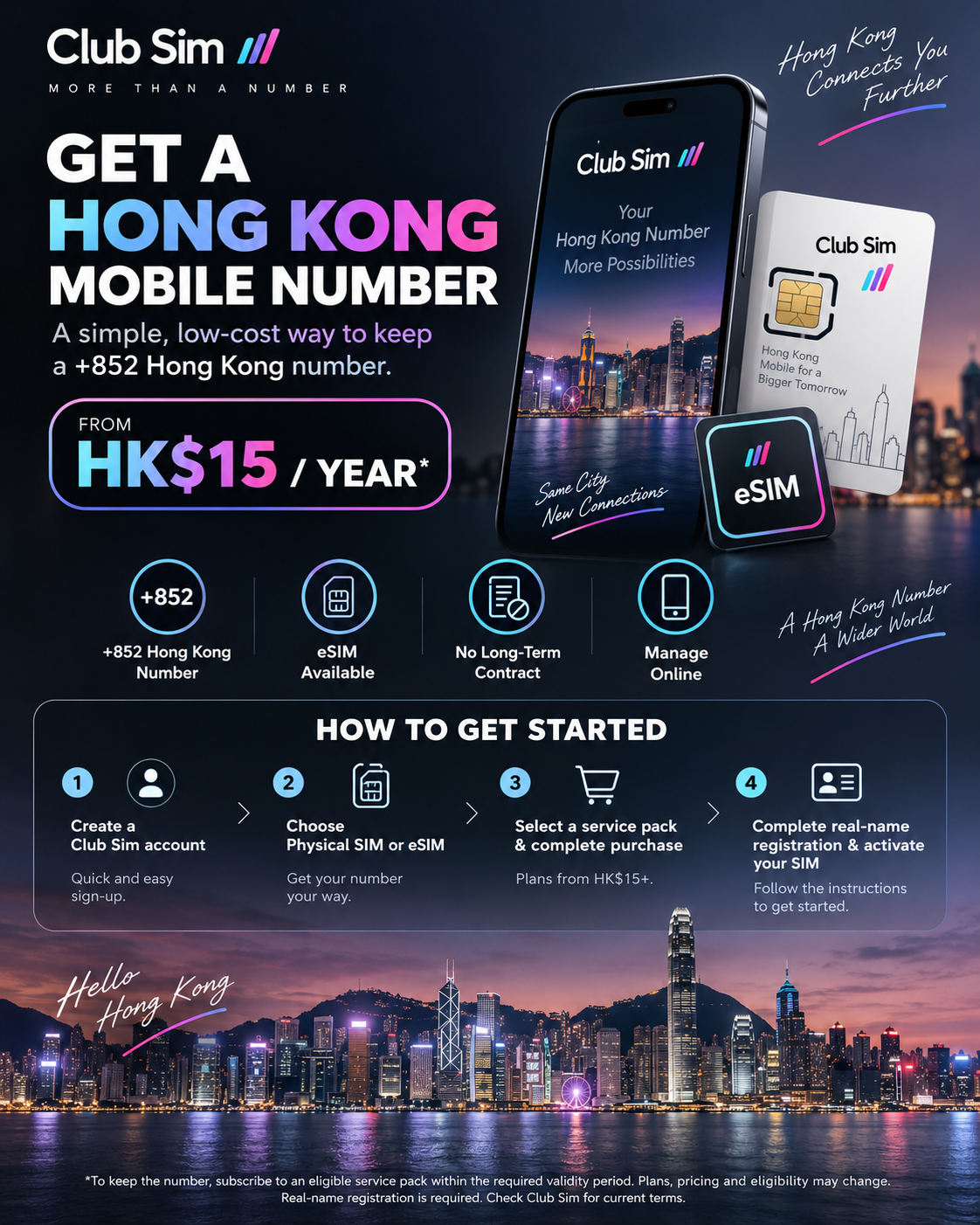
    The challenge has always been maintenance costs. Traditional physical Hong Kong SIM cards often demand recurring monthly plans or expensive top-ups that expire quickly. Enter Club Sim, a digital sub-brand operated by Hong Kong’s largest telecommunications conglomerate, HKT (Hong Kong Telecom / CSL). With Club Sim’s unique pay-as-you-go architecture, you can keep a genuine Hong Kong cellular number active for just HK$15 per year (roughly $1.90 USD) — with zero monthly commitments.

    In this comprehensive guide, I will break down the underlying mechanics of how Club Sim’s validity extension works, how to navigate the initial HK$50 checkout threshold, how to pass Hong Kong’s mandatory Real-Name Registration (RNR), and how to set up an eSIM profile even if your phone lacks native eSIM hardware.

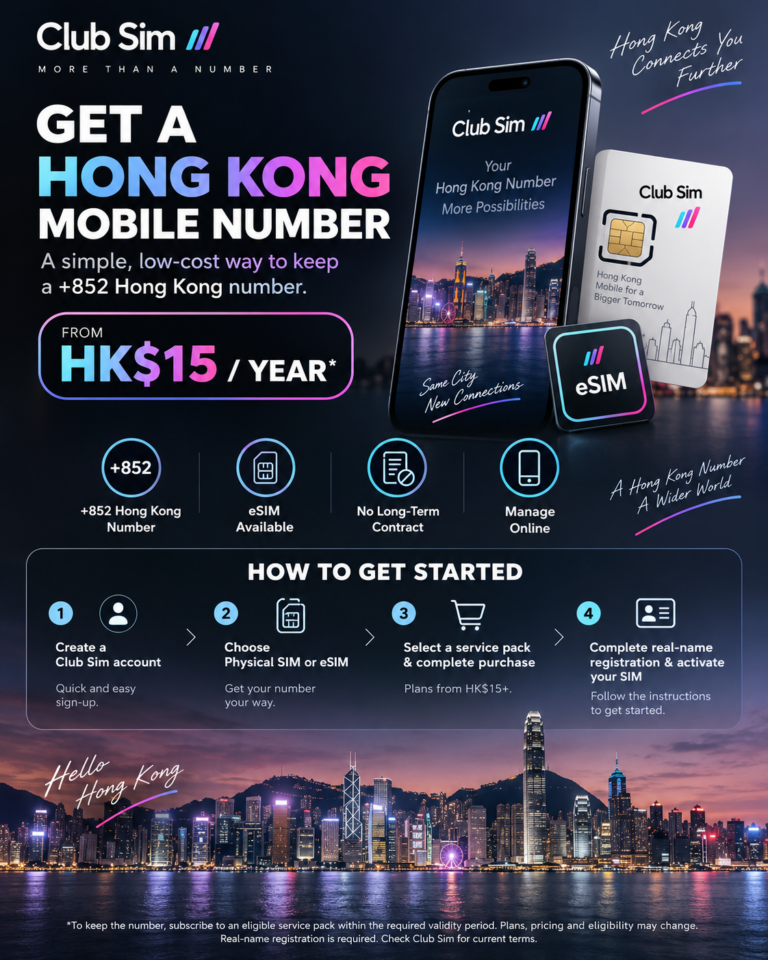
    Keep an active Hong Kong phone number for HK$15 per year with Club Sim eSIM
    Club Sim eSIM: Maintain a legitimate Hong Kong +852 mobile identity for under $2 a year.

    The Underlying Mechanics: Why Club Sim is the Ultimate Nomad SIM

    Before jumping into the purchase flow, understanding how Club Sim operates technically will help you avoid costly mistakes:

    1. The Validity Extension Mechanism (Why HK$15 Keeps It Alive)

    Club Sim does not charge a fixed monthly subscription. Instead, your mobile number’s expiration date is tied strictly to the validity of your purchased service packs. Club Sim offers an “Asia Data Roaming Day Pass” for HK$15. While the actual high-speed data usage is calibrated on a 24-hour daily pass model once activated abroad, the purchased pass itself remains valid for a full 365 days in your account. The moment you purchase or renew this HK$15 pass, Club Sim automatically extends the entire SIM card and cellular number’s lifecycle by an additional 12 months.

    2. Free Global Inbound SMS

    As long as your number is active, incoming SMS messages — including verification OTPs from banks (HSBC, Wise, iFAST), brokers (Interactive Brokers, Futu, Tiger), social platforms (WhatsApp, Telegram, WeChat, X), and AI platforms (ChatGPT, Claude) — are 100% free to receive worldwide. Note that Club Sim no longer offers standalone outbound SMS packages; it is primarily designed as a high-value inbound receiving identity and roaming data tool.

    3. The First-Purchase Threshold Hack (HK$50 Rule)

    Club Sim enforces a minimum cart threshold of HK$50 for the initial new SIM purchase. You cannot simply check out with a single HK$15 pass on day one. To cross this threshold with maximum practical value, we pair a Mainland China/Macau Roaming Data Pack (HK$38 for 1GB, valid for 90 days) with an Asia Roaming Day Pass (HK$15, valid for 365 days). This totals exactly HK$53 (~$6.80 USD). For all subsequent annual renewals, the HK$50 minimum order threshold no longer applies — you can purchase single HK$15 passes directly.
    4. eSIM vs. Physical SIM (Crucial Distinction)

    Club Sim offers both physical SIM cards and digital eSIMs. However, physical Club Sim cards must be physically connected to a local Hong Kong cellular tower to activate. If you are ordering from outside Hong Kong, you must select the eSIM profile, which delivers an instant QR code via email and can be activated remotely anywhere in the world.

    Prerequisites: What You Need Ready

    1. eSIM-Capable Device: An unlocked smartphone supporting digital eSIM (iPhone XS or later, Google Pixel, modern Samsung Galaxy). Tip for physical-SIM-only phones: If your device lacks native eSIM hardware (such as Mainland Chinese dual-physical-SIM iPhones), you can use a programmable smart card like Xesim (X2 Pro) to burn the Club Sim eSIM profile directly onto a physical card.
    2. Identity Document for Verification: A valid international passport or Hong Kong/Macau Exit-Entry Permit for the legally mandated Real-Name Registration.
    3. Payment Method: Standard Alipay, WeChat Pay, or an international credit/debit card (Visa, Mastercard).

    Step-by-Step Purchase Walkthrough

    Step 1: Access the Club Sim Portal

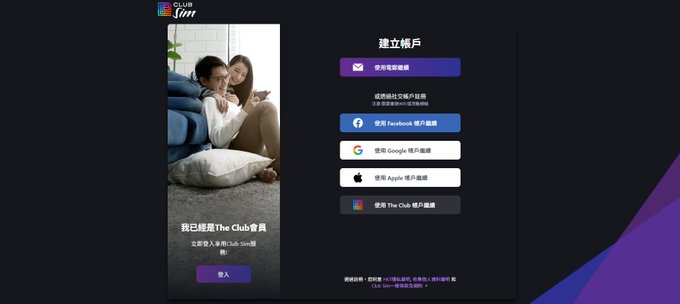
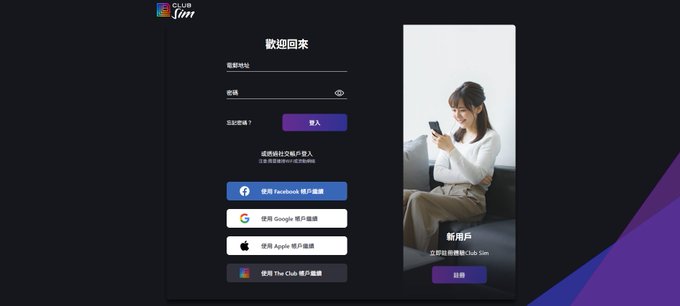
    Visit the official Club Sim website. On the top navigation bar, locate the new user onboarding section and click “New User / Join Club Sim” to initiate the registration.

    Club Sim new user portal screen
    Navigate to the Club Sim registration page.

    Step 2: Create Your Account

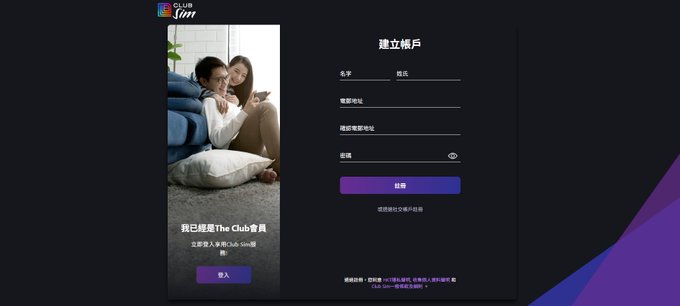
    Choose “Continue with Email”. Enter your primary email address, choose a secure password, and enter your First Name and Last Name in English/Pinyin. Make sure your name spelling matches your passport exactly, as this ensures instant verification during the subsequent KYC review.

    Select email registration on Club Sim
    Choose email registration to ensure seamless delivery of your eSIM profile.
    Club Sim account registration form
    Input your legal name matching your identity document.

    Step 3: Email Verification (Crucial Next Step)

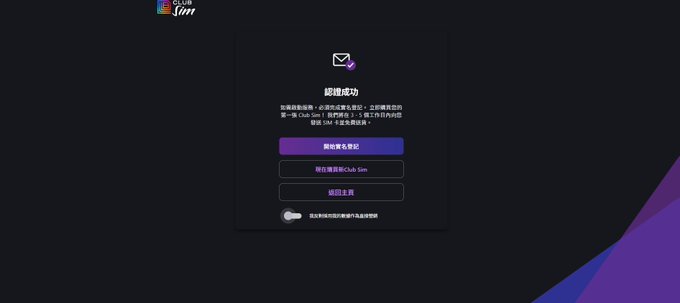
    Check your inbox for a verification email from Club Sim and click the confirmation link. You will be redirected to an “Authentication Successful” screen displaying two options:

    • Buy New Club Sim Now
    • Start Real-Name Registration

    Crucial Rule: Click “Buy New Club Sim Now” first! Do not attempt Real-Name Registration yet — you do not possess an active SIM card or ICCID number to bind until your order is placed.

    Club Sim authentication successful screen
    Click ‘Buy New Club Sim Now’ before attempting real-name registration.

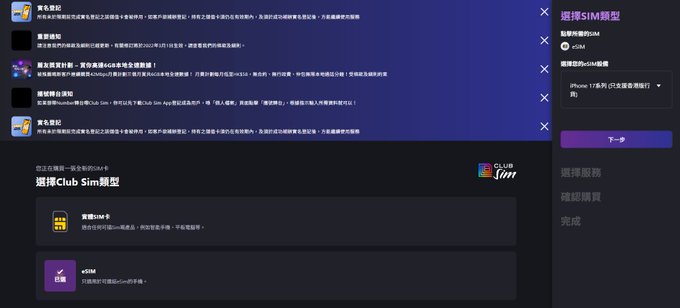
    Step 4: Select eSIM Profile

    When prompted to select your SIM type, select eSIM. The platform will ask for your phone model; simply choose your device model from the dropdown or pick a general compatible model. Tap continue.

    Select eSIM profile type on Club Sim
    Select digital eSIM for remote, instant over-the-air activation.

    Step 5: Apply the HK$53 Cart Strategy

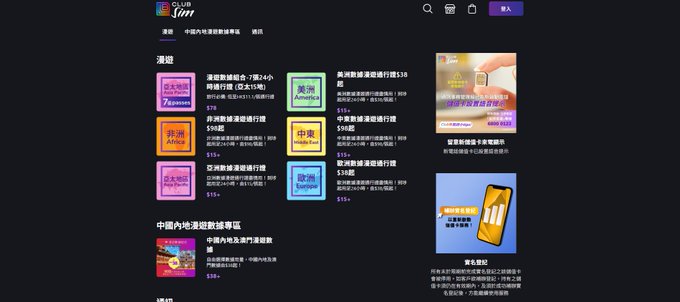
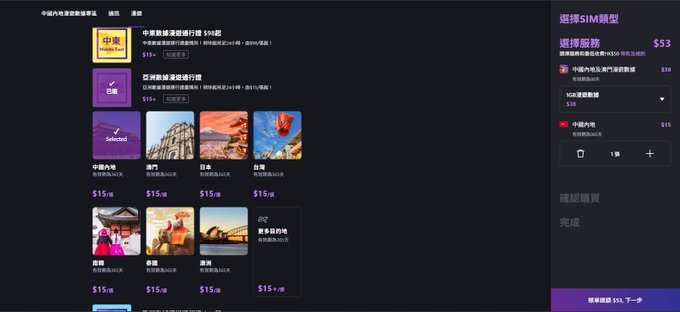
    You will now arrive at the service catalog. Remember, your order total must reach at least HK$50 to unlock checkout. Follow this exact combination:

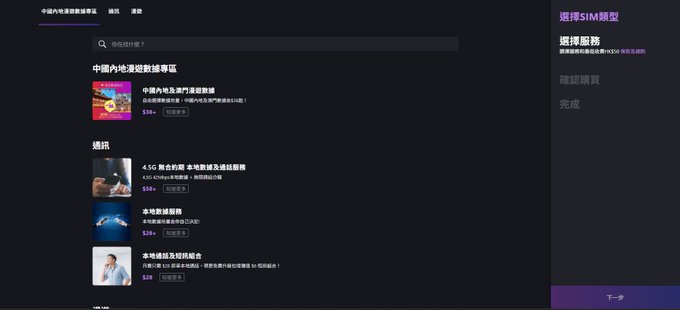
    1. Navigate to “China & Macau Data Roaming” and select the 1GB Data Pack (90-day validity) for HK$38.
    2. Navigate to “Data Roaming Day Pass”, choose Asia, and select the HK$15 Pass (365-day validity).

    Your cart will total exactly HK$53, which clears the platform minimum effortlessly.

    Club Sim service categories
    Explore roaming data packs to assemble your HK$50+ cart.
    Select China and Macau roaming pack HK$38
    Add the HK$38 data pack (1GB, 90-day validity).
    Add Asia data roaming pass HK$15
    Add the HK$15 Asia Day Pass with 365-day validity to lock in your annual number extension.

    Step 6: Review Order & Checkout

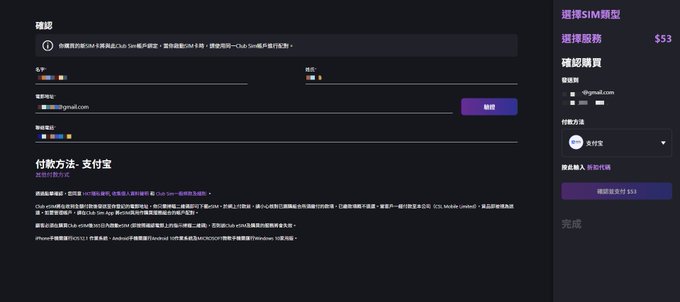
    Review your order summary (HK$53). Enter your contact email and phone number. Make sure to click the “Verify” button next to your email address, as this is where your eSIM installation QR code will be delivered. Select your preferred payment channel (Alipay, WeChat Pay, or credit card) and complete checkout.

    Club Sim order confirmation screen
    Confirm the HK$53 total and verify your delivery email address.
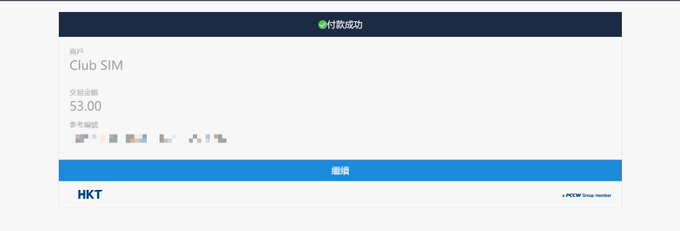
    Payment success confirmation screen
    Payment confirmed via HKT billing gateway.

    Step 7: Retrieve Your eSIM Profile & Order Details

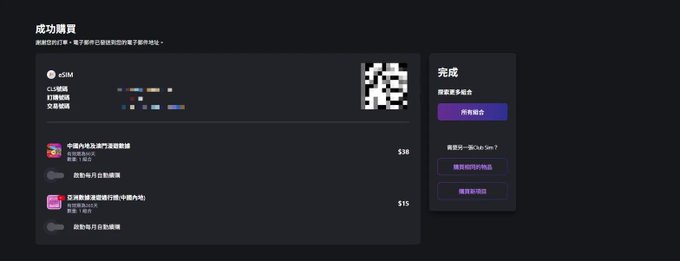
    Upon payment completion, the screen will display your eSIM QR Code, along with your Order Number, Transaction ID, and ICCID Number. Take a high-resolution screenshot and store these identifiers securely. A duplicate confirmation containing the eSIM QR code will also arrive in your email inbox.

    eSIM QR code and order receipt screen
    Save your eSIM QR code and order receipt details immediately.

    Part 2: Real-Name Registration (RNR) Compliance

    Under Hong Kong statutory regulations (Telecommunications Ordinance), all cellular SIMs operating on local spectrum must undergo mandatory Real-Name Registration before service activation. The verification process is automated, paperless, and typically clears within 3 to 5 minutes:

    1. Download the official Club Sim App from the App Store or Google Play (or access the RNR link provided in your confirmation email).
    2. Scan your eSIM QR code or manually enter your ICCID number to bind the purchased card to your user account.
    3. Select your document type: choose Passport (international passports are universally accepted).
    4. Grant camera permissions and snap a clear photo of your passport’s personal bio page. The system’s OCR will automatically parse your legal name, document number, and date of birth.
    5. Review the parsed data, submit, and complete the quick live facial recognition check if prompted.
    6. Within minutes, you will receive an SMS and email notification confirming: “Real-Name Registration Successful”. Your dedicated +852 mobile number will now appear in your app dashboard.

    Annual Maintenance: Keeping Your Number Alive for HK$15/Year

    Here is the secret to retaining your Hong Kong number indefinitely on a shoestring budget:

    • The Renewal Strategy: Approximately 15 to 30 days before your 365-day validity period expires, log into the Club Sim app and navigate to the data roaming store.
    • Purchase a Single HK$15 Pass: Select the Asia Data Roaming Day Pass for HK$15. Because this is a renewal purchase on an existing card, the initial HK$50 minimum cart restriction does not apply.
    • Instant 1-Year Extension: The moment payment clears, your number’s active lifespan is extended by another 365 days.
    • Pro Tip on Reminders: Set a recurring reminder in Google Calendar or Apple Reminders 15 days before your annual expiration date. If a number lapses past its grace period, telecom regulations require the carrier to recycle the number back into the public pool, and recovery is impossible.

    Frequently Asked Questions for Digital Nomads

    Can I receive SMS codes from WhatsApp, Telegram, and international banks?
    Yes. Club Sim operates on HKT’s tier-1 network routing. Inbound SMS verification from global tech giants, banking institutions, and social networks is fully supported and completely free of charge regardless of where in the world you are located.

    Can I make outbound phone calls or send text messages?
    Club Sim is primarily optimized as an inbound verification number and roaming data SIM. While local Hong Kong calling can be purchased as an add-on, it does not support international roaming voice calls or outbound SMS packages at this time.

    What if my phone only supports physical SIM cards?
    If you use a phone with physical-only SIM slots (such as dual-nano-SIM iPhones sold in Mainland China), you cannot scan an eSIM QR code directly into your phone settings. The proven workaround is using a programmable physical chip such as Xesim (X2 Pro). You write the Club Sim eSIM profile onto the Xesim smart card, insert it into your phone’s physical tray, and enjoy full eSIM capability seamlessly.


    Disclaimer: Package prices, bundle structures, and regulatory registration rules are subject to change by HKT and the Hong Kong Communications Authority. Always consult the official Club Sim portal for the latest real-time terms.

  • How to Open a UK Monzo Bank Account as a Global Digital Nomad: The Complete Mechanics & Guide

    How to Open a UK Monzo Bank Account as a Global Digital Nomad: The Complete Mechanics & Guide

    For global digital nomads, remote workers, and cross-border entrepreneurs, having access to Tier-1 banking rails in the United Kingdom is a massive advantage. Whether you need to invoice UK and European clients, access local Faster Payments (FPS), spend abroad without foreign transaction markups, or acquire a gold-standard Proof of Address (PoA), the UK banking system remains one of the world’s most reputable financial hubs.

    Among all UK financial institutions, Monzo Bank stands out as the most popular entry point. With over 9 million customers, full UK banking licensing, FSCS deposit protection, and an exceptionally intuitive app, Monzo has earned a cult following. More importantly for location-independent individuals, Monzo is famously accessible even if you have zero UK credit history.

    However, navigating Monzo’s onboarding as a global nomad requires understanding both the underlying mechanics of UK banking compliance and the tactical steps to ensure your application passes automated risk scoring. In this guide, I will break down the engineering logic behind Monzo’s verification systems, provide a screen-by-screen walkthrough, and share insider logistics for receiving and activating your card from anywhere in the world.

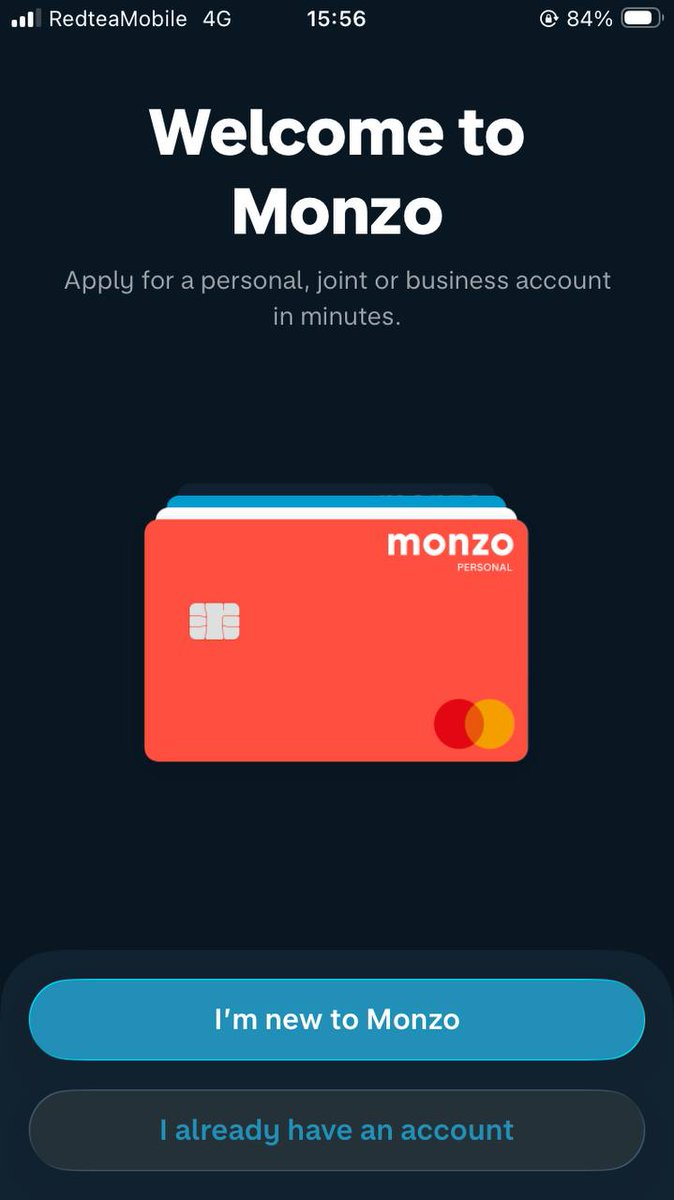
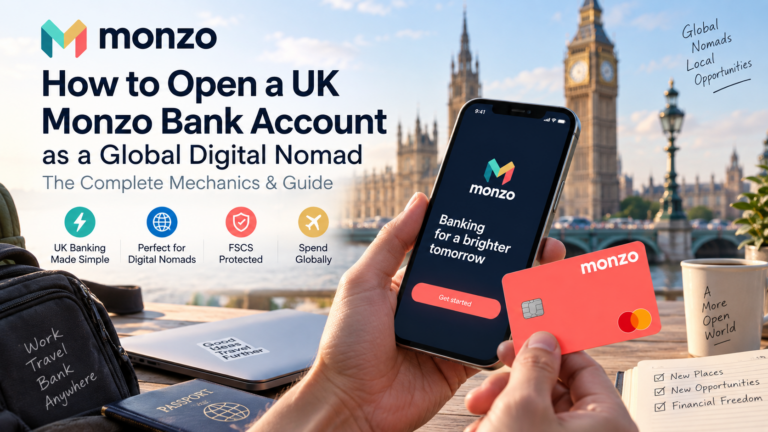
    Monzo mobile app welcome screen
    The Monzo mobile onboarding screen: fast and digital when approached correctly.

    The Underlying Mechanics: How Monzo’s KYC & Risk Engines Work

    To register successfully without triggering manual compliance reviews or immediate rejections, it helps to understand how UK neo-bank onboarding algorithms make decisions in real time:

    1. Telemetry & IP Fingerprinting (Why VPNs Fail)

    UK banks employ sophisticated fraud prevention engines (such as Sift and ThreatMetrix) that evaluate device integrity, cellular carrier parameters, and IP reputation upon app launch. Commercial VPNs and public proxy data centers are instantly flagged on fraud databases due to shared ASNs and WebRTC leaks. To present a genuine local connection, you need a clean, residential or cellular UK IP — for instance, through a travel eSIM profile (such as RedteaGo, Airalo, or local UK roaming data) where traffic breaks out naturally through a UK telecom gateway.

    2. The Royal Mail PAF & Physical Delivery as “Proof of Presence”

    Traditional high-street banks require utility bills, council tax statements, or tenancy agreements before opening an account. Digital challenger banks like Monzo innovate by using physical debit card delivery as a soft proof of address. Monzo cross-references the address you enter against the UK Royal Mail Postcode Address File (PAF) database. Because the physical card is mailed via standard second-class post without tracking, your ability to receive that card and input its 16-digit number acts as the physical handshake confirming your connection to that address.

    3. Automated AML Scoring: Avoiding the Enhanced Due Diligence (EDD) Trap

    During the signup flow, the app asks about your employment, expected monthly inflows, and housing situation. Many applicants make the mistake of over-declaring expected income or entering complex financial setups, which triggers automated Anti-Money Laundering (AML) flags requiring formal tax filings, wage slips, or Source of Wealth (SoW) documentation. Keeping your declared turnover conservative at the initial stage allows your profile to clear the automated tier smoothly.

    4. CRS & Tax Compliance: Why Honesty is Safest

    Monzo operates under the global Common Reporting Standard (CRS) and FATCA frameworks. You do not need to fabricate UK tax residency. Selecting your genuine home country citizenship and primary tax residence (e.g. China, or wherever your primary tax domicile lies) while maintaining a UK mailing address is completely supported by their system and avoids compliance perjury.

    Prerequisites Checklist for Global Nomads

    Before beginning your application, have these four assets prepared:

    1. Valid International Passport: A clear, unexpired passport with machine-readable biographical lines.
    2. Active UK Mobile Number (+44): Needed to receive one-time SMS verification codes (OTP). An active UK SIM (such as giffgaff) or compatible virtual cellular service is recommended.
    3. Clean UK Network Environment: A device operating over clean UK roaming/cellular data, free of active VPN proxies.
    4. Reliable UK Mailing Address: A residential address where physical mail can be collected on your behalf (e.g., a trusted friend, colleague, or dedicated mail receiver).

    Step-by-Step Monzo Registration Guide

    Step 1: Welcome Bonus & App Installation

    Open the referral registration portal on your mobile browser. Entering via an invite link locks in a welcome cash bonus (typically up to £50 credited once you make your first debit card payment within 30 days). Enter your mobile number, then redirect to the App Store or Google Play Store to install the official Monzo Bank application. Launch the app and tap “I’m new to Monzo”.

    Step 2: Email & Account Selection

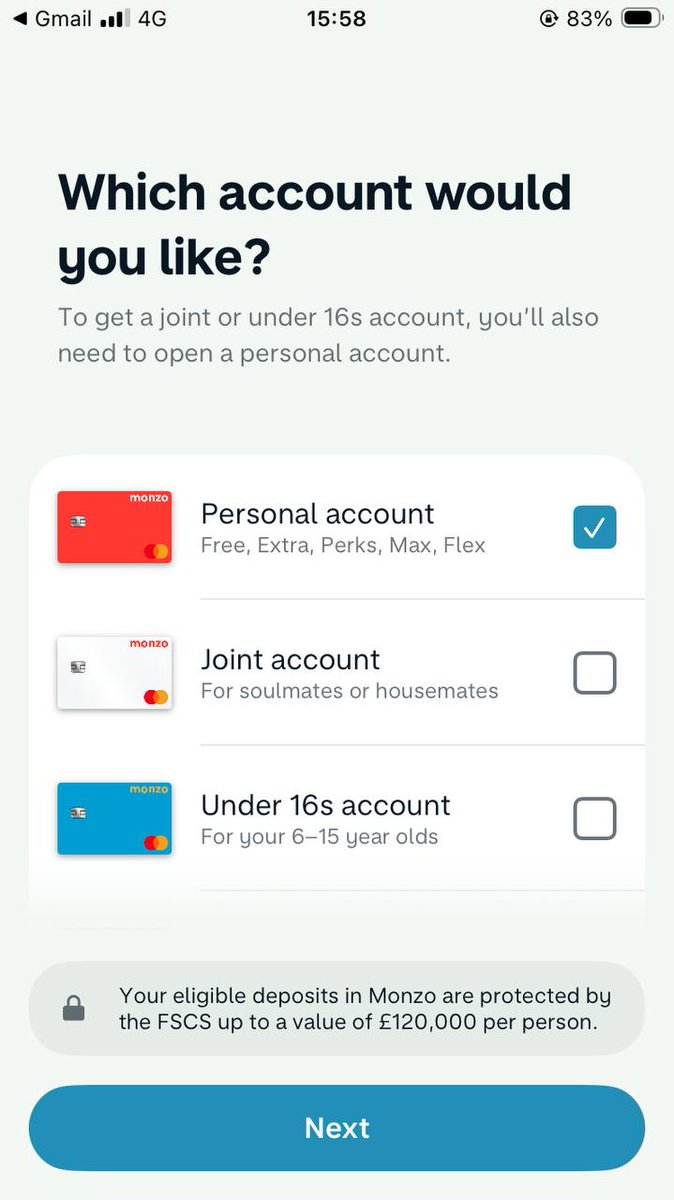
    Enter your primary email address. When prompted for account tiers, select the standard Personal account. This tier is completely free with no monthly maintenance fees, while still providing the full statutory £85,000 FSCS deposit insurance protection.

    Select Personal Account tier in Monzo app
    Choose the standard personal account tier to start.

    Step 3: Identity & Residential Postcode Entry

    Enter your core identification data:

    • Legal Name: Provide your First Name and Last Name matching the Pinyin/English spelling on your passport.
    • Date of Birth: Ensure day, month, and year strictly match your passport.
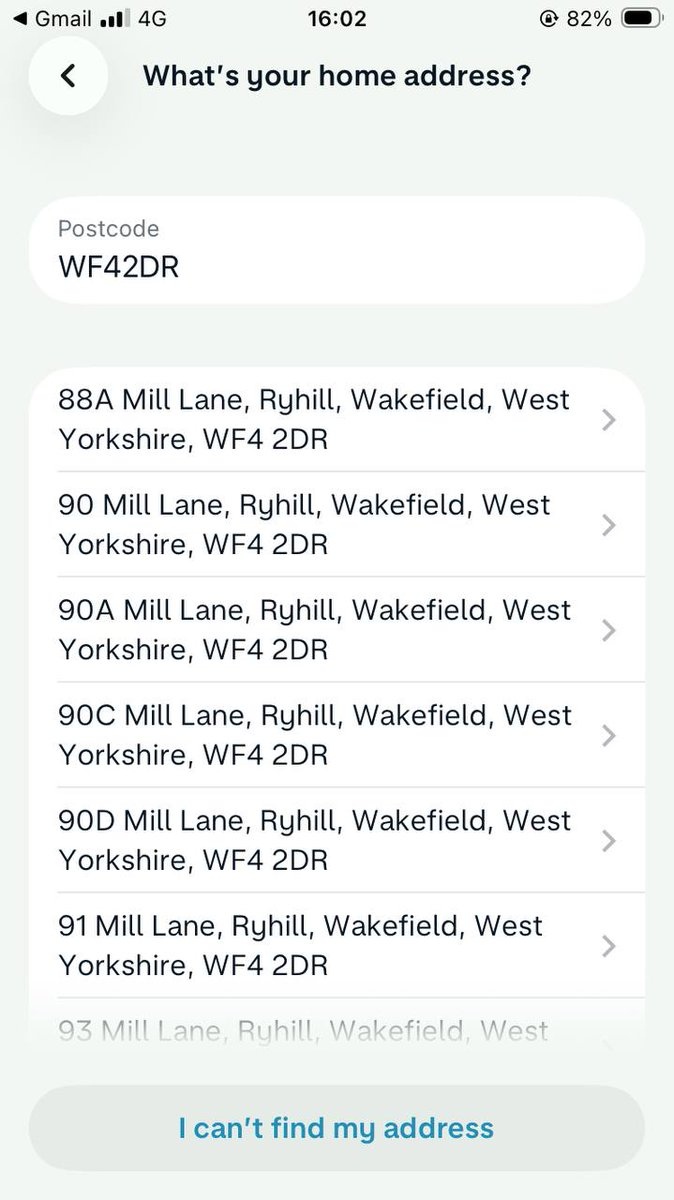
    • UK Address Lookup: Enter the UK Postcode of your designated mailing location. The app will pull matching street addresses from the Royal Mail database; select the exact apartment/house number.
    • Mobile Verification: Enter your UK phone number and submit the 6-digit SMS verification code.
    Monzo UK residential address lookup using postcode
    Look up your UK residential delivery address by Postcode.

    Step 4: Tactical KYC & Profile Optimization

    Here is where applying the right tactical choices keeps your application in the automated clearance lane:

    • Primary Citizenship: Search and select your true citizenship (e.g. China).
    • Employment Status: Select Full-time, and choose an industry and role that corresponds logically with your profile.
    • Annual Income: Pick a moderate, realistic middle-income bracket.
    • Housing Status (Pro Tip): Select Living with family and enter £0.00 for monthly housing expenditure, with 0 dependents. This explains why you do not pay direct tenancy rent on the property without requiring a formal lease agreement.
    • Intended Purpose: Check standard personal finance categories: day-to-day spending, online shopping, and transfers with friends.
    • First Payment Source & Turnover: Select Family or friends for the initial deposit source. Set anticipated monthly transaction amounts to a conservative tier (e.g. Less than £100). You can always scale up usage naturally once the account is established.

    Step 5: Document Scanning & Liveness Video Verification

    Identity verification involves two quick security checks:

    1. Passport Photo: Select your passport’s country of issue and take a clear, high-contrast photo of the biographical data page. Avoid glare on the plastic laminate.
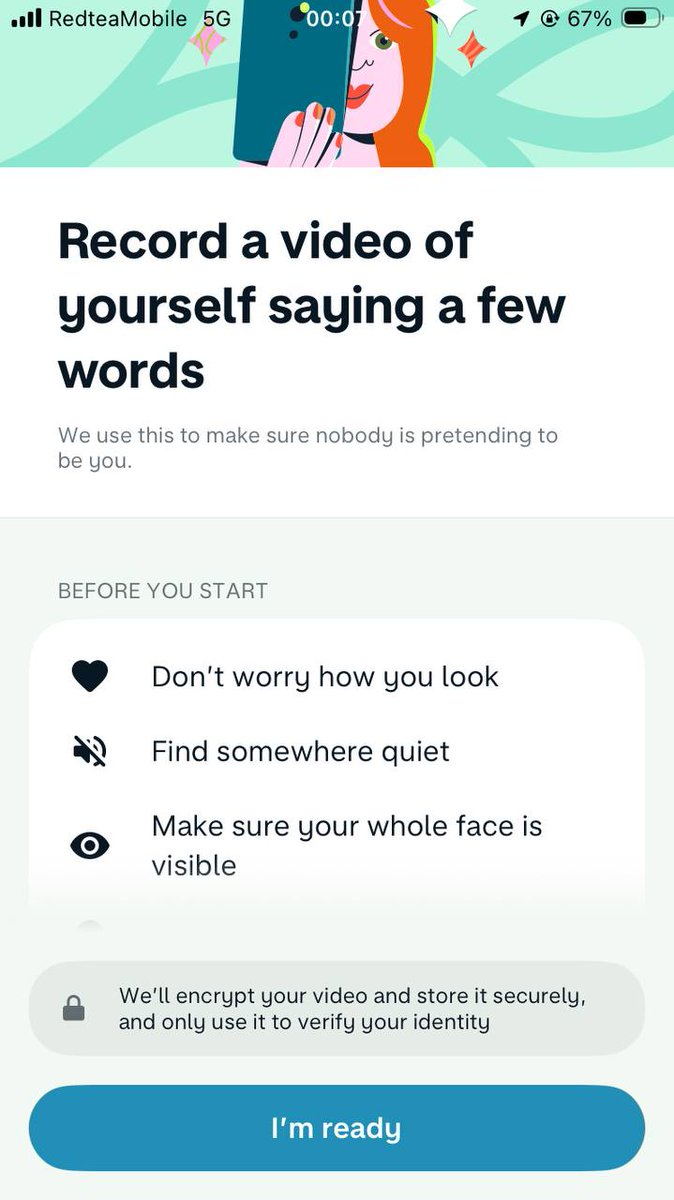
    2. Selfie Video Prompt: Record a brief 5-second video selfie. The app will display a short English script on screen (typically: “My name is [Your Name], I want a Monzo account”). Hold the camera steady at eye level, speak clearly, and ensure your entire face remains within the oval frame.
    Monzo video selfie identity verification
    Record a 5-second video selfie reciting the on-screen verification phrase.

    Step 6: Regulatory Declarations & FSCS Confirmation

    Complete the legal checkboxes:

    • FATCA Declaration: Confirm you are not a US citizen or US permanent resident.
    • Tax Residency: Select your actual tax residence country (e.g. China).
    • FSCS Protection Notice: Tap through to confirm you have reviewed the Financial Services Compensation Scheme terms, protecting your eligible retail funds.

    Step 7: Security PIN & Debit Card Dispatch

    Confirm the cardholder name to be embossed on your card and double-check the delivery address. Choose a secure 4-digit card PIN (memorize this code, as it is required for all chip-and-PIN retail terminals and global ATM cash withdrawals). Enable biometric security (Touch ID/Face ID) for daily app access.

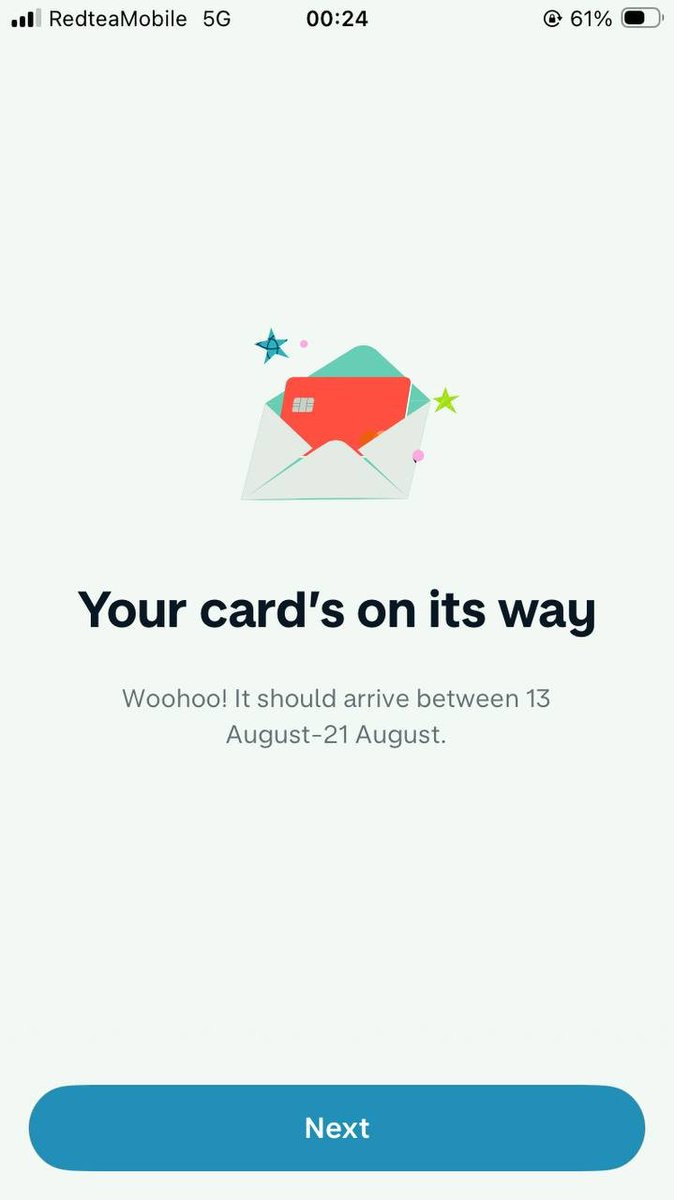
    Upon final submission, the app will update to “Your card’s on its way”, displaying the estimated Royal Mail arrival window (typically 2 to 7 business days).

    Monzo card dispatched confirmation
    Your physical Monzo debit card is printed and dispatched via standard post.

    The Activation Hurdle: Physical Card Handshake

    A crucial technical nuance many online tutorials miss: Monzo accounts remain in a locked, pending state until the physical card is confirmed. Unless your digital footprint achieves rare instant Apple Pay approval, your UK Sort Code and Account Number are not operational until you complete the card activation flow.

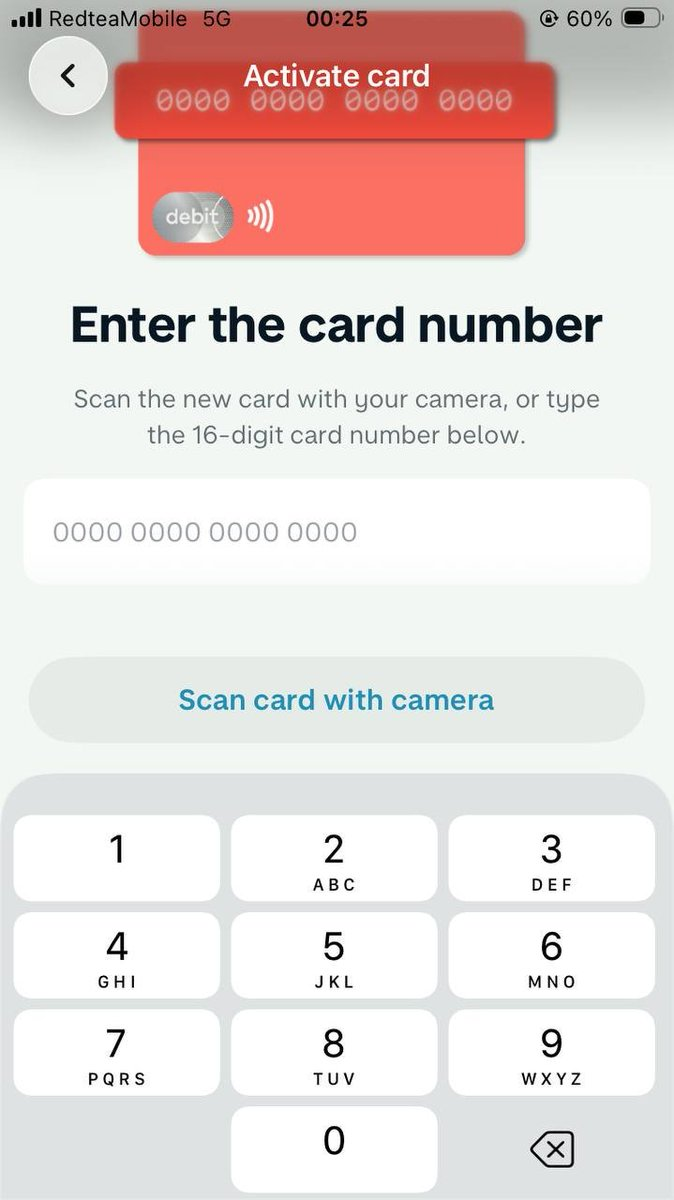
    Monzo 16-digit card activation screen
    To activate your account, scan or input the 16-digit card number printed on the physical card.

    When the envelope is delivered to your UK address, you have two practical operational pathways as a nomad:

    • Method A: Photo Activation (Fastest): Have your trusted UK contact carefully open the envelope and send you a high-resolution photo of the front and back of the debit card. Open the Monzo app, tap “Activate card”, and manually enter the 16-digit card number. Your account unlocks instantly, providing your live Sort Code and Account Number. You can immediately link the card to Apple Pay or Google Wallet for contactless payments.
    • Method B: International Forwarding: Have your contact forward the physical card to your overseas location via tracked international courier (DHL, FedEx, or Royal Mail Tracked). Once delivered into your hands, scan the card with your phone’s camera.

    Pro Tip for Working with UK Friends: Clarify to your contact in advance that Monzo is a debit account, not a line of credit or loan. Friends unfamiliar with fintech often panic thinking they are co-signing financial liability; reassuring them that it is simply an envelope containing a prepaid/debit card prevents last-minute refusal at the doorstep.

    The Hidden Nomad Superpower: Monzo Statements as Proof of Address (PoA)

    Why do nomads put in the effort to establish a Monzo account? Beyond everyday spending, the real strategic value is Tier-1 Proof of Address generation.

    On the 1st of every calendar month, Monzo automatically compiles an official downloadable PDF statement. This document displays:

    • Your full legal name
    • Your registered UK residential address
    • Official Monzo Bank letterhead and registration details (Bank of England / PRA / FCA regulated)
    • Your UK Sort Code and Account Number

    Because Monzo is a fully licensed UK commercial bank (rather than a simple Electronic Money Institution like Revolut or Wise), its monthly bank statements are universally recognized by major cryptocurrency exchanges (Binance, Kraken), global stock brokerages (Interactive Brokers, Charles Schwab), and international payment processors as valid Proof of Address, unlocking services that are otherwise inaccessible to non-residents.

    Alternative Options: When You Don’t Have a UK Address

    If you genuinely cannot secure a reliable UK mailing address to receive the physical card, do not use fake addresses from a map — your card will be returned as undeliverable and your account will be shuttered. Instead, consider these two battle-tested banking alternatives engineered specifically for non-residents:

    • iFAST Global Bank — A fully licensed UK commercial bank that officially onboards non-UK residents online from overseas. You do not need a UK address; you apply directly with your home country passport and utility bill. You receive dedicated UK Sort Codes, personal Account Numbers, and international multi-currency IBANs backed by full FSCS protection. Check out my full step-by-step walkthrough for opening details.
    • Wise — The gold standard multi-currency clearing platform for digital nomads. While an EMI rather than a full bank, Wise gives you local UK Sort Code details to receive GBP seamlessly, alongside mid-market currency exchange rates across 40+ currencies.

    Disclaimer: Banking policies, compliance algorithms, and terms of service evolve continuously. Always review Monzo’s official customer agreements during application.

  • Open a UK Bank Account Online with Just an ID: the iFAST Global Bank Walkthrough

    Open a UK Bank Account Online with Just an ID: the iFAST Global Bank Walkthrough

    Just sharing how I set this up — not financial, tax, or legal advice. Everything below has to be filled in with your own real details; rates, fees, and review rules change over time, so check iFAST’s official app or site for the latest before you rely on any of it.

    Of all the cross-border plumbing I’ve set up, a UK account with iFAST Global Bank is one of the easier wins right now. It’s a UK-licensed digital bank (regulated by the PRA and FCA, with eligible deposits covered by the FSCS), and — unusually — a mainland Chinese resident can open it fully online with just an ID card, no passport, no trip abroad, and no fees. One account holds around nine currencies, and it pairs neatly with Wise: think of iFAST as the “bank layer” that holds money and gives you real UK account details, and Wise as the “tool layer” for moving and converting it. With options like N26 having pulled back from some markets, this is about as low as the barrier gets for an overseas bank account.

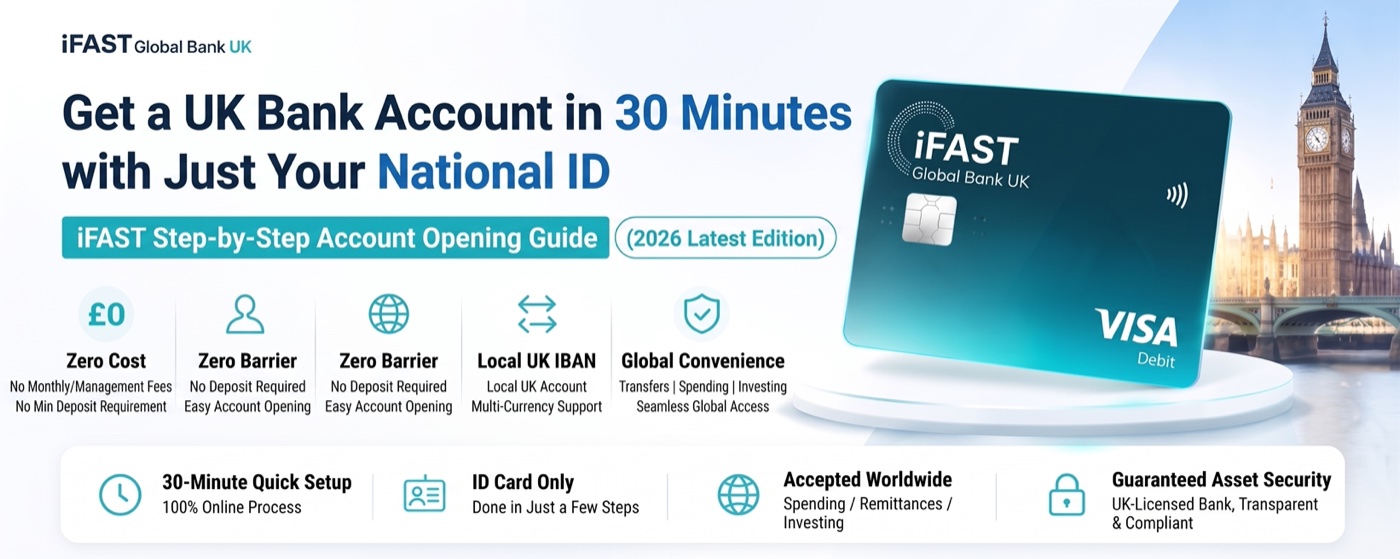
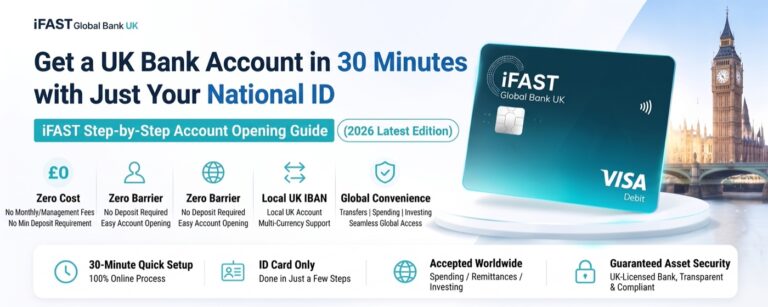
    Get a UK bank account in 30 minutes with just your national ID — iFAST Global Bank UK step-by-step account opening guide.

    Realistic expectations: the form itself takes 20–30 minutes on your phone. Approval is a separate thing you don’t control — often 1–2 business days, sometimes up to a week, and going by what people report, occasionally hours and occasionally much longer. So “30 minutes” is the typing, not the verdict.

    Who it’s for

    This is worth doing if you want to fund Wise from a real bank account, don’t have a Hong Kong card, need to move money in and out of a broker, want a GBP-region account to attach to services, or just want somewhere to park idle foreign currency. It’s an account, not a wallet — and note there’s no physical card at the moment.

    What to have ready

    • Mainland Chinese ID card — no passport needed.
    • Mainland phone number + an email you use — one that can receive codes; Gmail or Outlook are good picks.
    • Proof of address, dated within 3 months — a bank or credit-card statement, or a utility bill. Use the full original PDF, not a screenshot.
    • Tax Identification Number (TIN) — for a Chinese tax resident this is simply your ID card number.
    • Your name and address in both Chinese and English — English in uppercase pinyin. The address you type must match your proof-of-address document exactly.

    The registration, step by step

    One rule that runs through all of it: fill everything in truthfully and keep it consistent. Verification is basically the bank checking that what you typed matches your documents, so consistency matters more than anything else.

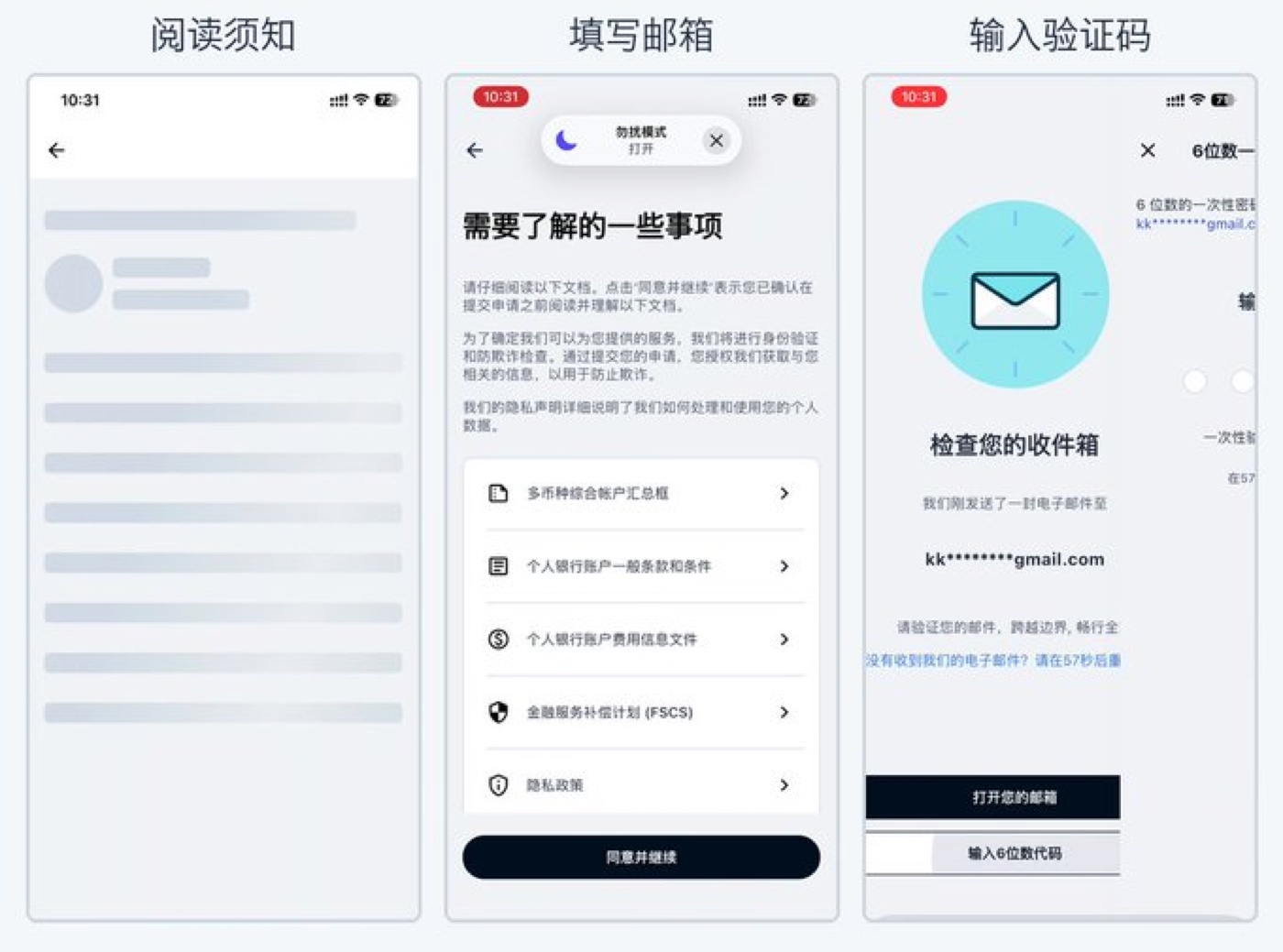
    Start & email. Open the sign-up page (the link is below), enter your usual email, and continue — you can do the whole thing in the app. The system emails a 6-digit code that’s valid for 10 minutes; check spam if it doesn’t arrive.

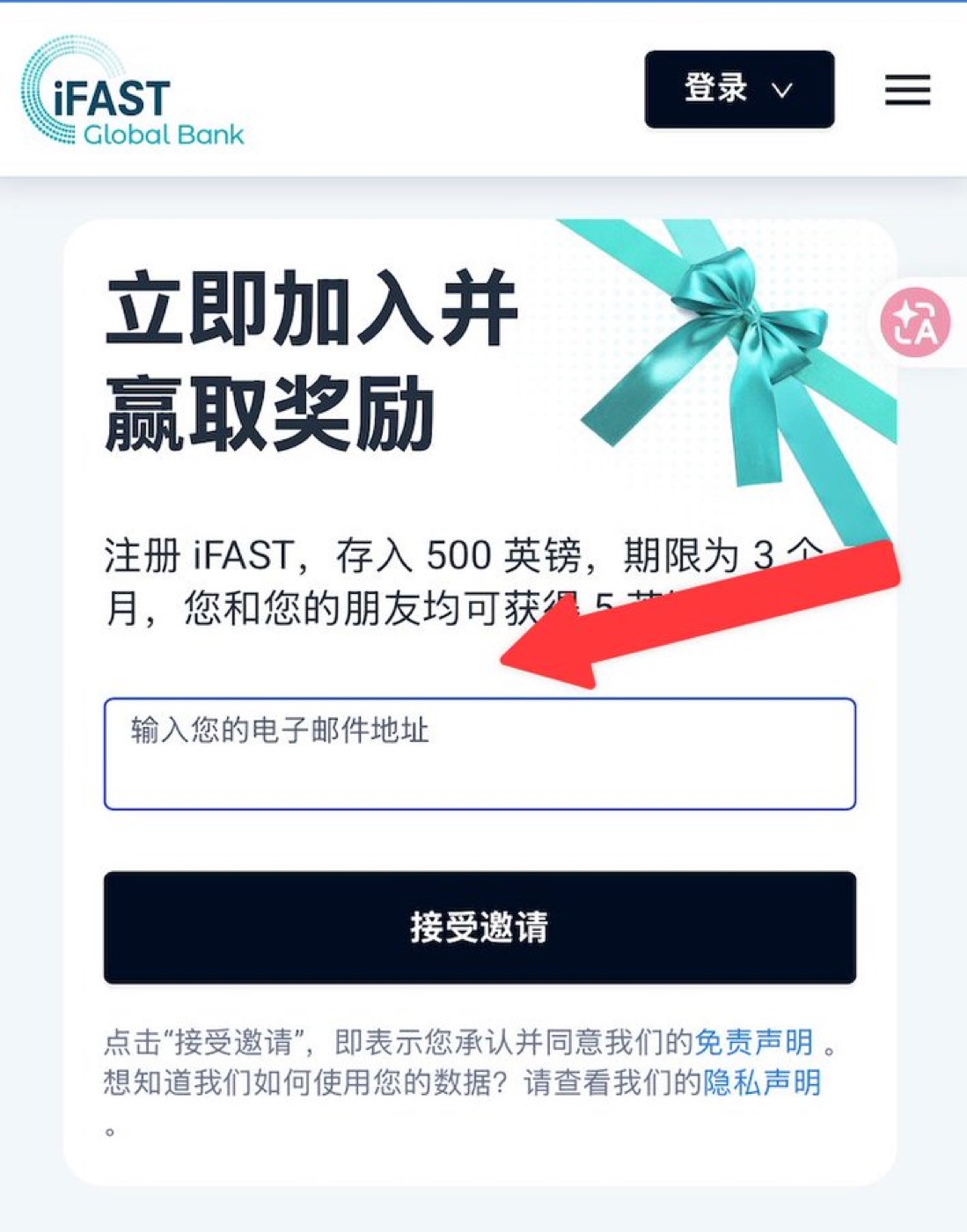
    The iFAST invitation sign-up page where you enter your email to accept the invite.
    Reading the onboarding notice, entering your email, and typing the 6-digit verification code.

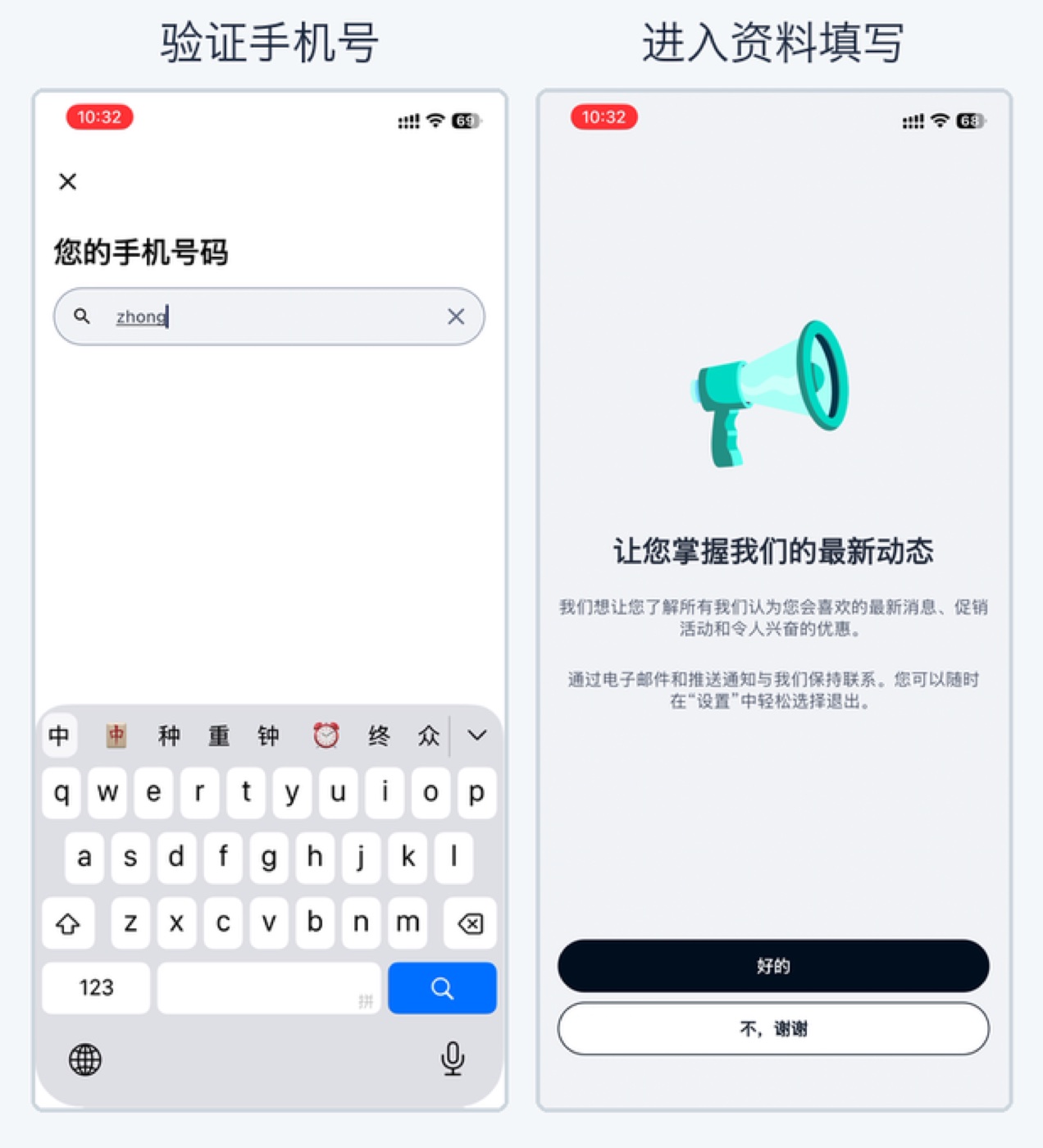
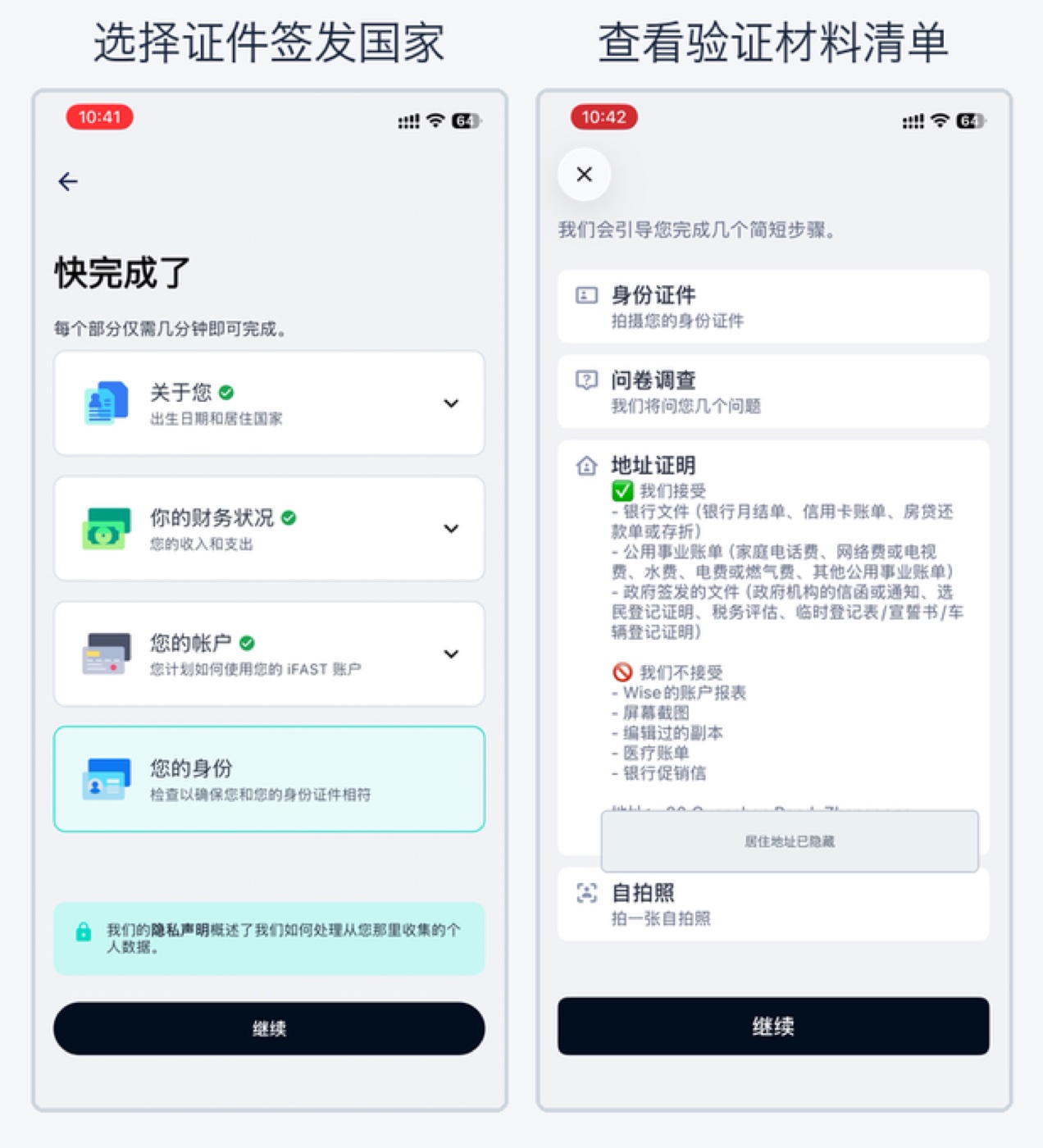
    Phone & the four sections. Enter the email code, pick your phone’s country/region (mainland China, +86), and add your number. The app then walks you through four blocks in order: About you, Your financial situation, Your account, and Your identity.

    Verifying the phone number and moving into the details forms.

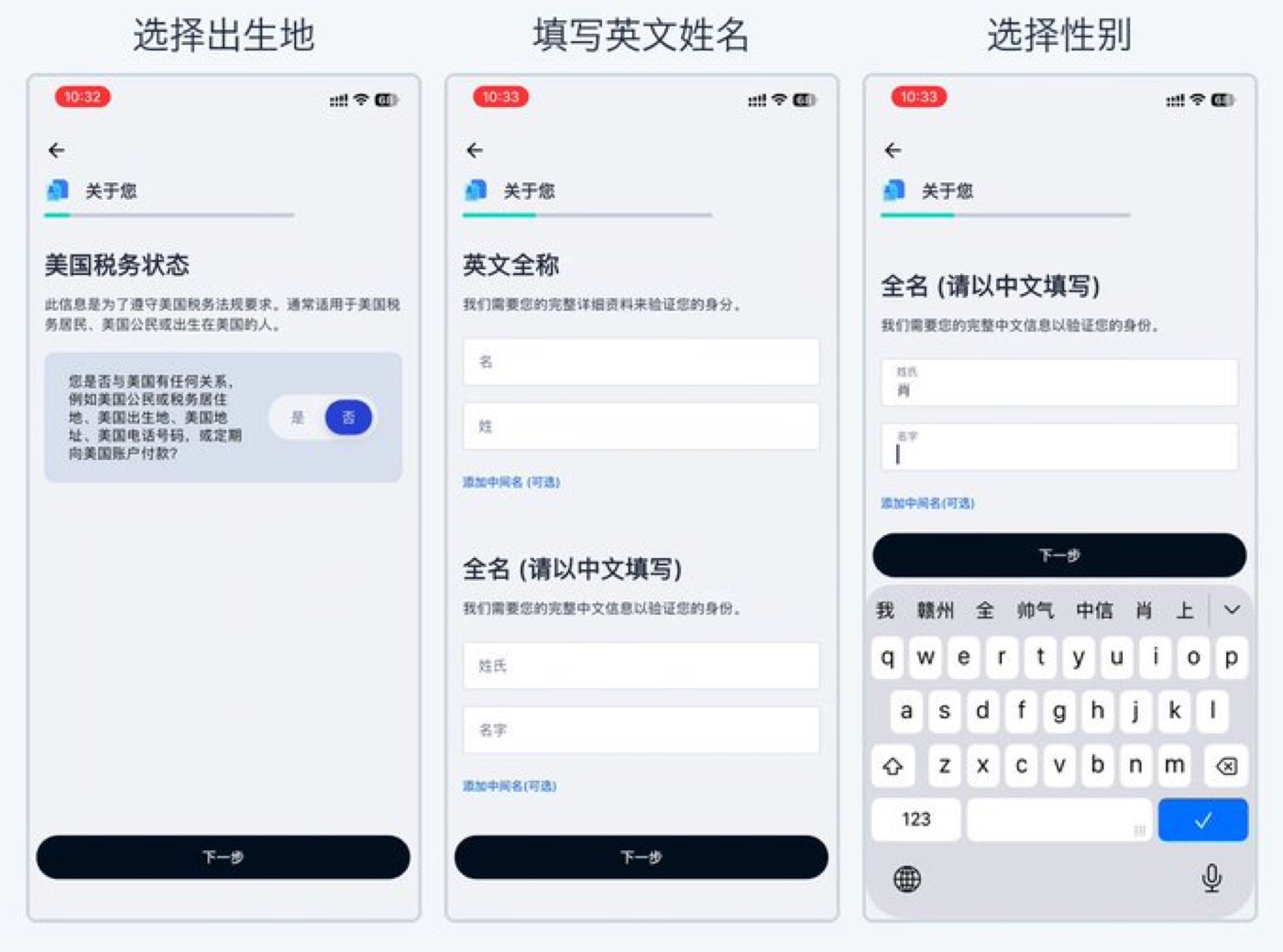
    Name, birthplace, gender. Choose your country of birth, then enter your name: English given name and surname in uppercase pinyin exactly as on your ID, a middle name only if you have one, and your full Chinese name. The Chinese and English names must match the document you’ll upload later. There’s also a US tax-status question — for a mainland ID holder the answer is No.

    Selecting country of birth, entering the English name, and choosing gender.

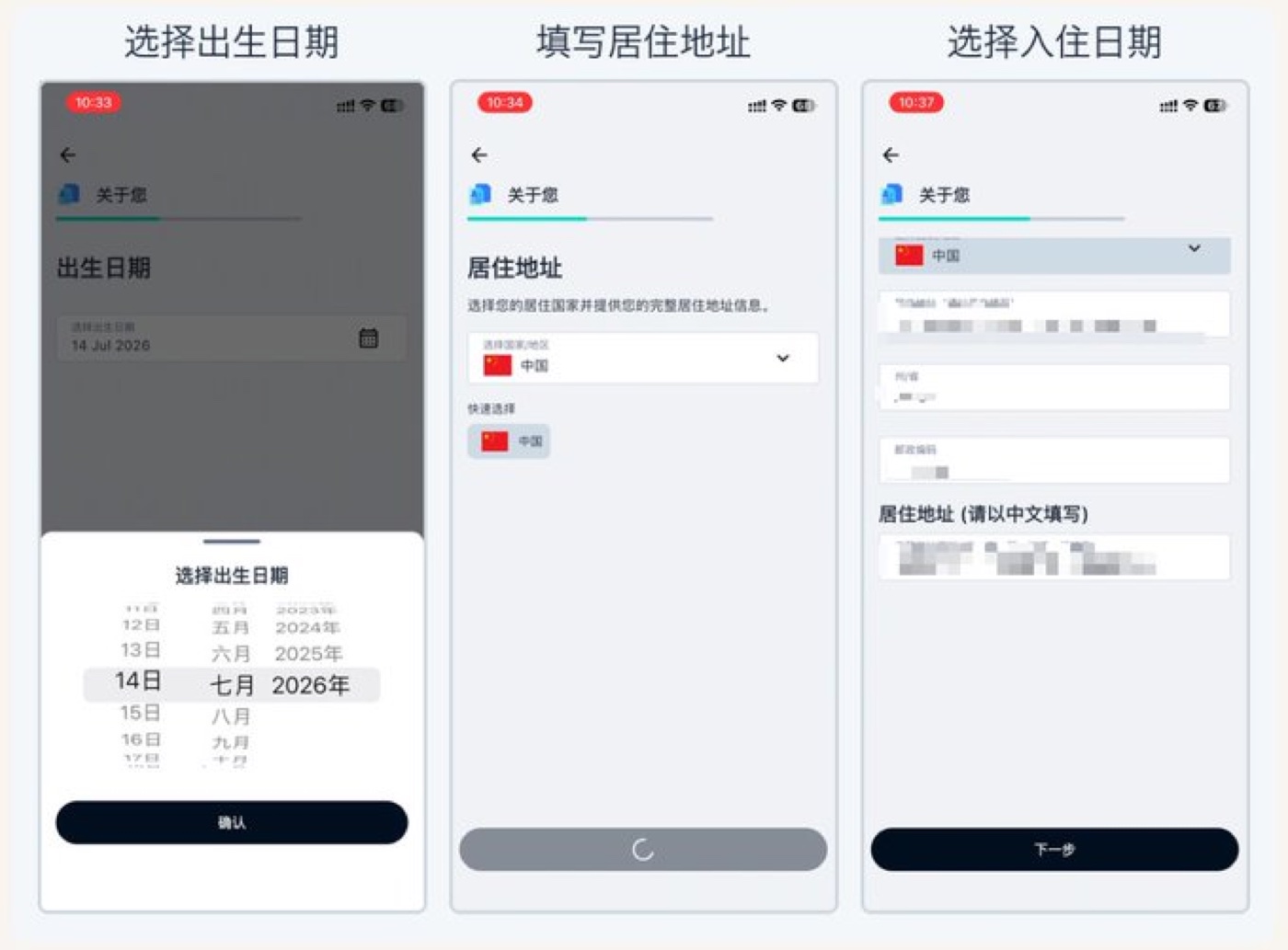
    Date of birth & address. Set your birth date, then your current residential address: the English (pinyin) address plus state/province and postcode, and the full Chinese address in the “please enter in Chinese” field, then your move-in date. This address has to match your proof-of-address document word for word.

    Choosing date of birth, filling the residential address, and picking the move-in date.

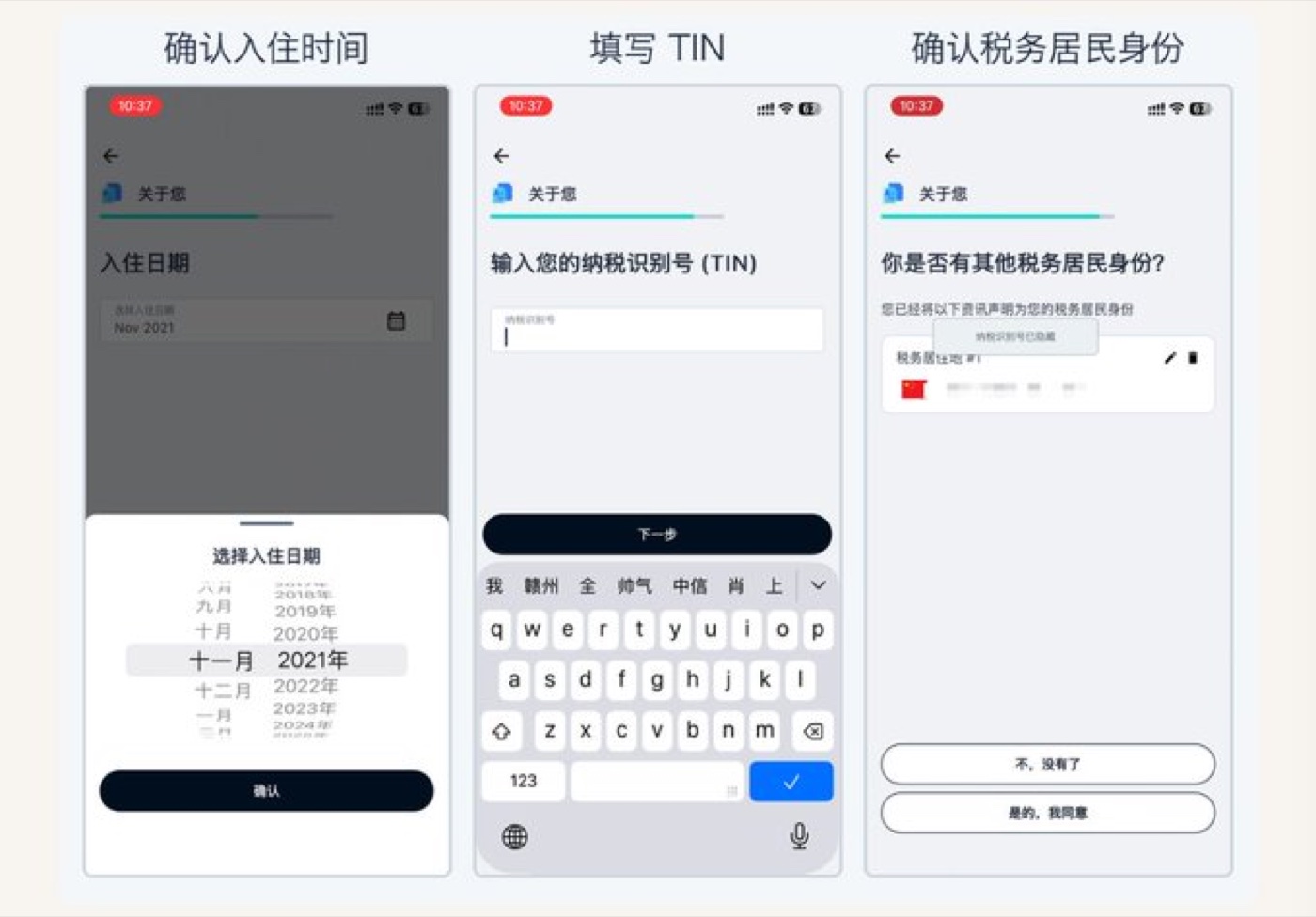
    Address history & TIN. Confirm how long you’ve lived there and your address history, then enter your TIN. This is where people get stuck: for a Chinese tax resident, the TIN is just your ID card number. If asked whether you have other tax residencies, pick “No, I don’t” unless you genuinely do.

    Confirming move-in date, entering the TIN, and confirming tax residency.

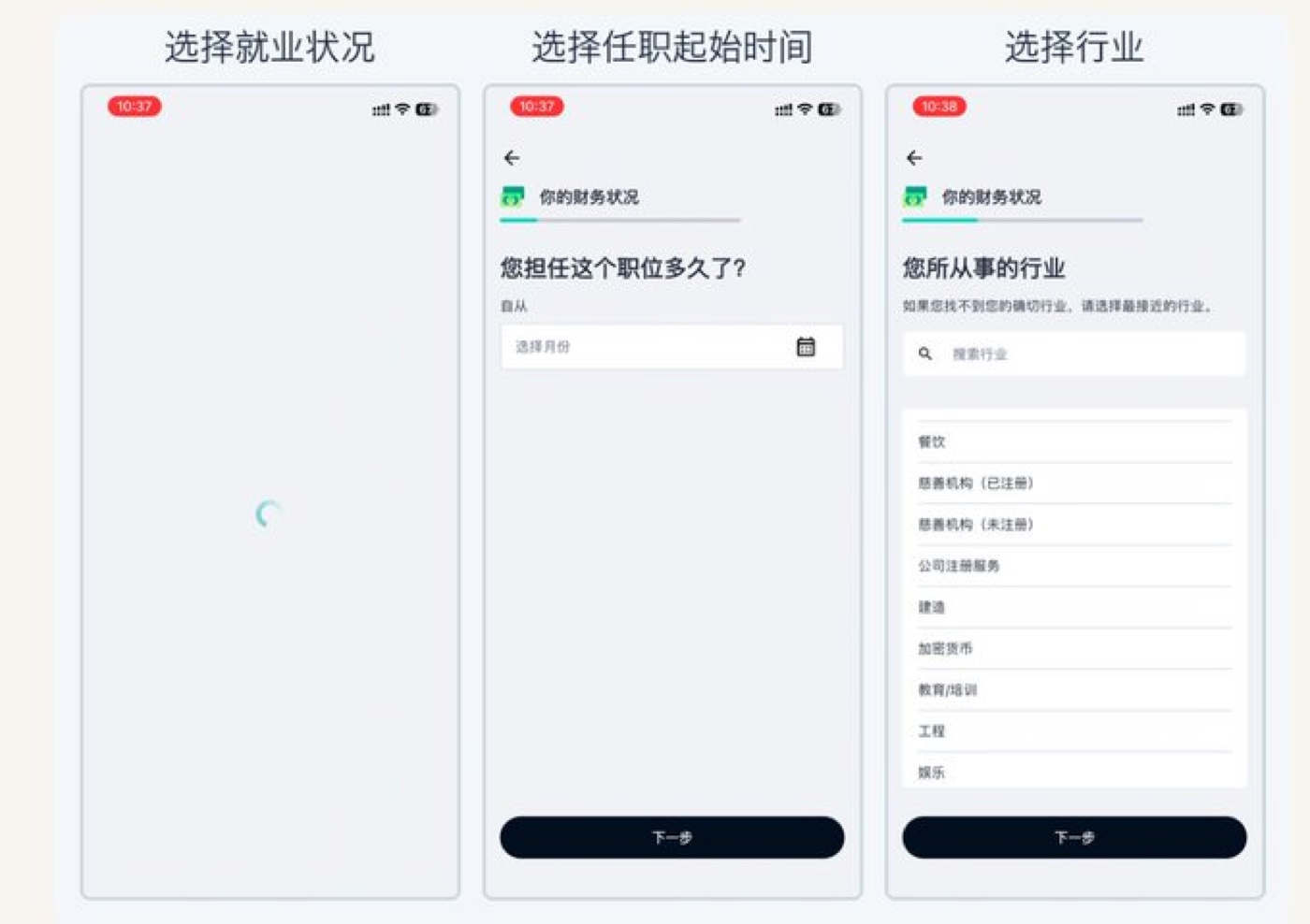
    Work details. Pick your employment status — if Employed is an option for you, prefer it, since self-employed profiles are more often asked for extra documents. Then choose your start month/year and the closest industry from the list (you can search). On the next screen, choose the closest occupation and enter your company name; when it asks whether you’re affiliated with the iFAST group, most people answer No.

    Choosing employment status, employment start date, and industry.

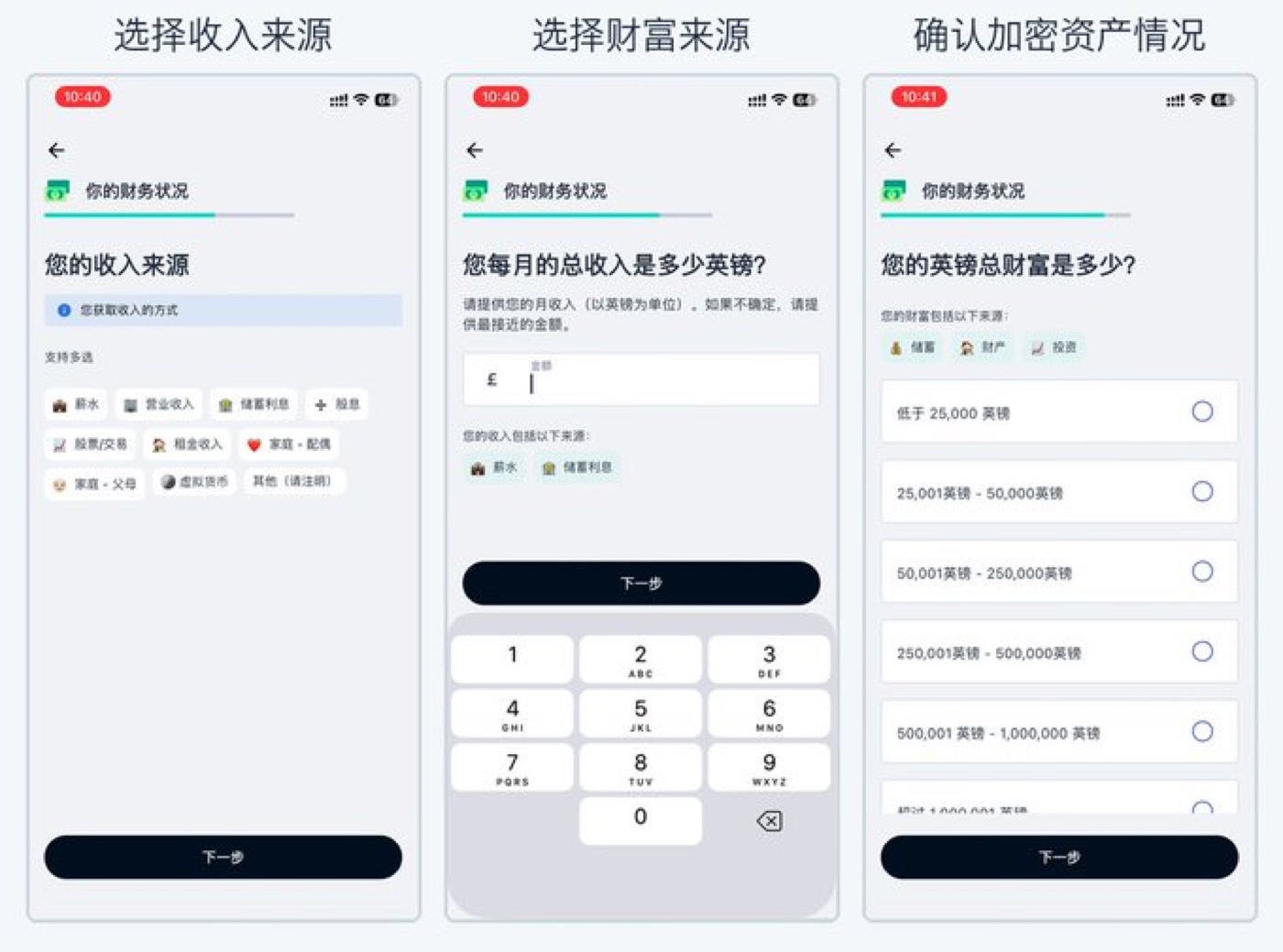
    Income, wealth & crypto. The income-source and wealth-source screens both allow multiple selections — tick everything that applies. You’ll then be asked about crypto holdings; the page states plainly that iFAST doesn’t allow crypto-related funds to be deposited directly, so if you don’t have a real need, answer honestly (usually “No”).

    Selecting income source, wealth source, and answering the crypto-assets question.

    Account purpose & activity. Choose your reason for opening and your planned first-deposit range (under £5,000 / £5,000–25,000 / £25,000–100,000 / over £100,000 — most people pick the first, and it doesn’t affect approval). Then pick the main country your funds come from and your expected monthly transaction count (0–10 / 11–25 / 26–50 / 51+). Keep this realistic — if your later activity is wildly different from what you declared, it can trip risk controls.

    Identity verification. Select the issuing country of your ID (China). The app lists what’s left: your ID document, a short questionnaire, proof of address, and a selfie. On proof of address, it’s specific — bank/credit-card statements, mortgage statements, utility bills, and government letters are accepted; Wise account statements, screenshots, edited copies, medical bills, and promotional letters are not.

    Selecting the ID issuing country and reviewing the verification checklist, including which address documents are accepted.

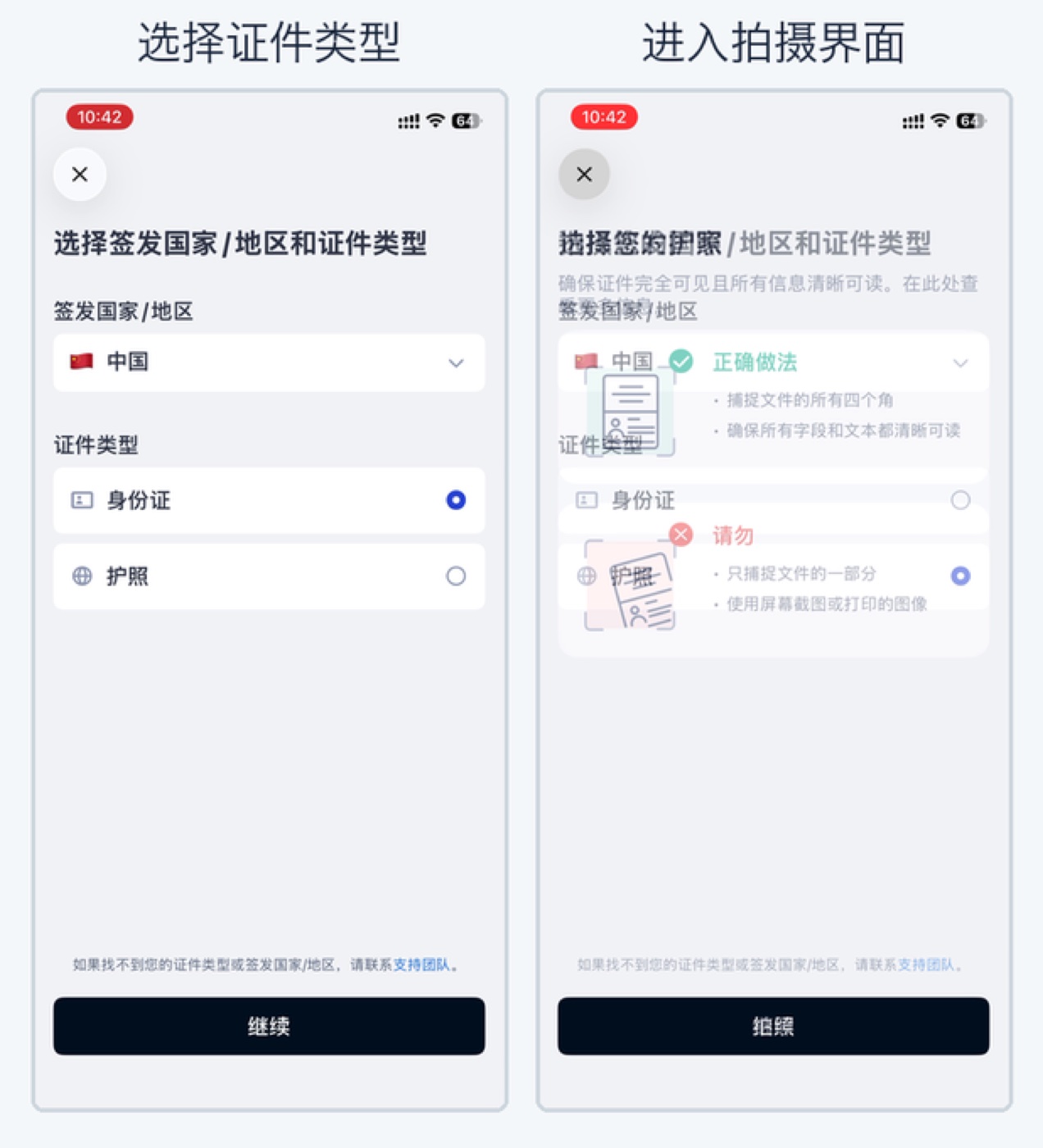
    Photograph the ID. Choose ID card (or passport) and take the photo with the camera — use the physical original, good even light, all four corners in frame, text sharp. No screenshots or edited images.

    Choosing the document type and the camera capture screen with good and bad examples.

    Finish & wait. Complete the short questionnaire (it just re-confirms what you already entered — keep it consistent), upload the proof-of-address PDF, take the selfie, and submit. Results usually come by email in 1–2 business days, up to about 7. If you’re asked for more, check that your name, address, document validity, and photo clarity all line up — and don’t just resubmit a screenshot or an edited file. Once you get the approval email, log in with your registered email and set a password.

    Once it’s open — how to actually use it

    • Your account details: in the app, the top-left menu → bank details holds two sets — a UK local account (Sort Code, receives GBP, FPS is instant and free) and an international account (SWIFT/IBAN, receives multiple currencies).
    • First funding: as little as ~£1 equivalent activates it, but fund it only from an account in your own name — Wise over FPS is the easiest (instant and free). Don’t route it through third-party payers, money changers, or crypto — transfers flagged as crypto-related get rejected.
    • The biggest pitfalls: details that aren’t truthful or aren’t consistent, and using a screenshot for proof of address. Those account for most rejections and requests for more documents.
    • Stay active: a long stretch of zero balance and zero activity can get an account closed — keep a small balance and log in now and then.

    A compliance note, since this is real money crossing borders: declare the purpose of your transfers truthfully and stay within your annual foreign-exchange allowance, and remember that both China and the UK participate in CRS information exchange. For anything large, talk to a professional — this post is just me sharing a setup, not advice.

    Quick answers (from people who’ve done it)

    • Do I need a passport? No — a mainland ID card is enough.
    • My ID address and where I actually live are in different districts. That’s fine, as long as you can provide a proof-of-address document that matches what you enter.
    • Can I use a domestic bank statement as proof of address? Yes — a bank/credit-card statement works; just use the full PDF.
    • Is there a physical card? Not right now.
    • What’s the transfer limit? The daily transfer cap is around £5,000, which is plenty for everyday use.
    • How long does review take? It varies a lot — some are approved within hours, others wait 10+ days, and a few sit much longer. Plan for 1–2 business days but don’t count on it.
    • Might they ask for more documents? Yes — some people are asked for things like proof of employment. Just provide clear, consistent originals.

    Signing up

    You can register through this iFAST sign-up link.

    A note on that link: it’s a referral link, and I don’t earn anything from it — the referrer credit goes to the original guide this walkthrough is based on. If you use it and meet iFAST’s current bonus conditions, you may still get the new-signup bonus, at no extra cost to you. It’s entirely optional and the sign-up works exactly the same without it; check the exact terms in the app, as they change.


    iFAST is a real, regulated bank and its onboarding, rates, fees, and rules change over time; app screens vary by version. Fill in your own true details, follow the in-app instructions, and check iFAST’s official app or website for the current process before relying on any of this.

  • Getting a Philippine DITO eSIM (and Keeping the Number Alive for Pennies)

    Getting a Philippine DITO eSIM (and Keeping the Number Alive for Pennies)

    Just sharing what has worked for me — not legal or financial advice. Philippine SIM registration is required by law and has to be truthful, so register with your real details. Prices and promos change over time, so check DITO’s official app or site for the latest.

    Of all the cross-border plumbing I’ve set up, a Philippine DITO number stays one of the most underrated — not because it’s fancy, but because it’s cheap, low-friction, and it works. DITO is the Philippines’ third telecom carrier (DITO CME, built with China Telecom as a partner). For a few dollars you get an overseas number that’s handy for receiving verification codes, keeps working with barely any upkeep, and — if you go on to open a Maya account — serves as the Philippine mobile number that whole setup depends on.

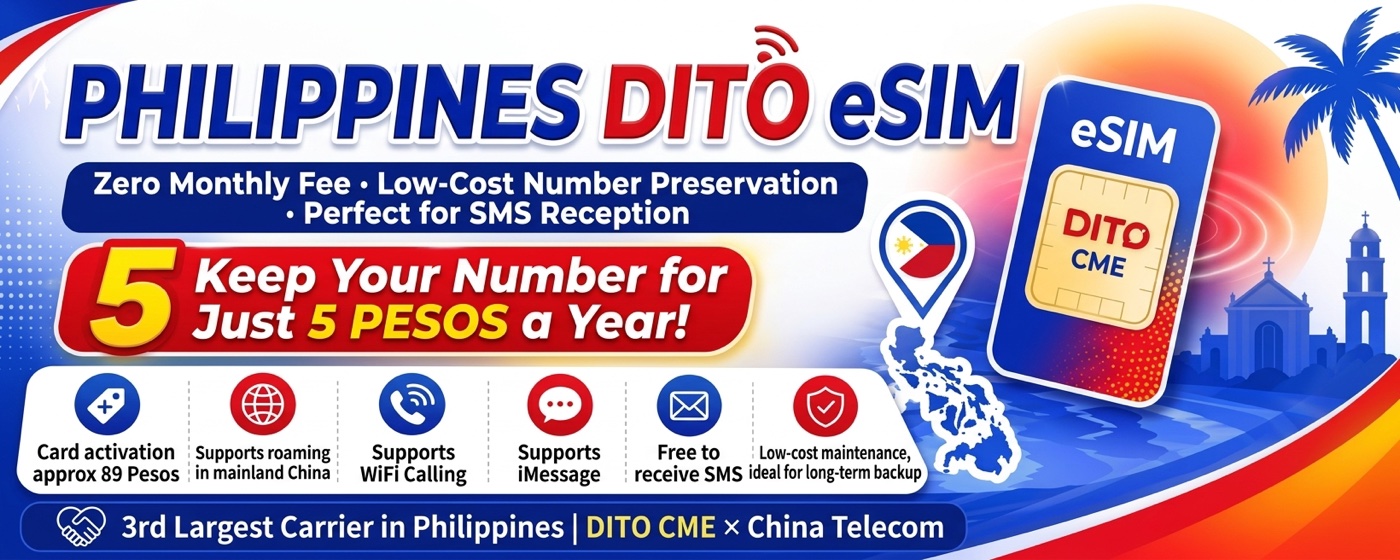
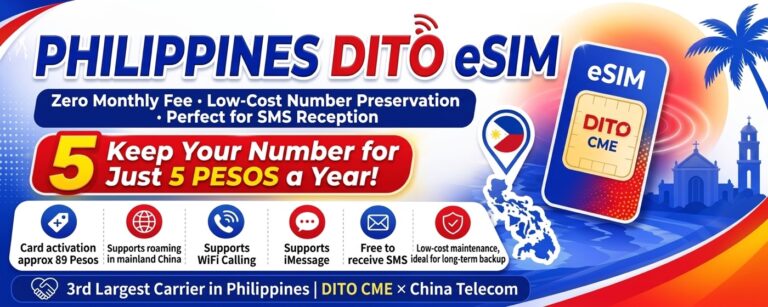
    Philippines DITO eSIM: zero monthly fee, low-cost number preservation, perfect for SMS reception — keep your number for about 5 pesos a year.

    Why DITO, and what it costs

    • eSIM cost: about ₱89 (roughly $1.5) for the eSIM itself.
    • Cost to keep the number alive: a top-up of just ₱5 (a few cents) extends the number’s validity by another year.
    • It roams in mainland China.
    • Receiving SMS is free and unlimited — which is really the whole point.

    A quick expectation-setter: think of this as a number for receiving codes and messages, not as a daily phone line. Making calls or sending SMS on an overseas number is expensive and not what it’s good at. (One caveat: the promo lists Wi-Fi Calling support, but the author of the guide I’m building on said in the comments they couldn’t actually get Wi-Fi Calling working — so don’t count on it.)

    One prerequisite: your phone needs to handle eSIM. If it can’t — a non-eSIM iPhone, or an Android that only takes a physical SIM — you can write the eSIM profile onto a physical card and use it like a normal SIM. I use Xesim for that (separate guide).

    Step 1 — Buy the eSIM

    1. Download the DITO app (App Store / Google Play).
    2. Open the app, swipe up, and go to eShop.
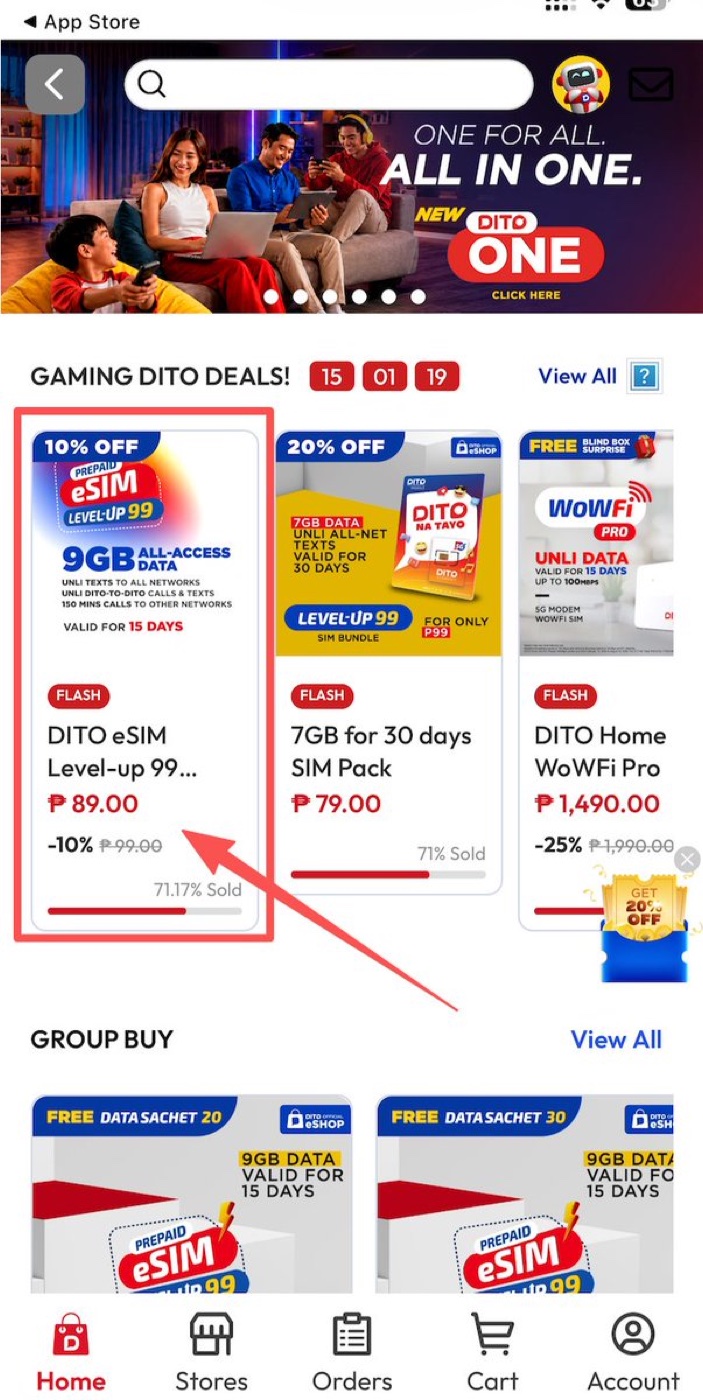
    3. Buy the ₱89 eSIM (at the time of writing it’s the “DITO eSIM Level-up 99” on a 10% flash discount).
    DITO eShop deals with the ₱89 DITO eSIM Level-up 99 highlighted.
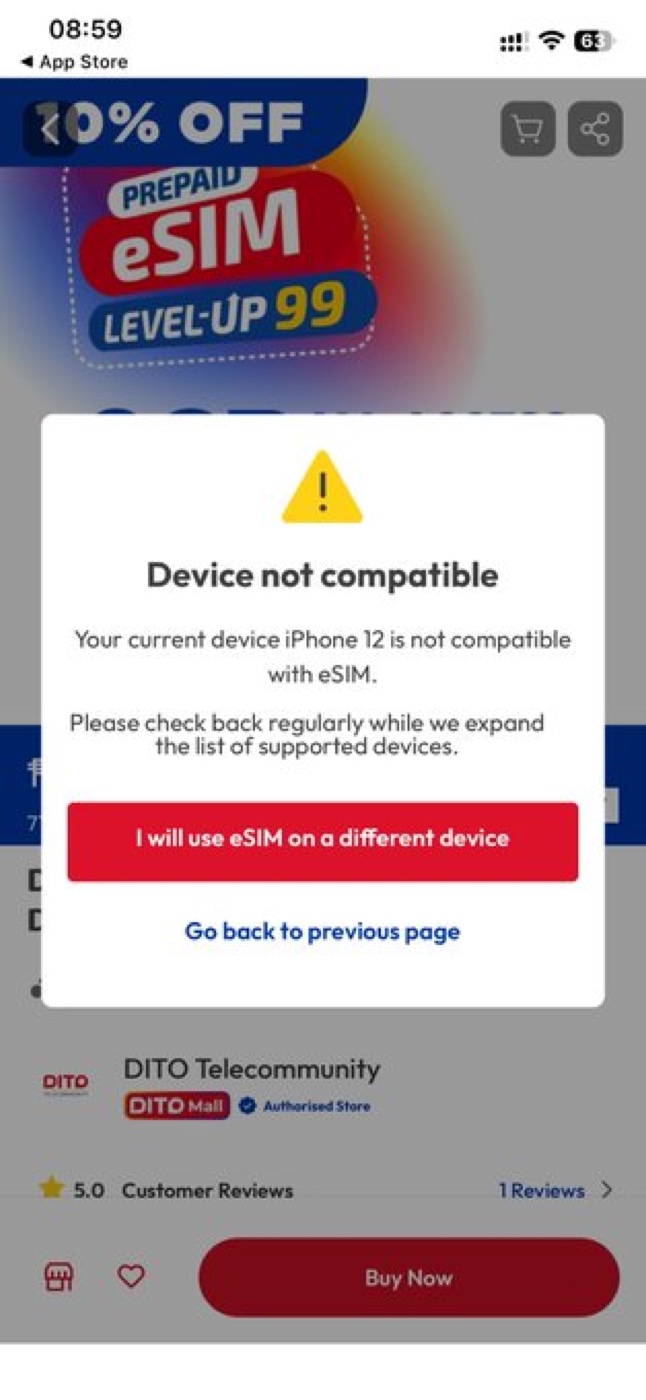
    1. Tap buy. If a popup says your current phone doesn’t support eSIM, choose “I will use eSIM on a different device.”
    A 'Device not compatible' popup with the option to use the eSIM on a different device.
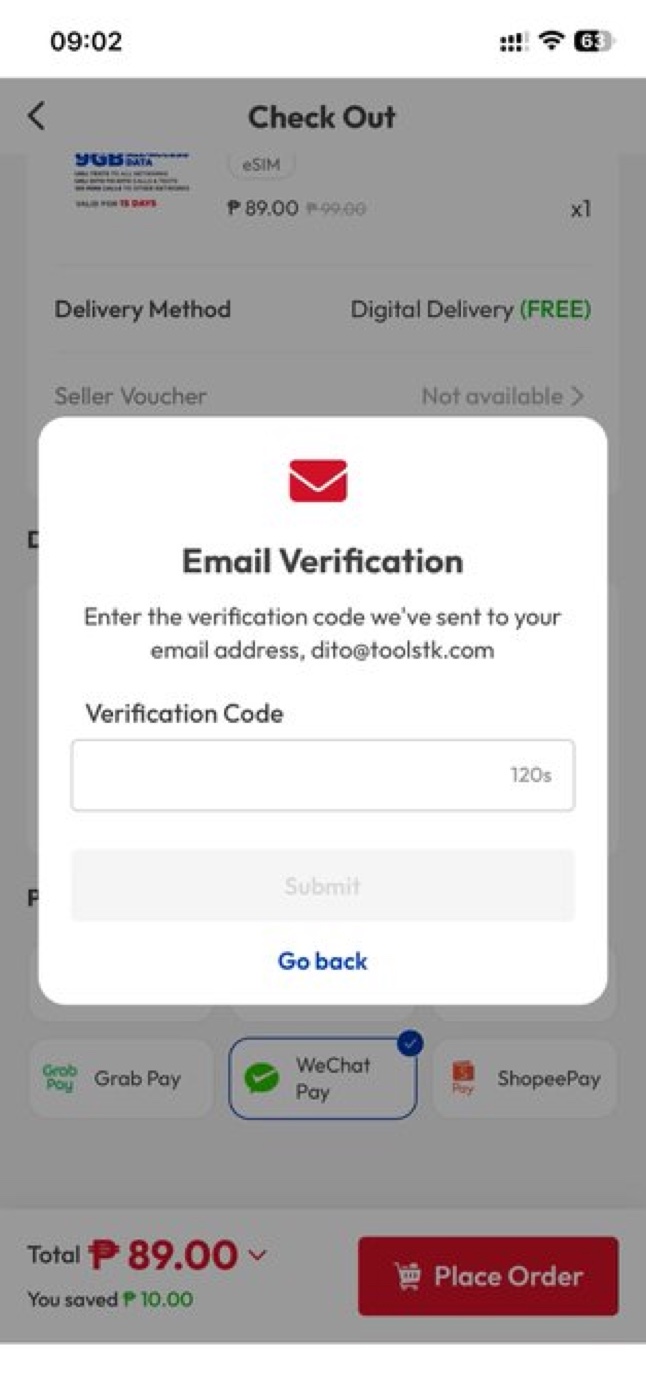
    1. Enter an email and tap Get Code to verify it. Your eSIM QR code gets sent to this address, so use a real inbox you can access.
    The email verification screen asking for the code sent to your email.
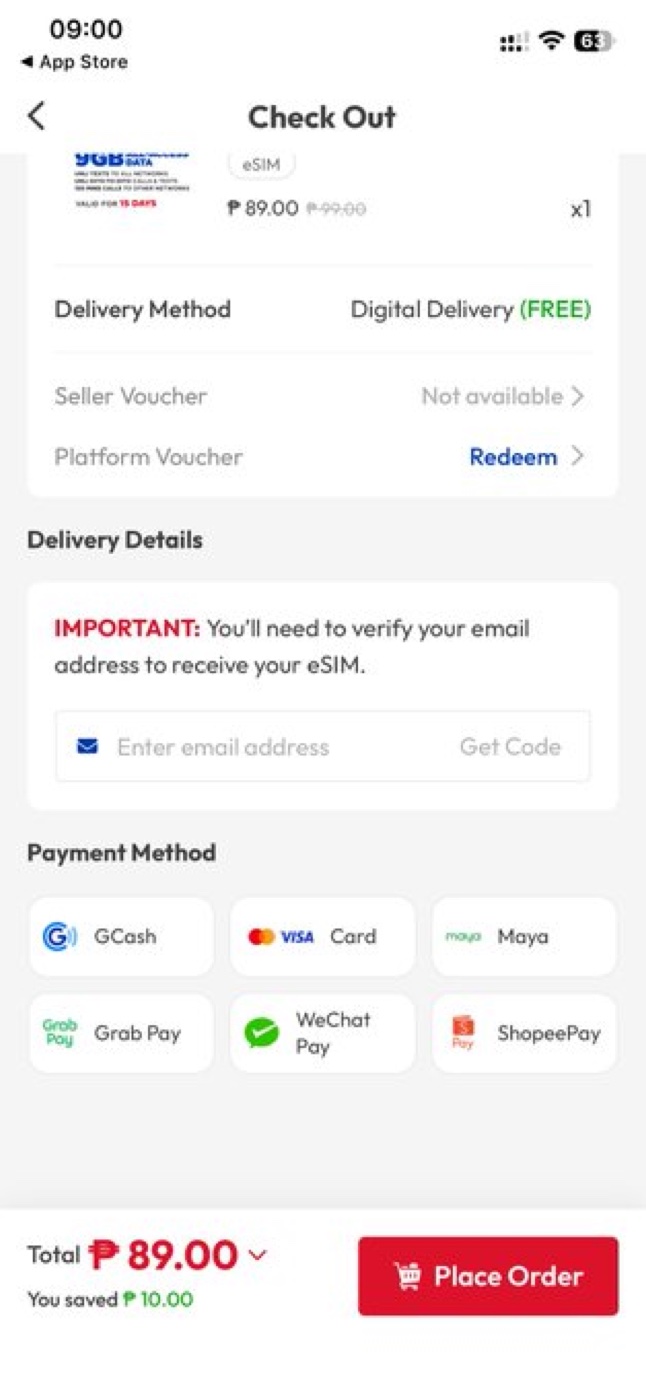
    1. Once the email is verified, pay with WeChat Pay — it’s the simplest option here. (Card payment tends to be more hassle.)
    The DITO checkout showing payment methods including WeChat Pay, total ₱89.

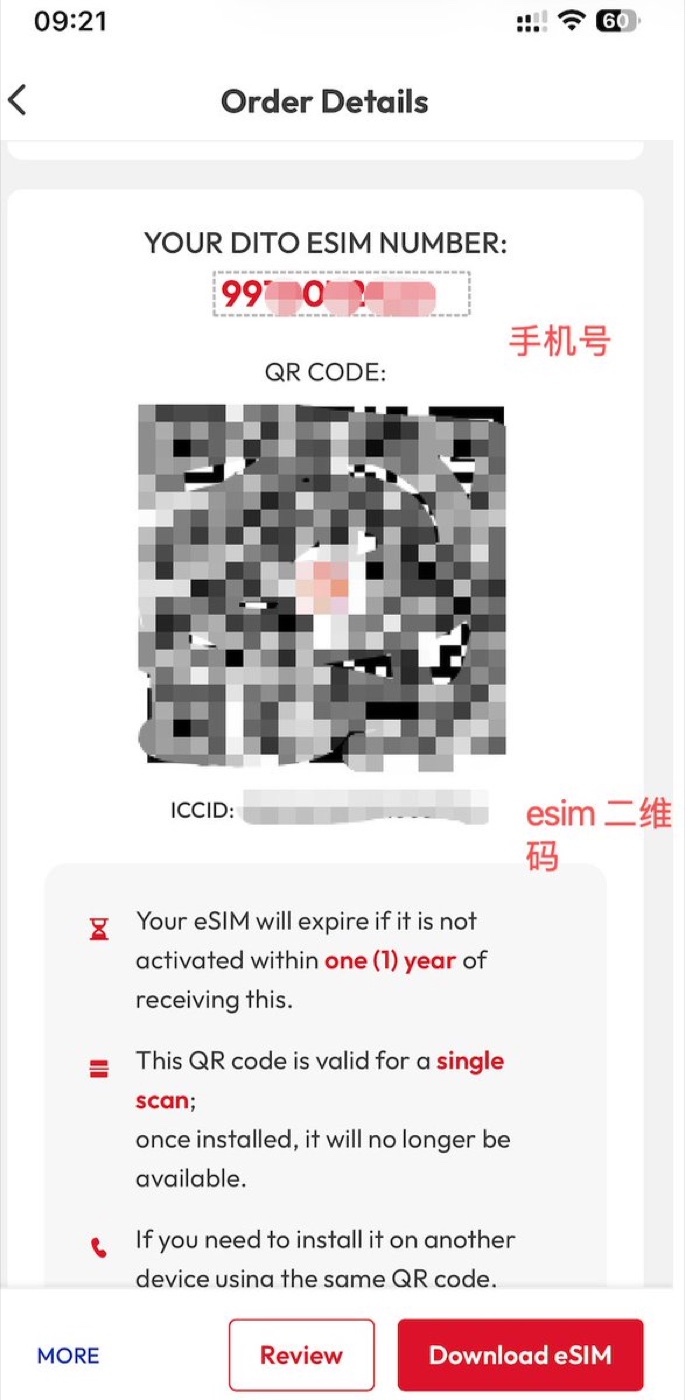
    Heads up after paying: back in the DITO app, if you tap “Download eSIM” it may just sit there spinning — don’t wait on that screen. Go back to the order page instead; after about 5–6 minutes the eSIM QR appears there, and it also arrives by email. Then scan the QR to install the eSIM.

    The order page showing the DITO eSIM number, QR code, and ICCID, with a note that the QR is valid for a single scan and expires in one year.

    Two things the QR screen tells you, and they matter: the eSIM expires if not activated within one year, and the QR is valid for a single scan — once installed it can’t be scanned again. Give it a few minutes after installing and you should get signal plus an activation SMS. If there’s no signal, check that the APN is selected, try switching carrier selection to automatic, and restart the phone.

    Step 2 — Register the SIM (the honest way)

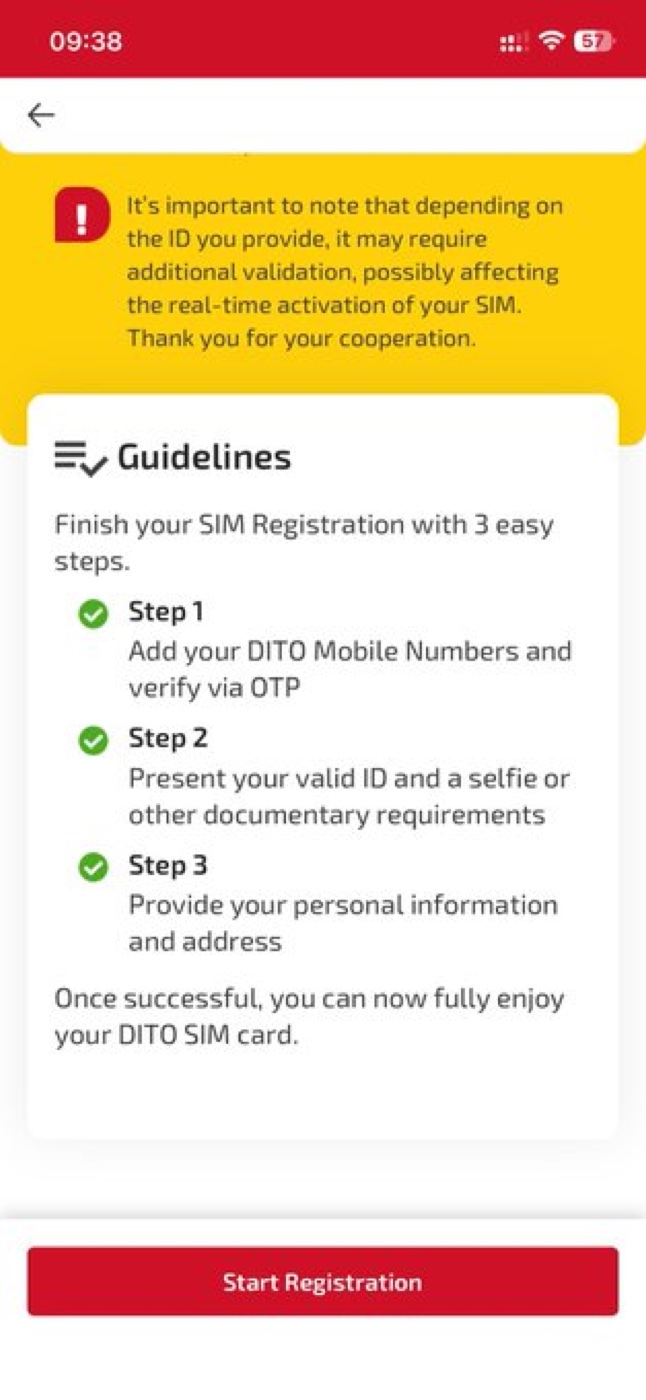
    The Philippines requires every SIM to be registered, and the registration has to be truthful. Open the DITO app, choose Sign in with your DITO number; you’ll be told the SIM is inactive and prompted to Register Now. Pick Register my DITO number → Proceed → Start Registration.

    DITO SIM registration guidelines: three steps — add and verify your number, present a valid ID and selfie, provide personal info and address.

    On the “Select type of registrant” screen, choose the category that matches your actual status. As a foreigner that means either Foreigner with Tourist VISA (if you’re visiting on a tourist visa) or Foreigners holding Non-tourist VISA (residents, employees, students, and so on). Don’t register as a “Filipino Individual” — that isn’t true if you’re not a Filipino citizen, SIM registration is a legal declaration, and readers have reported that option erroring out anyway.

    From there, follow the prompts: select Passport as your ID, upload a clear photo of the passport data page, take the selfie for the liveness check, and fill in your real personal details and address. A few tips that save a rejection:

    • Shoot the physical passport, not a photo of a screen — glare and moiré break the OCR.
    • Use even lighting with no shadow over the two machine-readable lines, and keep all four corners in frame.
    • Make sure the name matches your passport exactly.

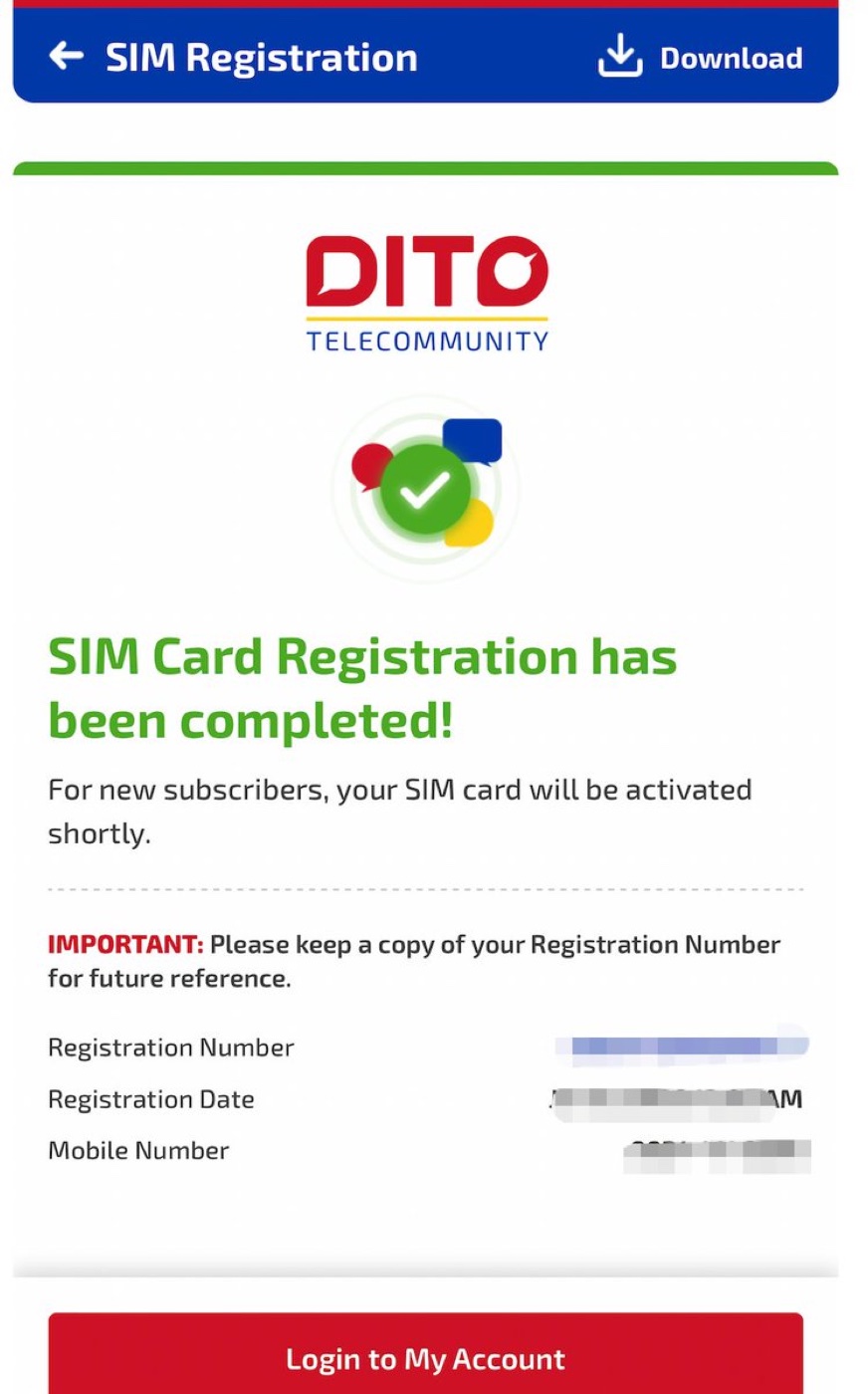
    Agree to the terms and submit. When you see “SIM Card Registration has been completed”, you’re done — keep a copy of the registration number. You’ll also get an SMS with a temporary login password (change it later), and a message confirming the number is active.

    The 'SIM Card Registration has been completed' confirmation screen with the registration number.

    Step 3 — Keep the number alive for pennies

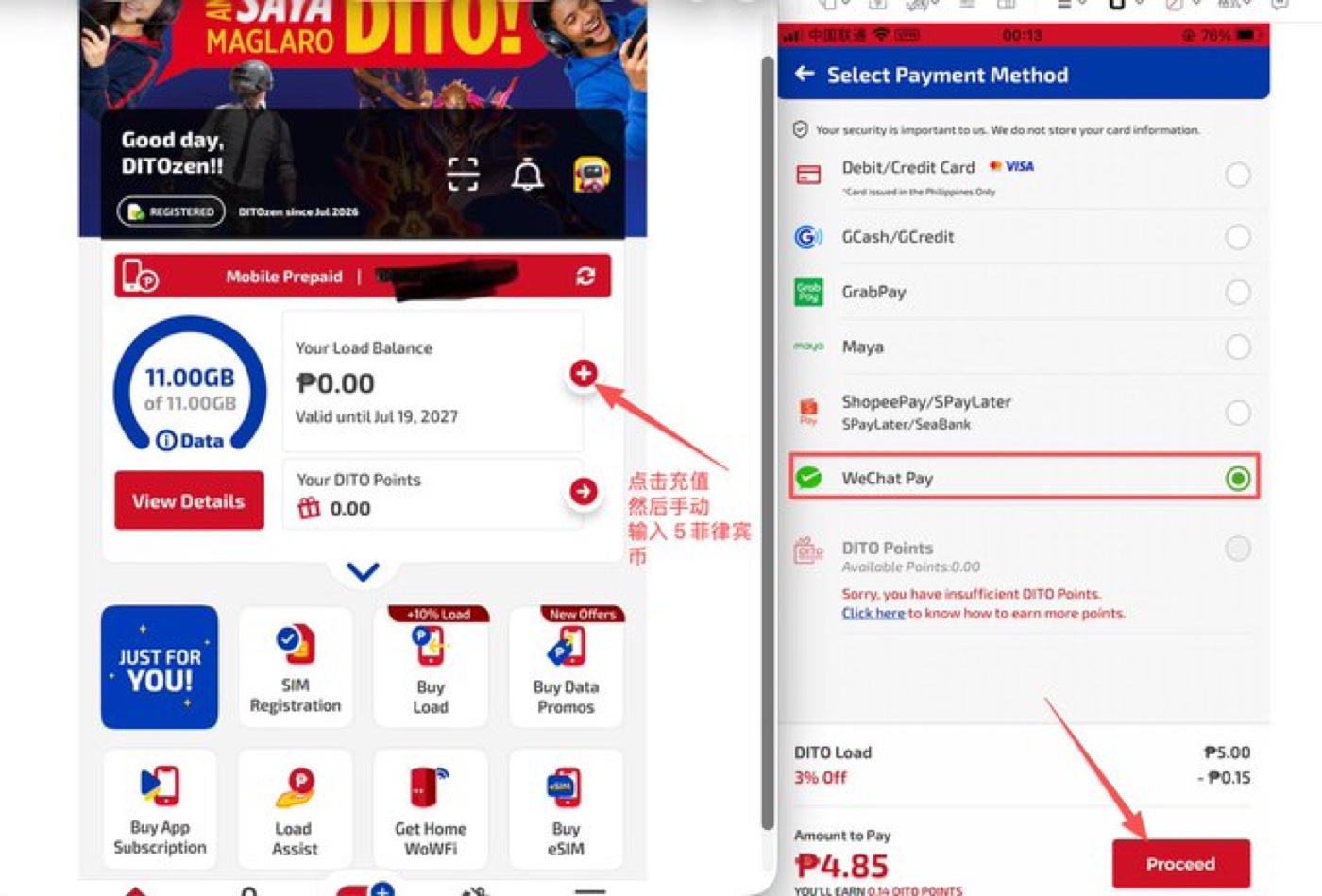
    This is the part that makes DITO worth keeping around. Sign in to the DITO app with your number (it starts with 0), using Sign In with SMS. Tap to add load, enter a small amount — the minimum is ₱5 — and pay with WeChat Pay again. With the 3% load discount it comes to well under ₱5 in practice.

    Adding a small DITO load and paying with WeChat Pay, amount around ₱4.85.

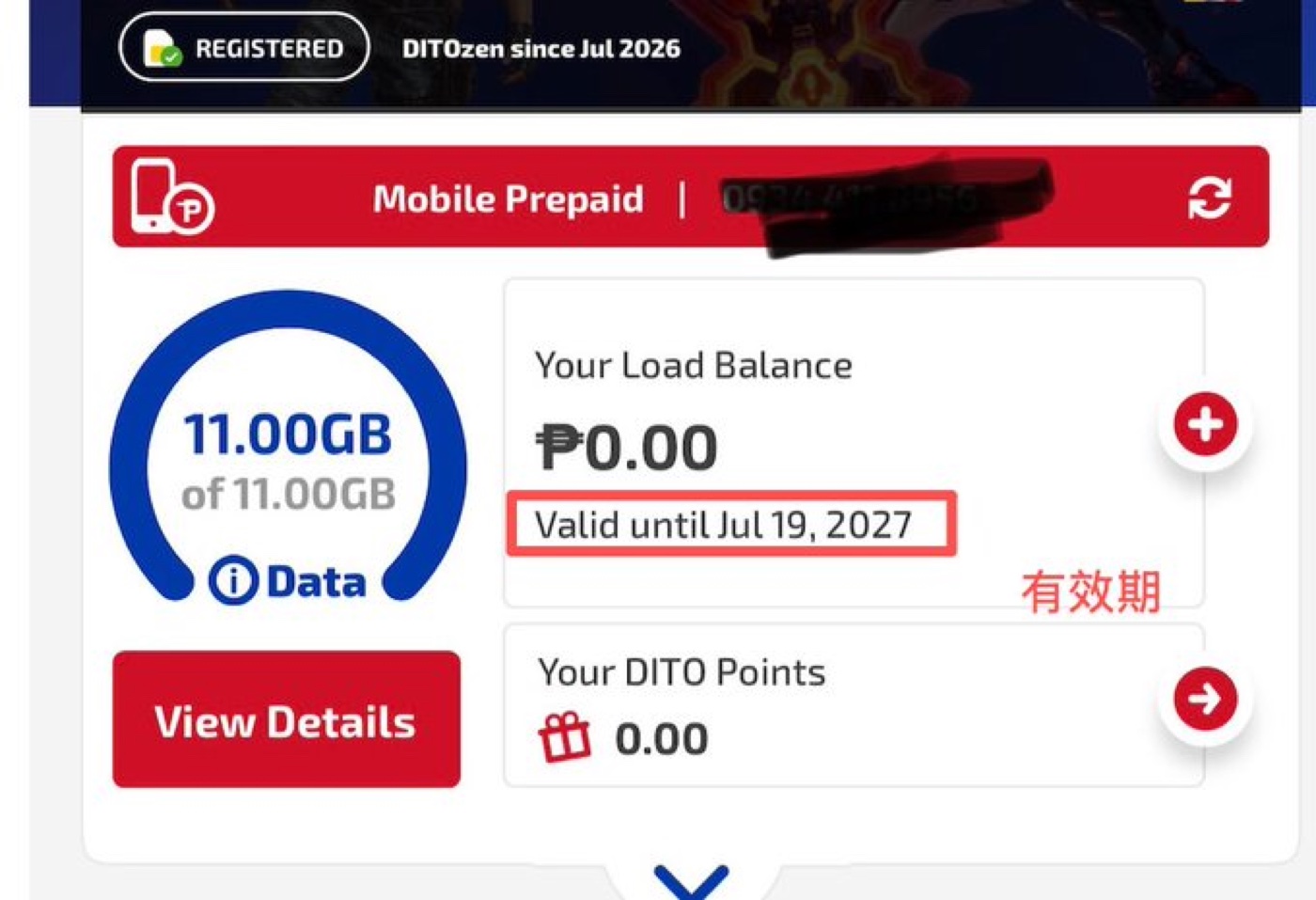
    Then watch the “Valid until” date on the home screen — that’s your number’s expiry. Each top-up of ₱5–₱10 (I’d do ₱10) pushes it out by a year. Topping up more at once doesn’t stack extra years, so once a year is enough. Do that and the number just keeps living, cheaply, in the background.

    The DITO home screen showing the load balance and a 'Valid until' expiry date.

    One clarification, since it trips people up: the “15-day” bundle you might see (the 9GB data and call minutes) is just the free promo that comes with the eSIM — it has nothing to do with keeping the number. For our purposes the number’s validity is the only thing that matters, and that’s what the yearly ₱5–₱10 top-up extends.

    Common questions (from real users)

    It shows “no signal.” Set network selection to manual and switch to China Telecom or China Unicom; toggle airplane mode off and on; restart the phone; and check the APN is selected. A few people noted that even when it displays “no signal,” it can still receive SMS — which is all you need for codes.

    I’m not getting some verification codes (WhatsApp, banks, certain apps). This one isn’t fully reliable. It’s not a VPN-node issue — sometimes the sender or carrier blocks the message and it works if you wait a while, and occasionally you’re unlucky and get a recycled number that some services don’t like. Treat SMS receipt as usually-fine, not guaranteed.

    Does it support Wi-Fi Calling? The promo says it does, but the guide’s author reported in the comments that they couldn’t get Wi-Fi Calling to work — so treat it as unreliable rather than a feature to count on.

    My QR code stopped working. The QR is single-use. If you deleted the eSIM you can’t just rescan it — contact DITO support to have a new one generated.

    The eSIM QR never showed up after paying. Wait a few minutes, go back to the order page and refresh, and check your email — it’s sent there too.

    Do I need a passport? Yes. Registration is real-name, and without a passport a lot of overseas services are off the table anyway.


    Prices, promos, and registration rules change over time, and SIM registration must be completed truthfully with your own details. Treat this as a snapshot of my own experience, follow the in-app instructions, and check DITO’s official app or website for the current process.

  • Opening a Maya Account in the Philippines on a Foreign Passport: The Full KYC Walkthrough

    Opening a Maya Account in the Philippines on a Foreign Passport: The Full KYC Walkthrough

    Just sharing how this worked for me — not financial or legal advice. Maya’s flow, limits, and rules change over time, and app screens differ by region and version, so always follow what’s on screen and check Maya’s official app for the latest.

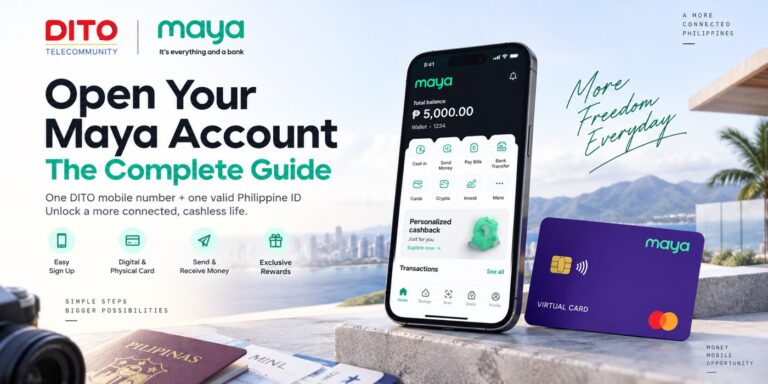
    I’ve been writing about cross-border banking plumbing for a while, and the Philippines route stays underrated. Not because it’s fancy — because it’s cheap, low-friction, and it actually works. One Maya account gives you a Philippine local wallet, a savings account, and a virtual card, and later it can handle local payouts and payment verification for some overseas services.

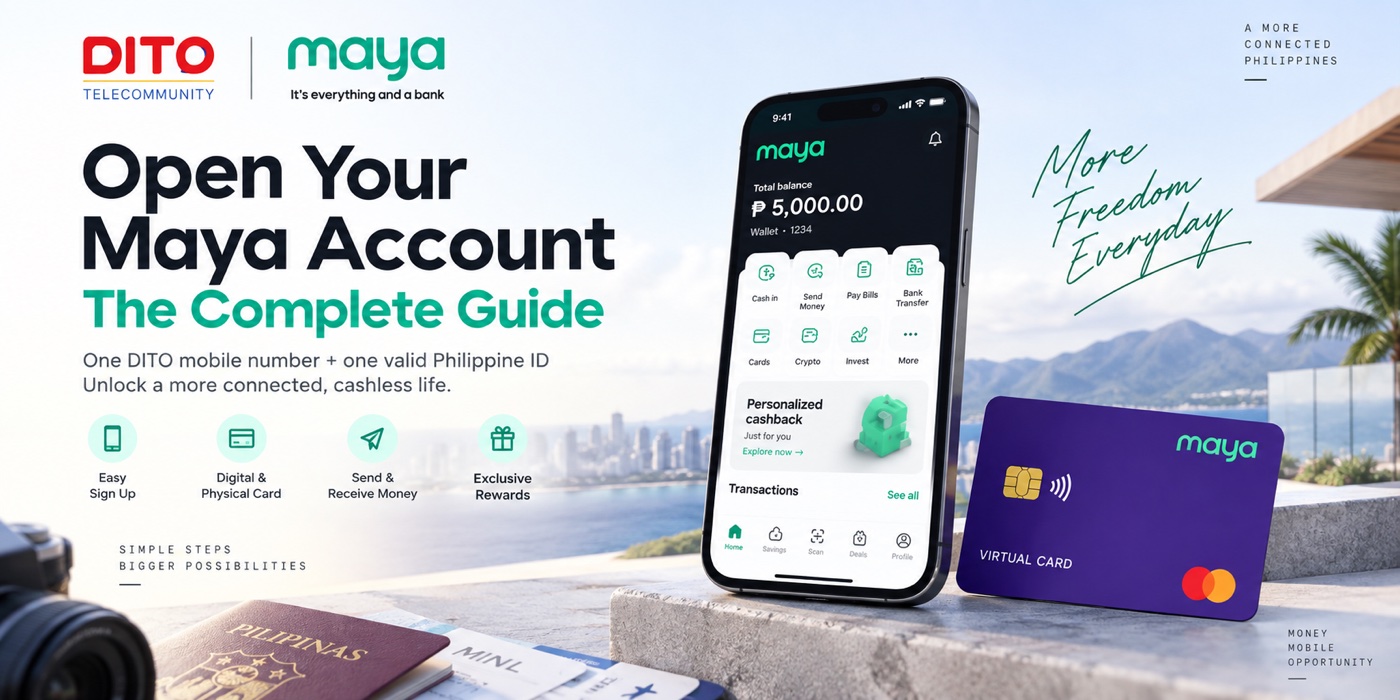
    Open your Maya account — the complete guide: one DITO mobile number plus one valid Philippine ID, showing the Maya app and a virtual Mastercard.

    The one prerequisite: a Philippine mobile number

    There’s one requirement you can’t route around: you need a Philippine local mobile number first. DITO issues an eSIM. If your phone can’t do eSIM — a non-eSIM iPhone, or an Android that needs a physical SIM — you’ll need a card-writing tool to write the eSIM profile onto a physical card and then use it as a normal SIM. The one I use for that is Xesim (I wrote a separate guide on it).

    Step 1 — Register the basic account

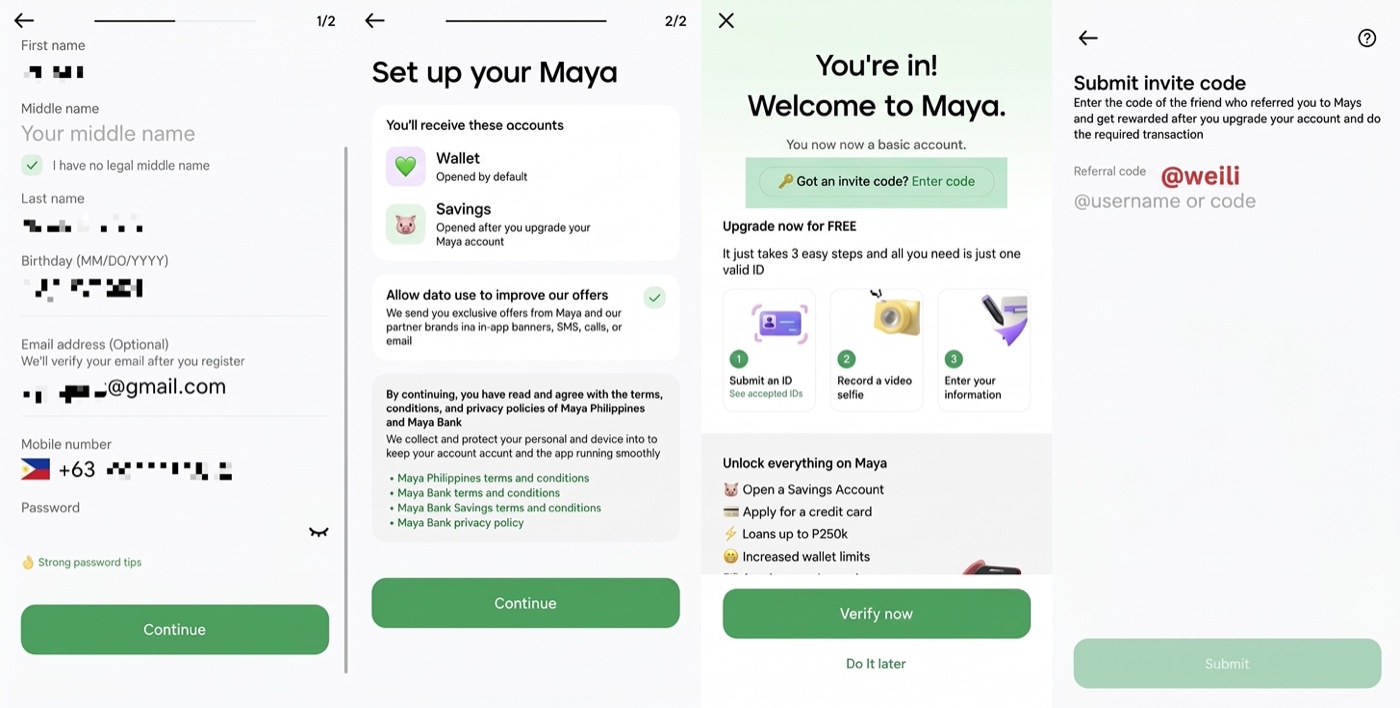
    Download the Maya app and tap Start an account. The first screen is simple:

    • First name — your given name.
    • Middle name — most Chinese passports have none, so just tick I have no legal middle name.
    • Last name — your surname.
    • Birthday — note the format is MM/DD/YYYY.
    • Email address — optional, but worth adding; it makes account recovery easier later.
    • Mobile number — starts with +63; use your DITO number.
    • Password — set a strong one and keep it safe.

    The single most important thing on this screen: the name has to match your passport exactly — same romanization, same order, same spaces, same hyphens. Later, KYC compares what you typed against the OCR read from your passport, and if they don’t line up it gets bounced.

    The second screen explains you’ll get two accounts: a Wallet (opened by default) and Savings (opens only after you upgrade — i.e. finish KYC). There’s a “use my data for personalized offers” toggle, on by default — you can turn it off, it doesn’t affect opening the account. Agree to the terms and tap Continue. The third screen shows “You’re in! Welcome to Maya” — your basic account is open.

    Maya sign-up flow: the first details form, the two accounts you receive (Wallet and Savings), and the 'You're in! Welcome to Maya' screen with the invite-code prompt.

    The invite code (and the ₱50 voucher)

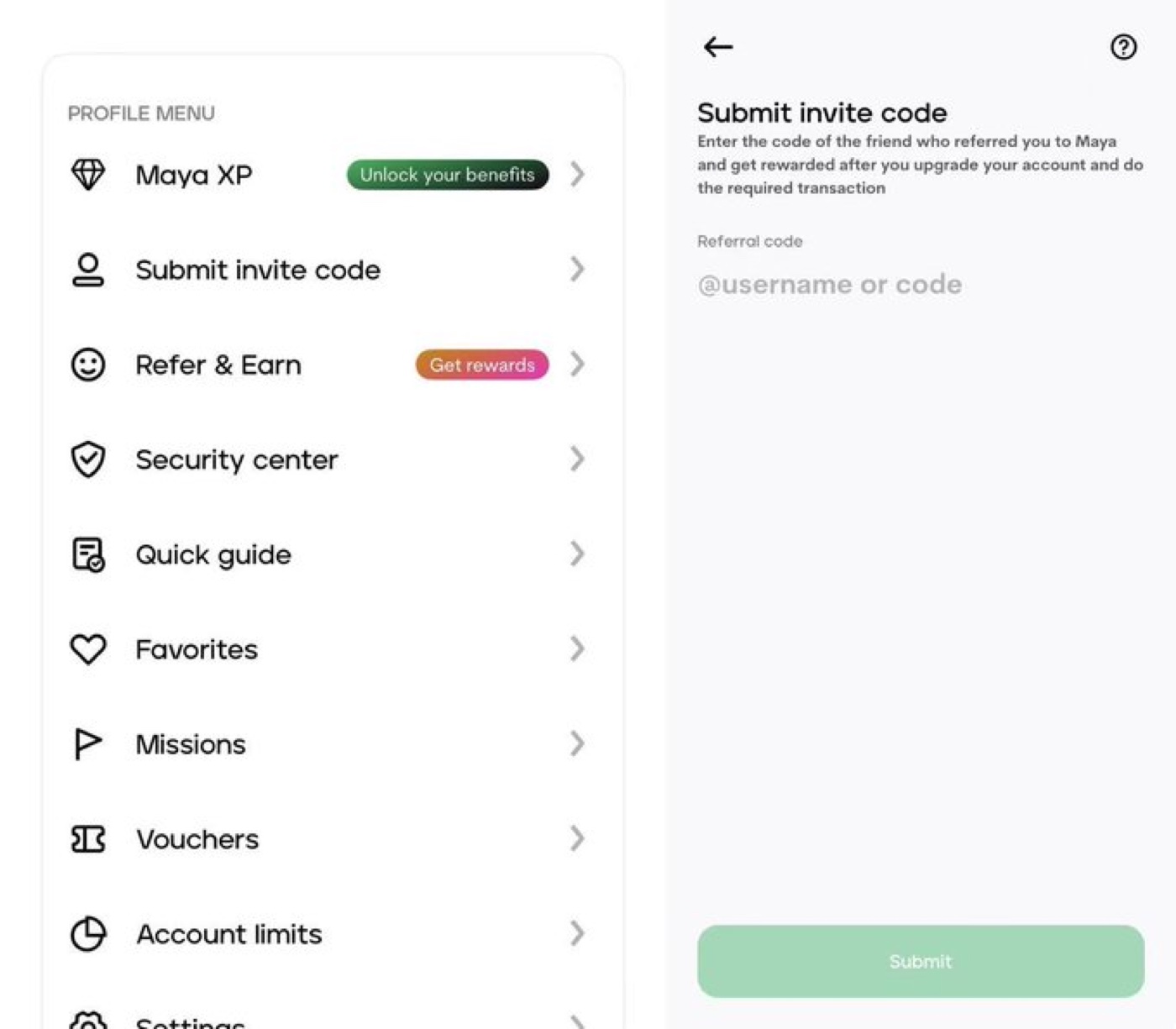
    On that welcome screen there’s a line of small text: Got an invite code? Enter code. You can also reach it later from the profile menu under Submit invite code. The reward is two-way: you get a ₱50 Maya voucher, and the referrer gets a random amount between ₱50 and ₱2,000. If you’d like to use mine, the code is @weili.

    Maya profile menu with 'Submit invite code', and the invite-code screen where you enter a username or code.

    A few things about that ₱50 so there are no surprises. To actually receive it you need to: enter the code → top up → complete the KYC upgrade → and make at least one transaction of ₱100 or more. The easiest qualifying transaction is loading airtime onto your own DITO number. The voucher is issued to your wallet within 30 days after the month you registered, and you claim it manually under Vouchers on the app home screen. Once it lands, you have 60 days to claim it or it expires.

    Disclosure: @weili is my own Maya invite code, so if you use it I may receive a referral reward from Maya (and you get your ₱50 voucher). It’s completely optional — the sign-up works exactly the same without it.

    Step 2 — Upgrading the account: the full KYC

    This is the important part. The basic account is very limited — low transfer caps, no savings account, no card. The useful stuff only unlocks after you upgrade:

    • A savings account (Maya Savings, which earns interest)
    • The ability to apply for a credit card
    • A loan line of up to ₱250,000
    • Much higher wallet limits

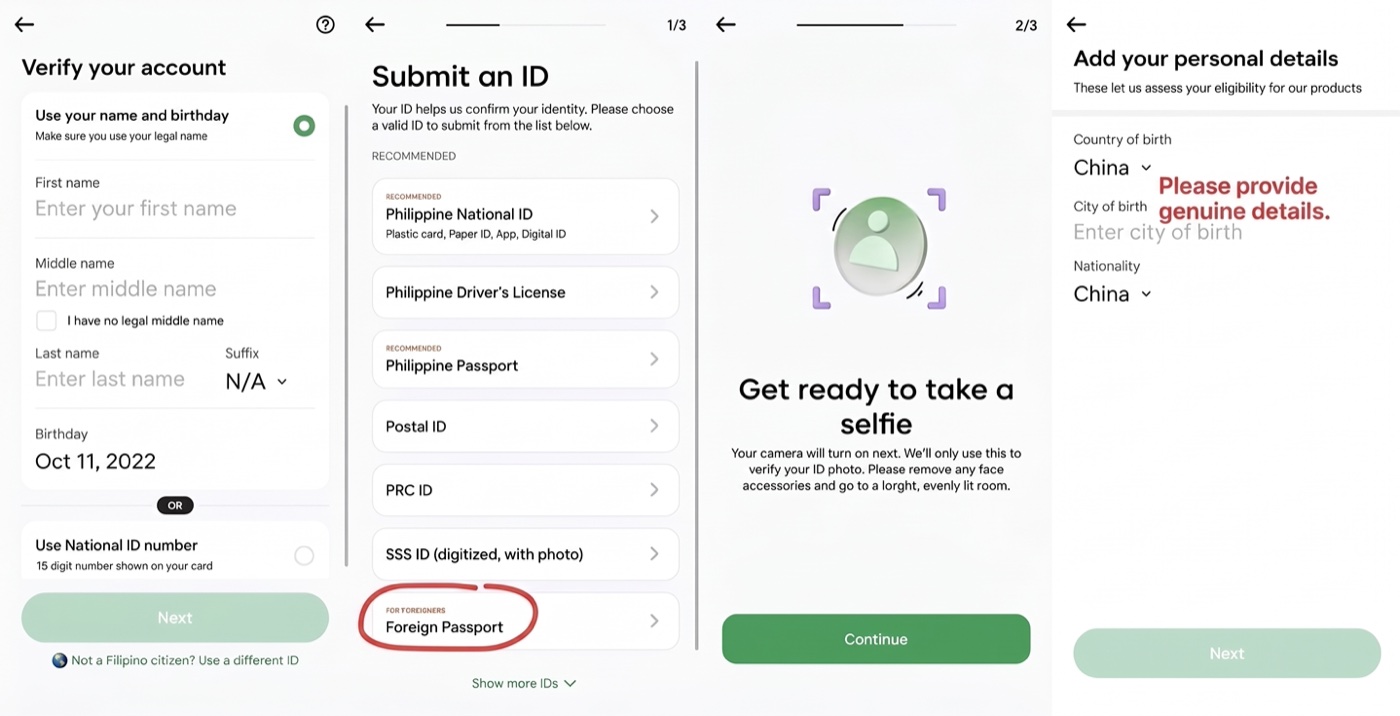
    Maya says the upgrade is three steps and needs just one valid ID. For foreigners it takes a few extra screens. On the first “Verify your account” screen, don’t fill in the name/ID fields at the top — look instead at the bottom of the page for a line of green text: Not a Filipino citizen? Use a different ID. Tap that. You’ll get a long list of IDs, almost none of which apply to us — scroll all the way to the bottom to the section marked FOR FOREIGNERS and choose Foreign Passport.

    Maya KYC: the verify screen, the ID list with 'Foreign Passport' under FOR FOREIGNERS circled, the selfie step, and the 'Add your personal details' screen.

    Next you upload your passport and record a video selfie. A few things I learned the hard way when photographing the passport photo page:

    • Shoot the physical original, not a screen — glare and moiré will break the OCR.
    • Find even lighting; don’t let a shadow fall across the two machine-readable lines.
    • Keep all four corners inside the frame — don’t crop it.

    Then comes the “Get ready to take a selfie” step — a short video selfie for liveness. After that you fill in your personal details, and here you just answer honestly: Country of birth (China), City of birth (yours), Nationality (China). These just need to match your passport — no massaging required.

    Address and work details

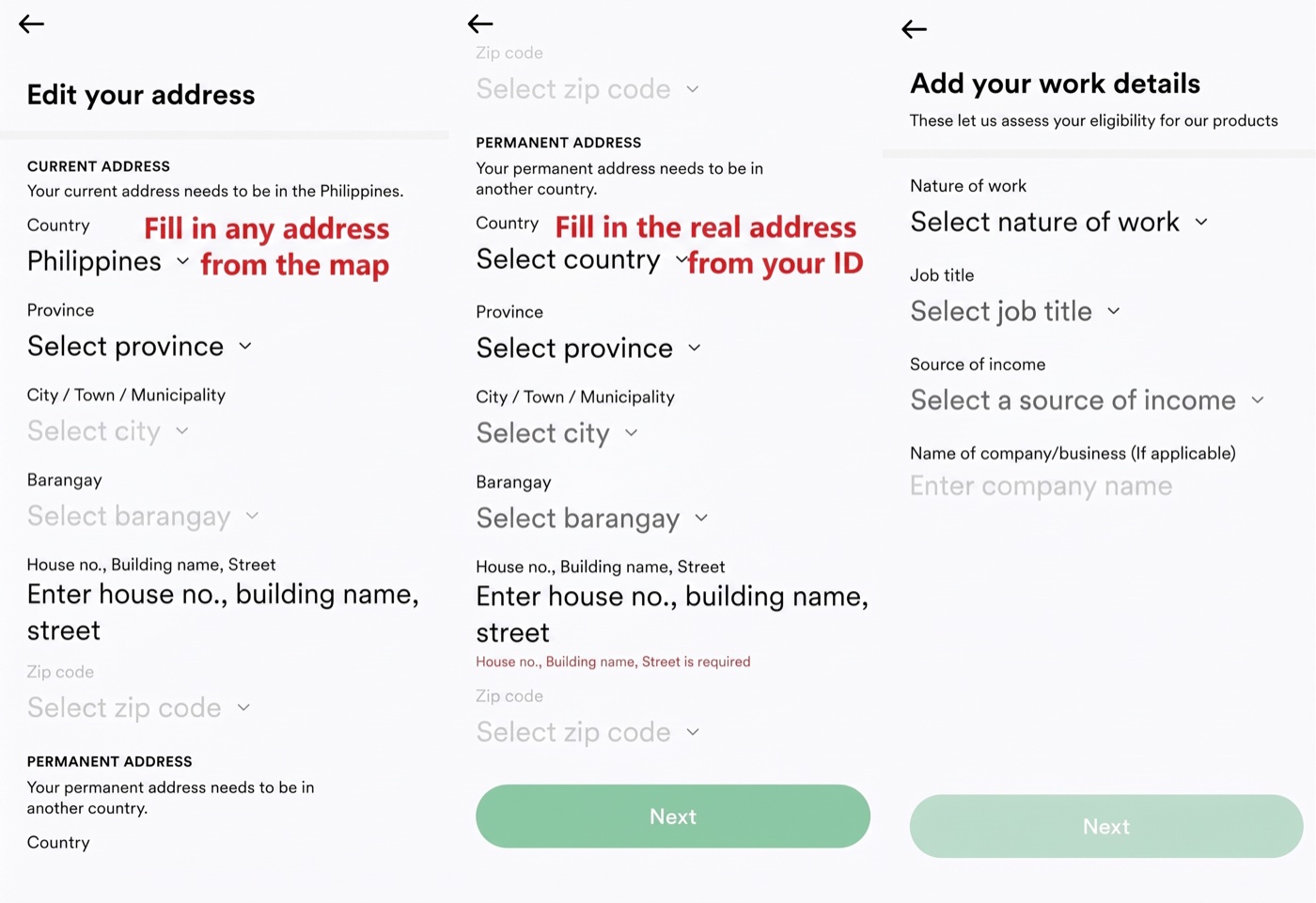
    The Edit your address screen has two parts, and it’s worth reading carefully:

    • CURRENT ADDRESS — must be a Philippine address. You pick Province → City/Town/Municipality → Barangay (the smallest administrative unit in the Philippines) → House no., building, street → Zip code. These are cascading dropdowns: the city list appears after you pick the province, and the barangay list after the city. The zip usually auto-fills.
    • PERMANENT ADDRESS — must be a country outside the Philippines. This is where you put your real address from your ID: set Country to China and fill in the province/city/street truthfully. This field is designed for foreigners, so filling it in honestly is exactly right.
    Maya KYC: the address screen with a Philippine current address and an overseas permanent address, plus the work-details screen.

    Then the work details — Nature of work, Job title, Source of income, and Name of company/business (optional). Just fill these in normally; they only affect your risk rating and later credit limits, not whether the account opens.

    Confirm and submit

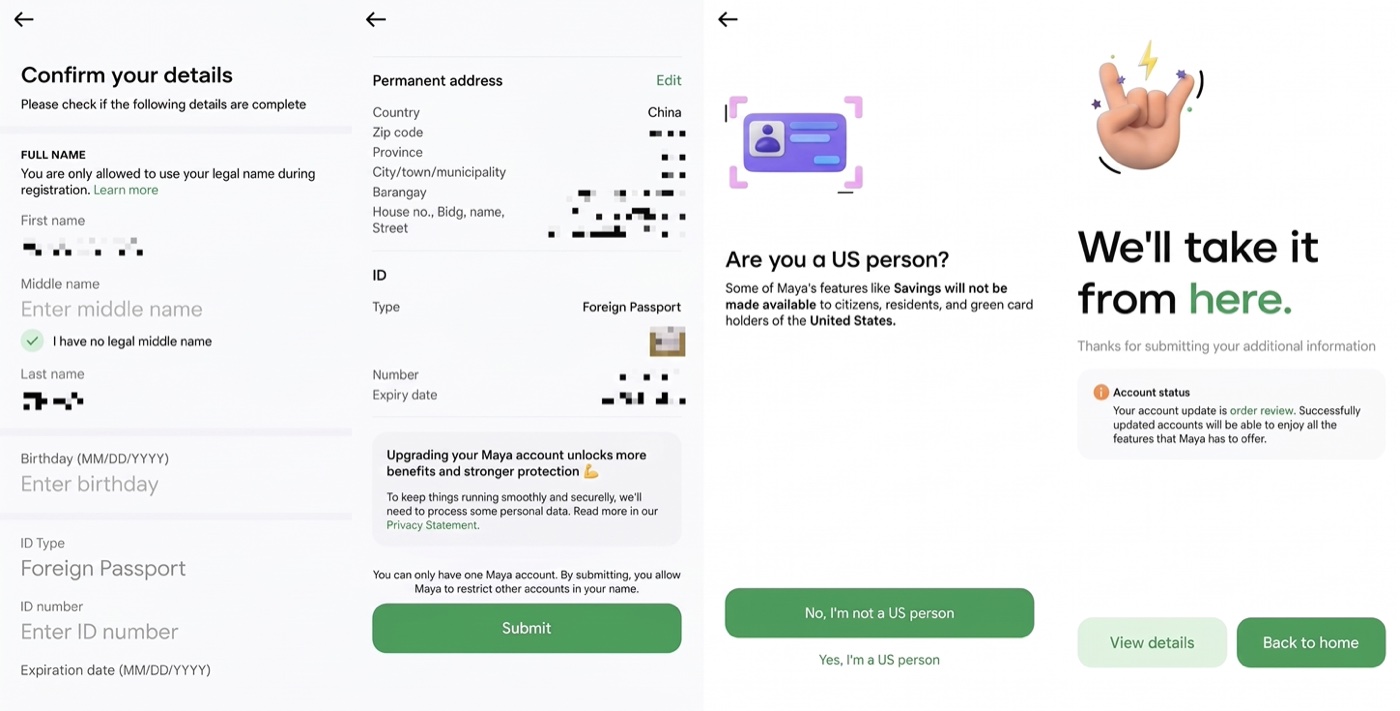
    The Confirm your details screen summarizes everything and asks for two more items: your ID number (passport number) and Expiration date (MM/DD/YYYY). Check the name once more here — this is exactly where the surname/given-name mix-up bites, so make sure it passes in one go. There’s a note at the bottom: You can only have one Maya account. Don’t try to open a second one — opening another account under the same identity can get every account in your name restricted.

    Tap Submit and you’ll hit a US tax-status question: Are you a US person? The screen states plainly that Savings and similar features are not available to US citizens, residents, or green-card holders. As mainland-passport holders we choose No, I’m not a US person. When you see “We’ll take it from here”, it’s submitted, and the status shows under review. In my case the result came back in under an hour, delivered by app push and SMS.

    Maya KYC: the confirm-details screen with Foreign Passport, the 'Are you a US person?' question, and the 'We'll take it from here / under review' confirmation.

    Common questions

    My review got rejected — now what? The three most common causes are a reversed name, a blurry passport photo, and address info that doesn’t match reality. The first two you can just resubmit; for the third, fix the address issue before trying again, since the number of retries is limited.

    What if my DITO number gets suspended? Maya’s login and transaction verification both depend on that number. If it’s cut off, the account is basically dead — so keeping the number alive matters. (That’s its own topic; I’ll cover how to keep a DITO number active separately.)

    Can I use it without KYC? Yes, but only the most basic wallet, with very low limits — no savings, no card.

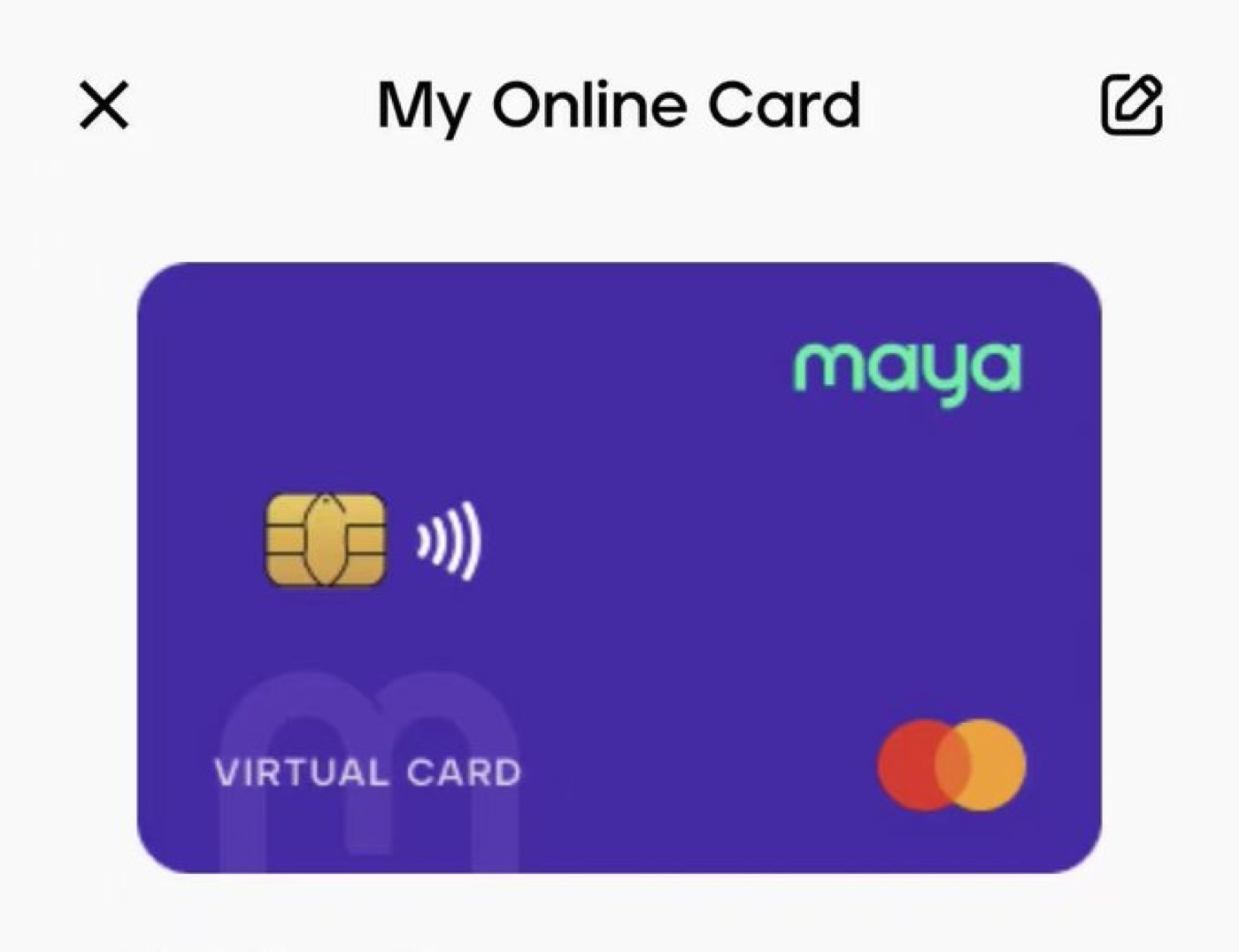
    Can I open a virtual card? Yes, after the upgrade you can open a Maya virtual card.

    Who can’t fully use it

    • US citizens / US tax persons: under US FATCA rules, Maya officially does not currently support US citizens or US tax residents opening and using Maya Savings (the interest-earning account) or Maya Funds (investments). A US passport can still pass identity verification for the basic Wallet, but the bank-side savings and investment products are restricted.
    • Sanctioned or high-risk jurisdictions: passports from countries on the FATF blacklist or under UN / Philippine central-bank sanctions (e.g. Iran, North Korea) won’t pass review.

    The Maya card

    Once the upgrade goes through, you can open a Maya card. One thing to flag up front: this card sits on the bank side, so — like Maya Savings — it isn’t available to US persons; if you hold a US passport or are a US tax resident, you won’t be able to apply for it. For everyone else, it opens after the upgrade. I’ll cover what it’s actually good for in a later piece.

    The Maya virtual card (My Online Card) — a purple Mastercard shown in the app.

    Maya’s onboarding, limits, fees, and eligibility rules change over time, and the exact screens vary by app version and region. Treat this as a snapshot of my own experience, follow the in-app instructions, and check Maya’s official app or website for the current process before you rely on any of it.

  • Starryblu: A Wise-Style Wallet That Let Me Pay Like a Local in China

    Starryblu: A Wise-Style Wallet That Let Me Pay Like a Local in China

    Just sharing what I’ve found as a fellow nomad — not financial advice, and I have no partnership with Starryblu. This is a young product that’s still rolling out, so features, fees, and availability change often; always check the official app or site for the latest.

    If you’ve used Wise or Revolut, Starryblu will feel familiar: it’s a Wise-style global payments app — a multi-currency account, international transfers, and a Mastercard. What caught my attention, though, is something most Western cards can’t do well: it actually let me pay like a local while I was in China.

    The bottom line first: right now both the virtual and physical Mastercard are reservation-only — you join a waitlist and queue for them. But you get a Singapore OCBC bank account the moment you sign up, no waiting. The reservation queue is genuinely busy at the moment, so if any of this appeals to you, there’s a case for getting in line sooner rather than later: you lock in the OCBC account today and hold your place for the cards. I’m writing this as a U.S.-based nomad sharing what has worked for me, not as a review of a finished product.

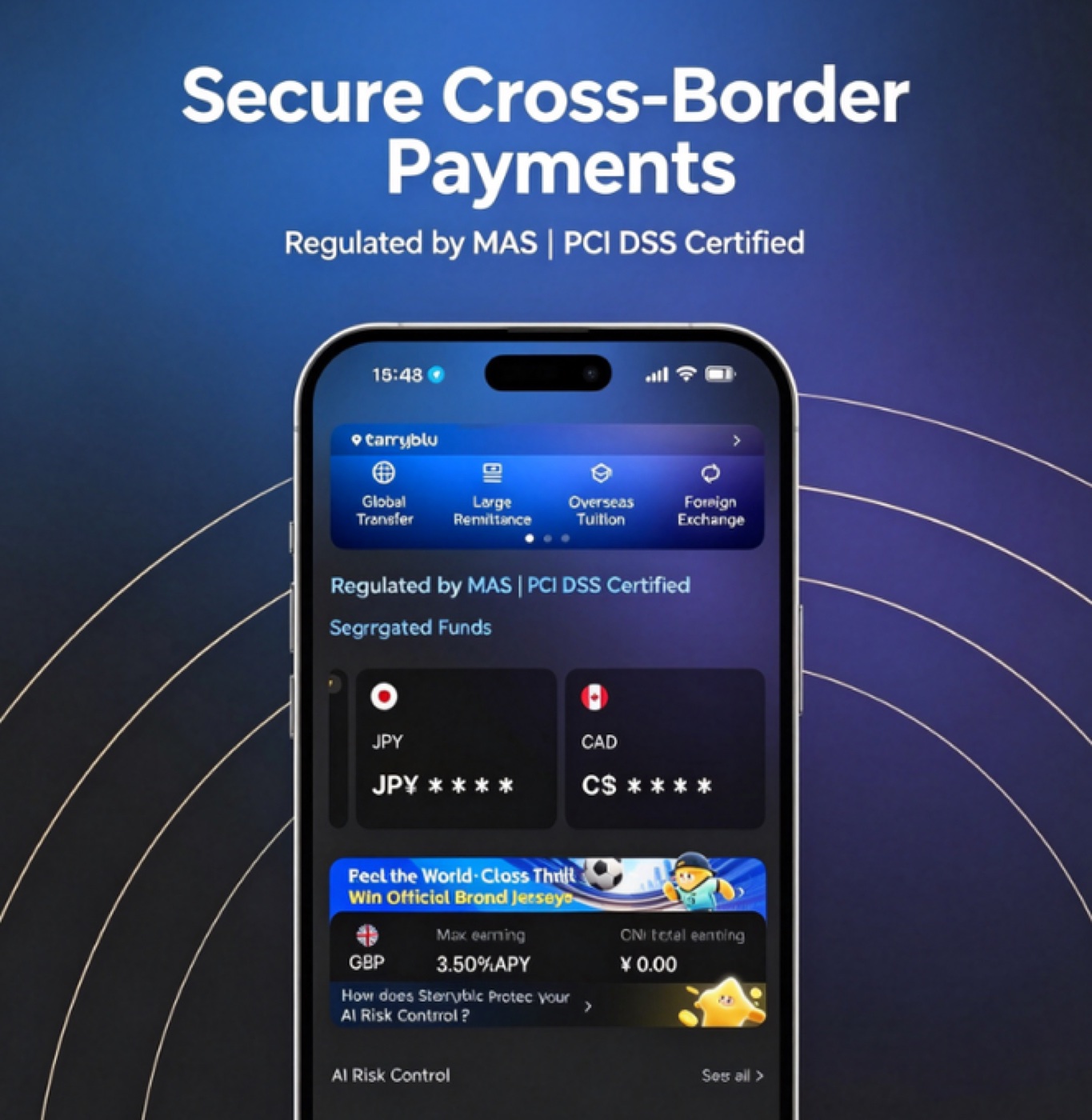
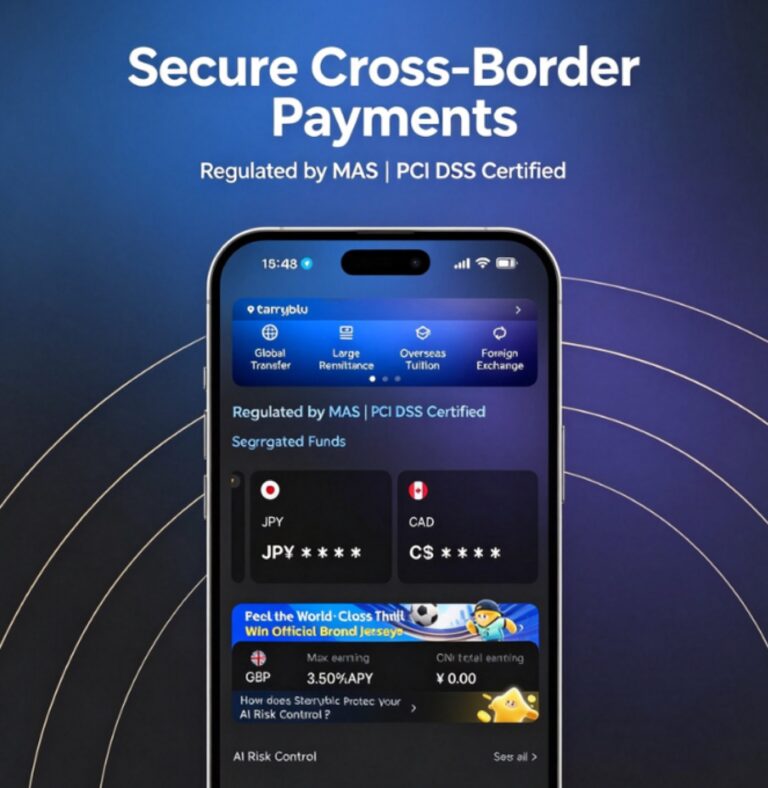
    Starryblu app promo: 'Secure Cross-Border Payments — Regulated by MAS, PCI DSS Certified,' showing multi-currency balances and a 3.50% APY on GBP.

    What is Starryblu?

    Starryblu is a product of the Singapore company WoTransfer Pte. Ltd. It comes from the same group as Panda Remit, which has been in the cross-border remittance business for years, and it holds a license from the Monetary Authority of Singapore (MAS). That background is worth mentioning: this isn’t one of those sketchy “crypto card” projects of unknown origin — it’s built on top of a licensed remittance business. It’s aimed mainly at students abroad, overseas workers, and digital nomads — people who move money across borders a lot.

    The core features

    • Multi-currency account: hold 10+ currencies in one account — USD, GBP, EUR, HKD, JPY, SGD, and more. Free to open, no monthly fee.
    • International transfers: send to 40+ countries at rates close to the mid-market rate. The company says more than half of transfers land within 20 seconds.
    • Local receiving account: you can apply for your own Singapore SGD account details and get paid like a local, with plans to add European and Australian accounts later.
    • Mastercard (reservation-only for now): both the virtual and physical cards are currently by reservation — you join a queue. The card runs on a Singapore BIN (22800118), and the physical card uses a “planet universe” theme design, meant for payments and ATM withdrawals in 40+ countries.
    • An OCBC account right away: the sign-up itself gives you a personal IBAN with Singapore’s OCBC bank immediately — no queue — and it already supports funding via U.S. ACH transfers.

    The part that sold me: paying in China

    Here’s the problem every American runs into in China: your U.S. credit cards, Apple Pay, Google Pay, and PayPal are barely accepted. Almost everything runs on WeChat Pay and Alipay instead, so you land with a wallet full of cards you can’t actually use.

    Starryblu is one way around that. Its feature page directly lists WeChat Pay binding and tap-to-pay — covering metro, bus, ride-hailing (Didi), gas stations, malls, and supermarkets. I tried it myself while in China and was able to pay directly with Starryblu at the live exchange rate, without the usual hassle of converting currency ahead of time. In practice it behaves like one more overseas Mastercard that also covers everyday spending inside China — in the same conversation as cards like KAST or Plasma One.

    Worth repeating: the cards are reservation-only right now, and a lot of this is early-stage. Treat what I describe as a snapshot of what I’ve seen, not a guarantee of how it’ll work for you.

    How to sign up

    You can register through the Starryblu official site or app. If there’s an invite-code field, you can use MWQK001. Signing up is quick and gets you the OCBC account straight away, then you can reserve your spot for the cards — and given how busy the queue is right now, doing that early is the whole point.

    A note on that code: MWQK001 is just a working invite code I found online and am passing along as a small perk for readers. I have no partnership or commercial arrangement with Starryblu and don’t earn anything from it — I’m sharing this purely as a regular digital nomad. Whether the code still works, and any bonus it gives, is up to Starryblu at sign-up.


    Starryblu is a new and evolving product — regulation, fees, card availability, and supported features can all change, and the cards are currently reservation-only. Please go by the current information in the official app or on Starryblu’s website, and do your own checks before moving money.

  • Xesim: eSIM for Phones That Still Have a Physical SIM Slot

    Xesim: eSIM for Phones That Still Have a Physical SIM Slot

    Just sharing my own experience — not advice. Prices, versions, and shipping details can change at any time, so always check Xesim’s official site for the latest.

    When you’re working abroad or living out of a suitcase, the phone-number problem is the annoying one: swapping SIM cards every time you land in a new country, and having no way to keep a home number active for verification codes while you’re away.

    Here’s the catch a lot of people run into: most new US iPhones are now eSIM-only — Apple dropped the physical SIM tray a few generations back. But a huge number of phones still use a physical SIM: most Android phones with a SIM slot, and older iPhones that still have a tray. If your phone takes a physical card, Xesim is a neat little fix.

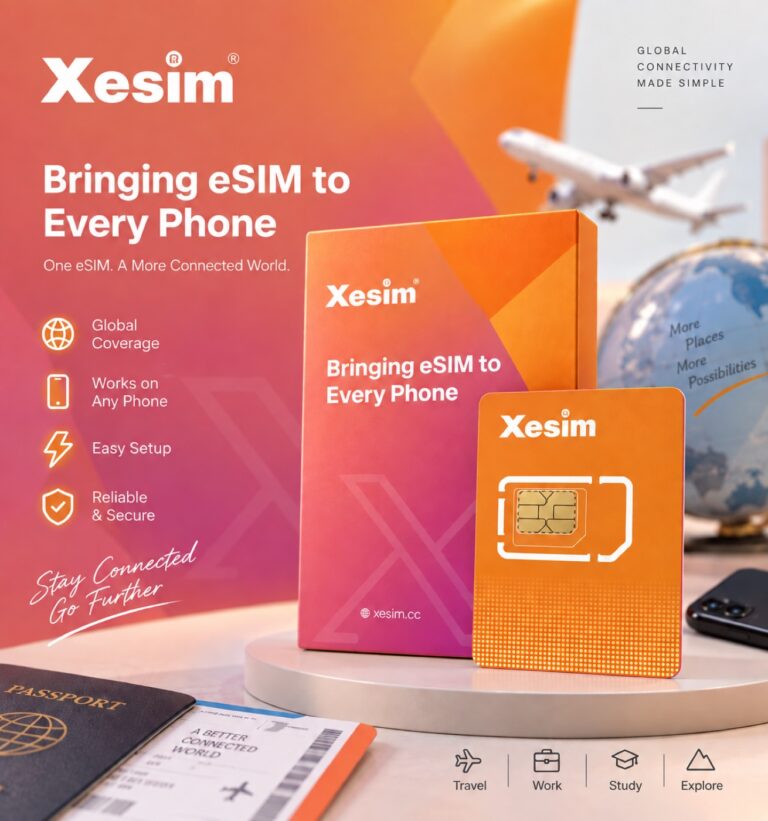
    Xesim looks and installs exactly like an ordinary SIM card. You pop it into your phone’s SIM slot and your phone suddenly gains eSIM powers — even if it never supported eSIM on its own.

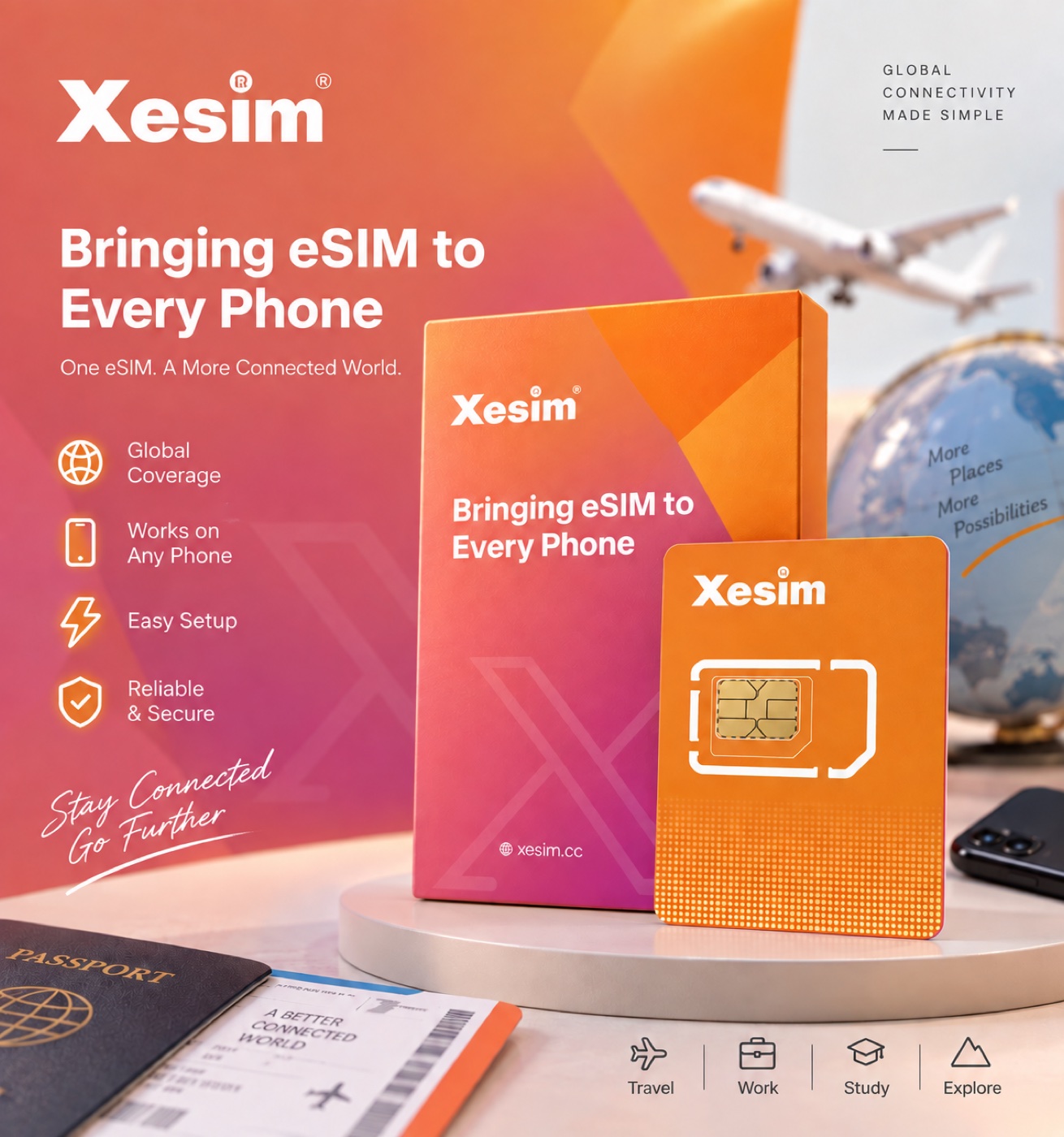
    The Xesim physical card and its box — 'Bringing eSIM to Every Phone' — it looks just like an ordinary SIM card.

    What it lets you do:

    • Store several numbers/plans on one card and switch countries without swapping SIMs — just tap to switch in the app.
    • Keep one fixed number for verification codes and banking apps, while running a separate local data plan for internet.
    • Stay off any single carrier — buy eSIM plans freely from providers like Airalo or Ubigi.

    Who it’s for:

    • Anyone whose phone has a physical SIM slot — most Android phones, and older iPhones with a tray.
    • Frequent travelers who want to switch local data plans without hunting down a new SIM each time.
    • People who just want to keep one long-term overseas number for verification codes and sign-ins.

    Heads up: if your phone is already eSIM-only — like a new US iPhone with no SIM tray — Xesim is a physical card, so it simply won’t fit. It’s made specifically for phones that still take a physical SIM.

    Also note: the card itself comes with no data. After you insert it, you still need to buy an eSIM data plan separately and load it onto the card before you can get online.

    Which version to get

    The site sells three versions — X1 / X2 / X2 Pro — priced at $16 / $29 / $36. The main differences are how many eSIMs you can download onto the card, and whether you need an Android phone to load the very first eSIM:

    • Just want one fixed number and occasional travel data: get the X1 — the cheapest.
    • Travel often and switch local plans a lot: get the X2 — it stores more eSIMs.
    • About that first eSIM download: an iPhone can’t write the first eSIM onto the Xesim card directly — you need an Android phone to do the initial download, then move the card back to your iPhone. If you don’t have an Android phone, get the X2 Pro — it ships with a bit of built-in data so it can complete the first eSIM download on its own, no Android needed. (That built-in data is time-limited; check with official support for specifics.)
    Xesim version comparison: X2 Pro $36, X2 $29, X1 $16 — each can store up to about 30 eSIMs.

    How to order (step by step)

    1. Open the official site: Xesim (use discount code ZWQ66 at checkout for a small discount).
    2. Click the person icon at the top right and choose “Start here” to open the sign-up page.
    3. Register with your email, set a password, and finish creating the account.
    The Xesim official website home page.
    Xesim login popup — new users click 'Start here'; the page notes you can store up to about 30 eSIMs.
    Xesim create-account form: name, email, and password.
    1. Go to the product page, pick your version (X1 / X2 / X2 Pro), and add it to the cart.
    2. Enter your shipping address. Note: the store ships within mainland China, so you’ll need a China delivery address and a valid local phone number.
    3. Choose a shipping method — standard is usually free (2–5 business days); remote regions may cost extra, and express options are available if you’re in a hurry.
    Xesim checkout page with the shipping-address fields, coupon box, and the X2 Pro order summary.
    Xesim checkout page showing shipping options and payment methods (Alipay, WeChat Pay).
    1. Choose a payment method — Alipay and WeChat Pay are supported.
    2. Enter discount code ZWQ66 in the coupon box and click apply.
    3. Check the total and complete payment.
    4. Wait for delivery — usually 2–5 business days, depending on the courier.
    Order summary with the discount code applied — the X2 Pro drops from $36 to $32.40.

    Using it once it arrives

    1. Insert the card into your phone’s SIM slot.
    2. Download the first eSIM:
      • Android: install the official app, then scan the QR code or enter the activation code.
      • iPhone: Settings → Cellular → SIM Applications → Xesim, then follow the prompts.
    3. Activate the eSIM you want in the app or your phone’s menu, and you’re online. Switch plans later from the same place.
    The Xesim app eSIM screen — switch between SIM1/SIM2 and manage downloaded eSIMs.

    A quick tip: the card has no data of its own — after activating, buy an eSIM plan from a provider like Airalo or Ubigi and load it on. And before downloading a new eSIM, turn on mobile data and data roaming first, or the download tends to fail.

    Where to buy: Xesim official site  ·  Discount code: ZWQ66

    The code ZWQ66 is a working discount code I found online, shared here as a small perk for readers — I don’t earn any commission from it. Whether it works, and how much it saves, is whatever the site shows at checkout.


    Prices, versions, and shipping details can change over time — always go by the real-time information on Xesim’s official site.

  • Welcome — just sharing my notes

    Hi, and welcome to NomadStack. This is a personal site where I share notes from living and working across borders — mostly how I went about signing up for things: overseas bank accounts, phone numbers, using crypto to pay for digital services, and looking into second-residency options.

    A few honest caveats before you read anything here:

    • These are my own experiences — not professional, financial, or legal advice.
    • They are not complete, and what worked for me may not work for you.
    • Requirements and approvals change often — a guide can be out of date by the time you read it, so always check the current official rules yourself.

    With that said, I hope a few of these notes save you some time. More on the way.

  • Wise: An Essential Tool for Every Digital Nomad

    Wise: An Essential Tool for Every Digital Nomad

    Just sharing what has worked for me — this isn’t financial or legal advice. Fees and rates change over time, so always check Wise’s website or app for the latest.

    Whether your clients are overseas, your kid is studying abroad, or you’re the one living out of a suitcase — the moment money crosses a border, Wise can usually save you a chunk of it. Here’s a quick, plain-English rundown of how it works and how I use it.

    Wise's global coverage: sending money in local currencies to countries like the UK, Germany, Japan, China and more.

    1. Why are traditional cross-border transfers slow and expensive?

    Traditional wire transfers run on the SWIFT network. Your money hops through several intermediary banks, and each one shaves off a fee along the way. Worse, that total is a black box — you have no idea how much will actually land until it’s already gone.

    2. How does Wise solve this?

    Wise keeps local pools of money in most major countries. So when a client in the UK pays you, the money doesn’t actually fly across the Atlantic — Wise simply pays you an equivalent amount from its U.S. pool. The money never really “leaves the country,” there are no intermediary banks taking a cut, and transfers land almost instantly.

    Diagram of how Wise's local balance network keeps money inside the country on each end, making transfers fast, low-cost and transparent.

    3. Wise vs. PayPal

    • PayPal: a closed wallet. Both sides need an account, and withdrawing or converting money comes with steep rates.
    • Wise: far more open. You get real local account details in multiple countries (a U.S. routing number, a UK Sort Code, a euro IBAN). When someone pays you, it feels like paying a local — at a tiny fraction of the cost.

    4. The real killer feature: the mid-market rate

    Banks and PayPal make most of their money on the exchange-rate spread, not the fee you can see. Wise uses the real mid-market rate — the exact one you’ll find on Google — and charges a single small, transparent fee, with no hidden markup.

    The money-saving combo: receive money for free through local accounts, then convert it at a great rate with minimal loss. That’s why people call Wise a cheat code.

    5. The debit card + earning on your USD

    • Debit card: spending abroad and ATM withdrawals settle at the mid-market rate, so you’re not paying to convert twice.
    • Earn on USD: U.S. users can choose to earn a yield on their USD balance, so money parked there in transit can pick up a little interest too (the current rate is whatever the app shows in real time).
    The Wise debit card — spend in 170+ countries at the mid-market rate — plus earning interest on a USD balance.

    6. Is it safe?

    Wise is a regulated Money Services Business (MSB) in the U.S., and is regulated by the FCA and others in the UK — held to bank-level compliance standards. That said, I treat it as a tool for moving and spending money, not a place for large, long-term deposits.

    7. Who is it for?

    • Freelancers taking orders from overseas clients
    • People living abroad long-term with U.S.-based income
    • Small business owners juggling income across several countries
    • Parents sending living costs or tuition to a child studying abroad (see the example below)

    8. A real example: sending money to a child studying in the UK

    Heads up: Wise only offers personal and business accounts — there is no family account. Parents and children each open their own separate Personal account.

    Three steps:

    1. U.S. bank → your own Wise account (you top it up from an account in your own name — this is the one “same-name” rule to watch for).
    2. Convert USD to GBP inside the account (mid-market rate + a small, transparent fee).
    3. GBP balance → your child’s UK account (local clearing, free and near-instant; the recipient is your child, so the “same-name” rule doesn’t apply here).

    Take $1,000 as an example: a traditional bank wire loses roughly $27–31, while going through Wise costs about $3–8 — cutting the loss from about 3% down to around 0.5%. On a big expense like tuition, that same ratio scales up to tens or even hundreds of dollars saved in a single transfer.

    Three-step example: a U.S. parent sending money to a child studying in the UK with Wise versus a traditional bank wire.

    And this logic isn’t just for parents paying tuition. Whether you’re a freelancer invoicing European clients or a nomad with income scattered across several countries, it’s the same idea: let the money land in a local account first, then convert it at the real rate with minimal loss. Get this down, and your money moves around the world almost loss-free — like this father’s transfer — instead of quietly getting skimmed by a bank every time it crosses a border.

    9. Getting started

    👉 Sign up for Wise here

    (That’s my personal referral link — if you sign up through it, I may get a small bonus at no extra cost to you.)

    More advanced tips — like little tricks for shaving down conversion costs — are coming later. Stay tuned.


    Fees, interest rates, and other details can change over time — always go by the real-time figures on Wise’s website or in the app.